

How to Install & Set Up
HotPlayer IPTV
Looking for an IPTV player that works across an incredible variety of devices? HotPlayer is one of the most widely compatible IPTV players we've come across.
This guide will show you how to install HotPlayer, find your device MAC address, connect your IPTV service using Xtream Codes, and start watching Live TV, Movies and TV Series.
One IPTV Player for Tons of Devices
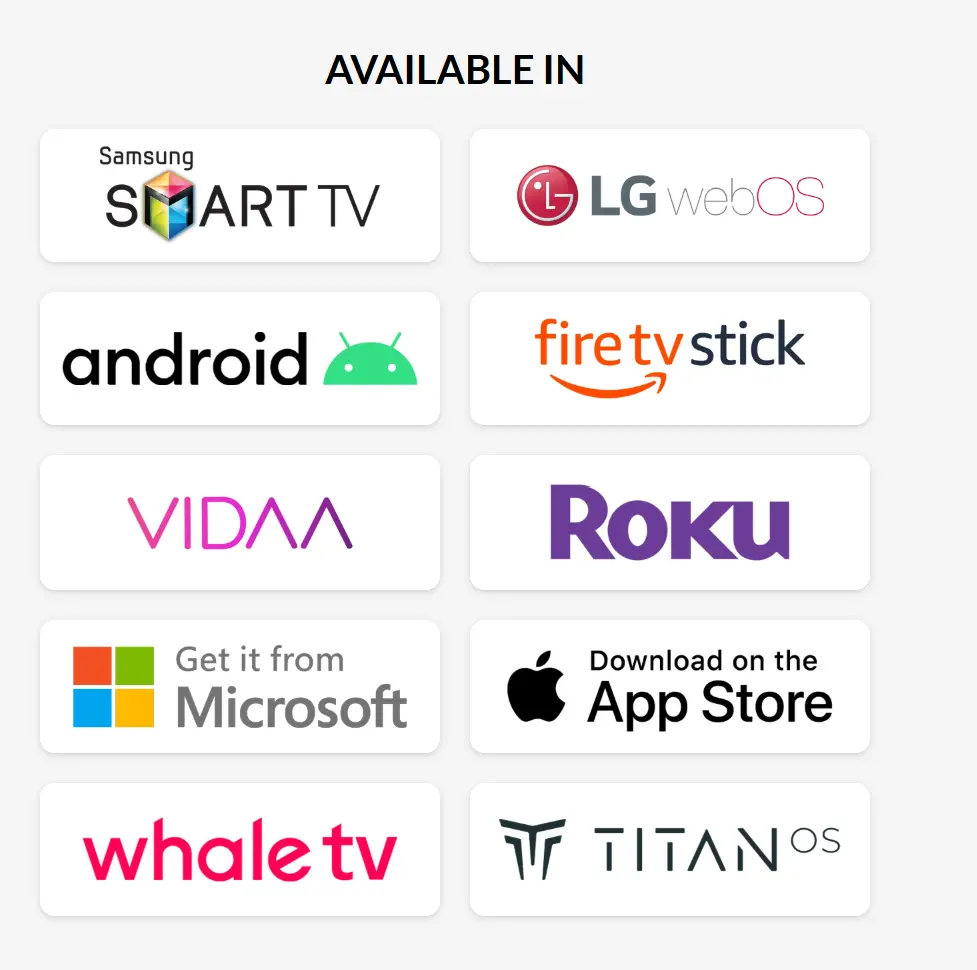
One of the biggest reasons we're excited about HotPlayer is its device compatibility. Instead of needing a completely different IPTV player for every television or streaming device in your home, HotPlayer is available across a wide range of popular platforms.
Why We Like HotPlayer
Device compatibility is one of the biggest headaches with IPTV players. An app that works on one television may not exist on another. HotPlayer makes things much easier by supporting numerous popular smart-TV and streaming platforms.
HotPlayer is an IPTV/media player. Installing the application by itself does not provide television channels, movies or TV shows. You must connect your own compatible IPTV service or playlist.
Get an Instant FREE 36-Hour Xtreme HD IPTV Trial
Don't have IPTV login information yet? Get a FREE 36-hour Xtreme HD IPTV trial from XtremeDiscount and use the provided Server URL, Username and Password with HotPlayer.
🔥 START MY FREE 36-HOUR IPTV TRIAL
No payment information • No personal information • Instant activation
✅ Before You Begin
Setting up HotPlayer is surprisingly simple. Before starting, you'll need:
If you're an XtremeDiscount customer or free-trial user, your IPTV login information contains the credentials you'll need during this guide.
Search for HotPlayer in Your App Store
Start by opening the app store on your television, streaming device, phone or other compatible platform and search for:
Locate the HotPlayer application in your device's app store and install it.
App-store layouts and installation buttons vary depending on your television or device. Search for HotPlayer by name and confirm you're installing the correct player.
Open HotPlayer & Find Your MAC Address
Once HotPlayer finishes installing, open the application.
On the welcome screen, HotPlayer will display a MAC address for your device.
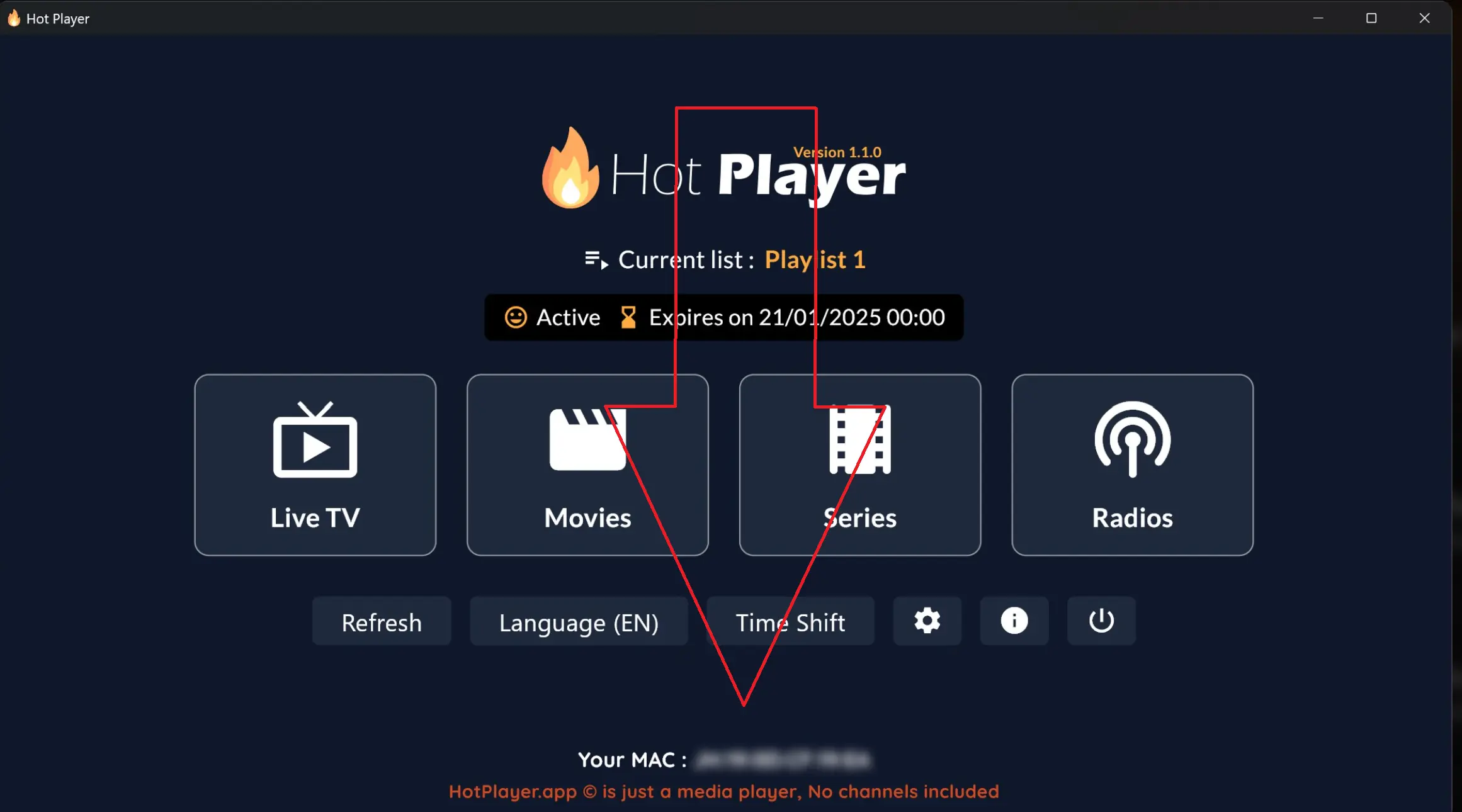
You'll need the MAC address displayed by HotPlayer in the next step.
Go to the HotPlayer Upload Page
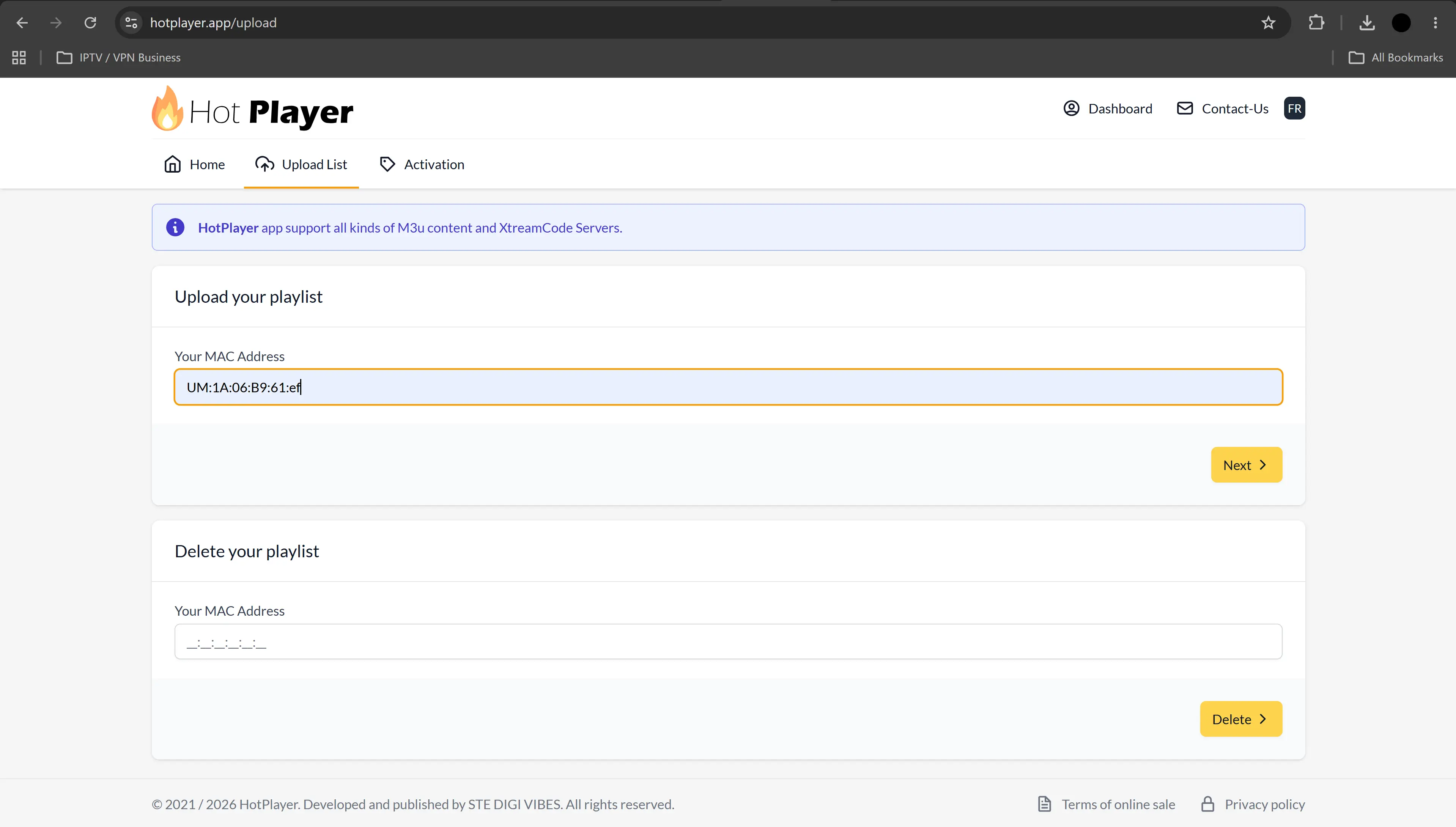
Using your phone, computer or another device with a web browser, visit:
Enter the MAC address shown inside your HotPlayer app into the Upload Your Playlist section.
Then choose Next.
Select Xtream Codes & Enter Your IPTV Login
When the playlist page opens, look for the option that says Link. Click or tap it and change the playlist type to Xtream Codes.
Once Xtream Codes is selected, enter your IPTV information:
Enter any name you want, such as XtremeDiscount.
Enter the Server URL provided with your IPTV service.
Enter your IPTV username.
Enter your IPTV password.
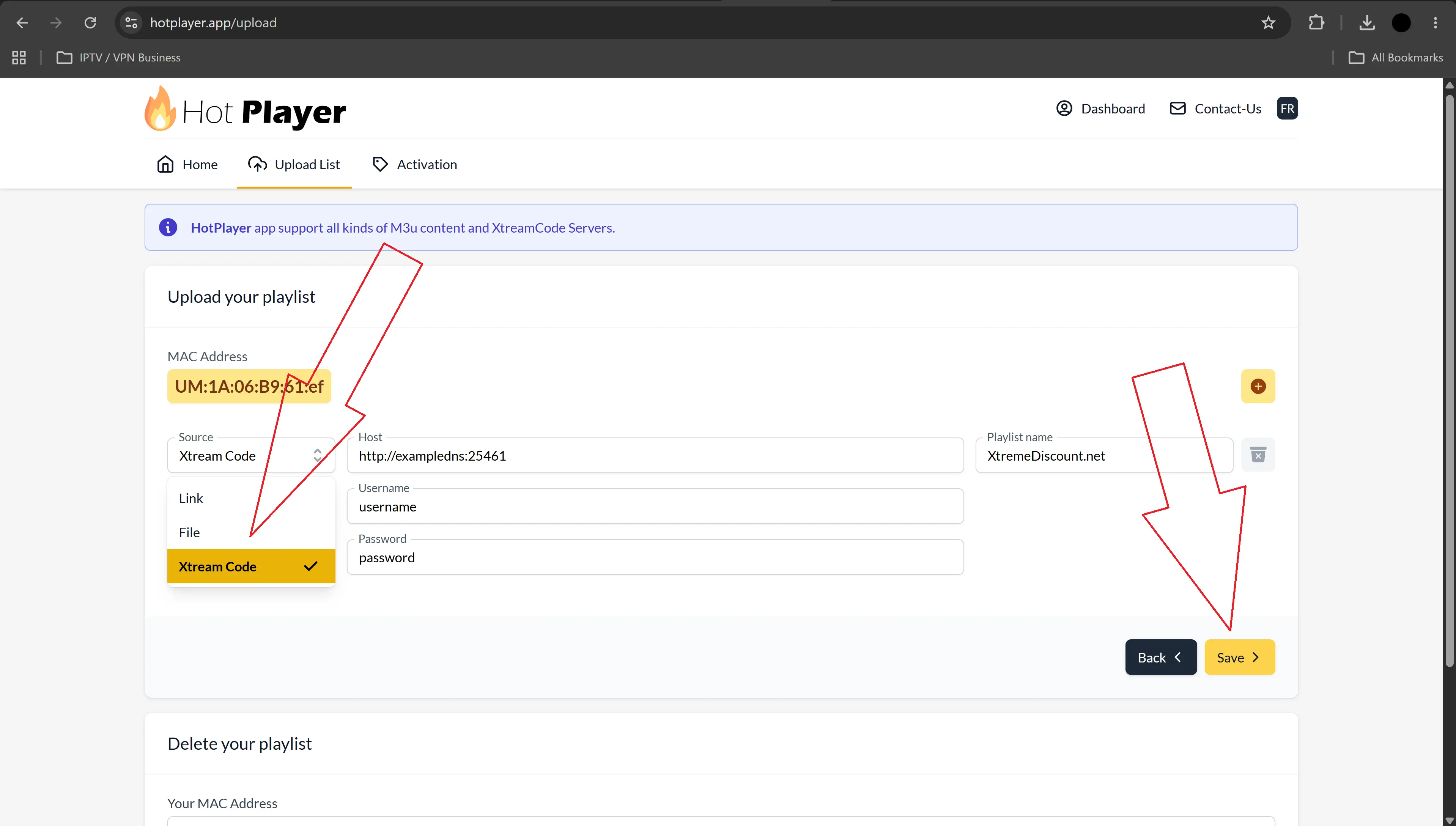
Use the Server URL, Username and Password provided with your Xtreme HD IPTV subscription or free trial.
Get an instant FREE 36-hour Xtreme HD IPTV trial and receive the Server URL, Username and Password you need to complete your HotPlayer setup.
36-hour trial • No payment information • No personal information • Instant activation
Save Your Playlist & Refresh HotPlayer
After confirming your playlist information, choose Save.
Return to the HotPlayer app on your television or streaming device.
Use HotPlayer's Refresh option.
Completely close HotPlayer and reopen the application.
HotPlayer should now load the playlist you just added.
Your IPTV playlist is now connected and ready to use.
👀 Using HotPlayer
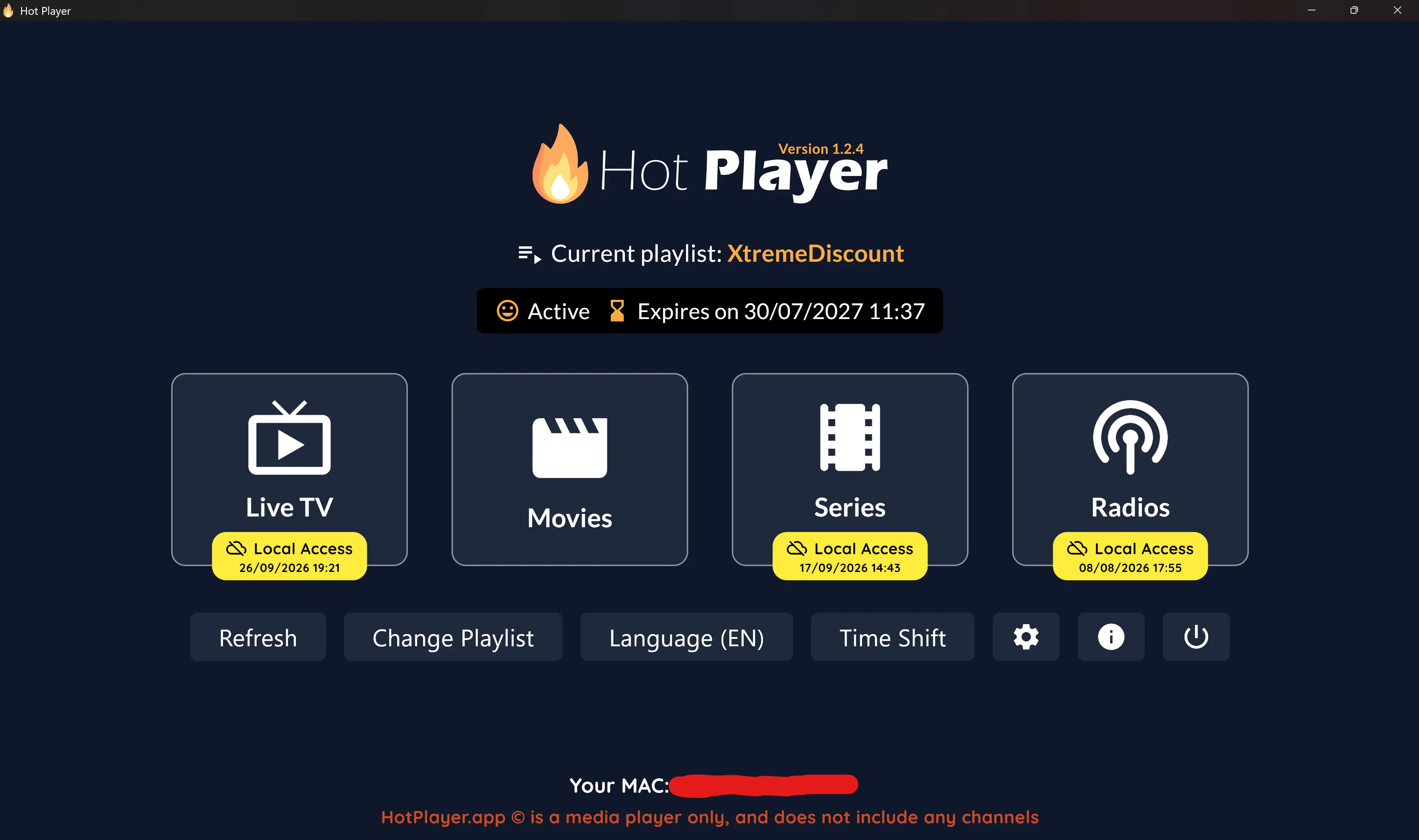
Once your playlist loads, HotPlayer organizes the available content into an easy-to-navigate interface.
🏠 HotPlayer Home Screen
From the main screen, you can access sections such as Live TV, Movies, TV Shows and Radio when those categories are available through your playlist.
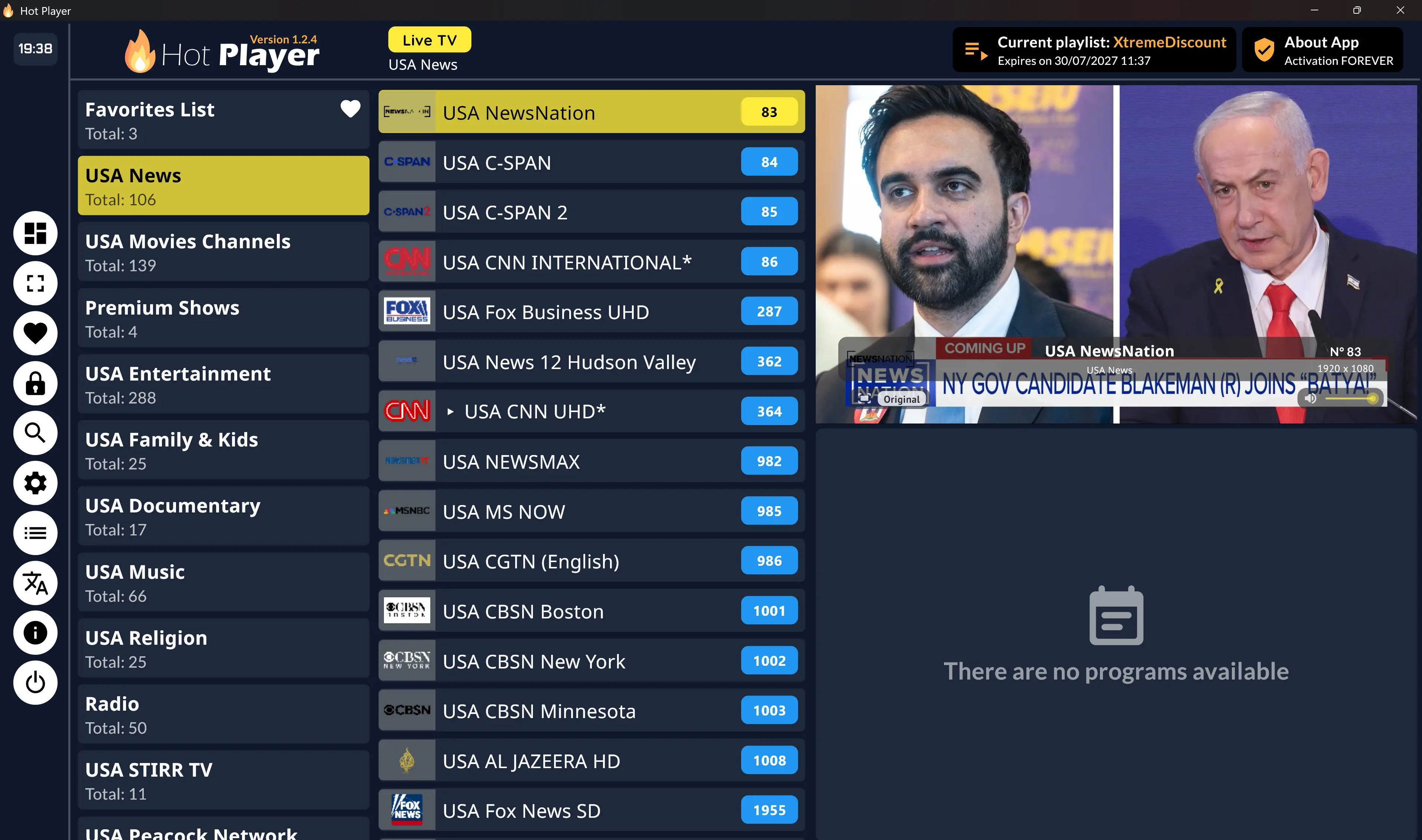
📺 Live TV
Open Live TV to browse the live television channels and categories included with your IPTV playlist.
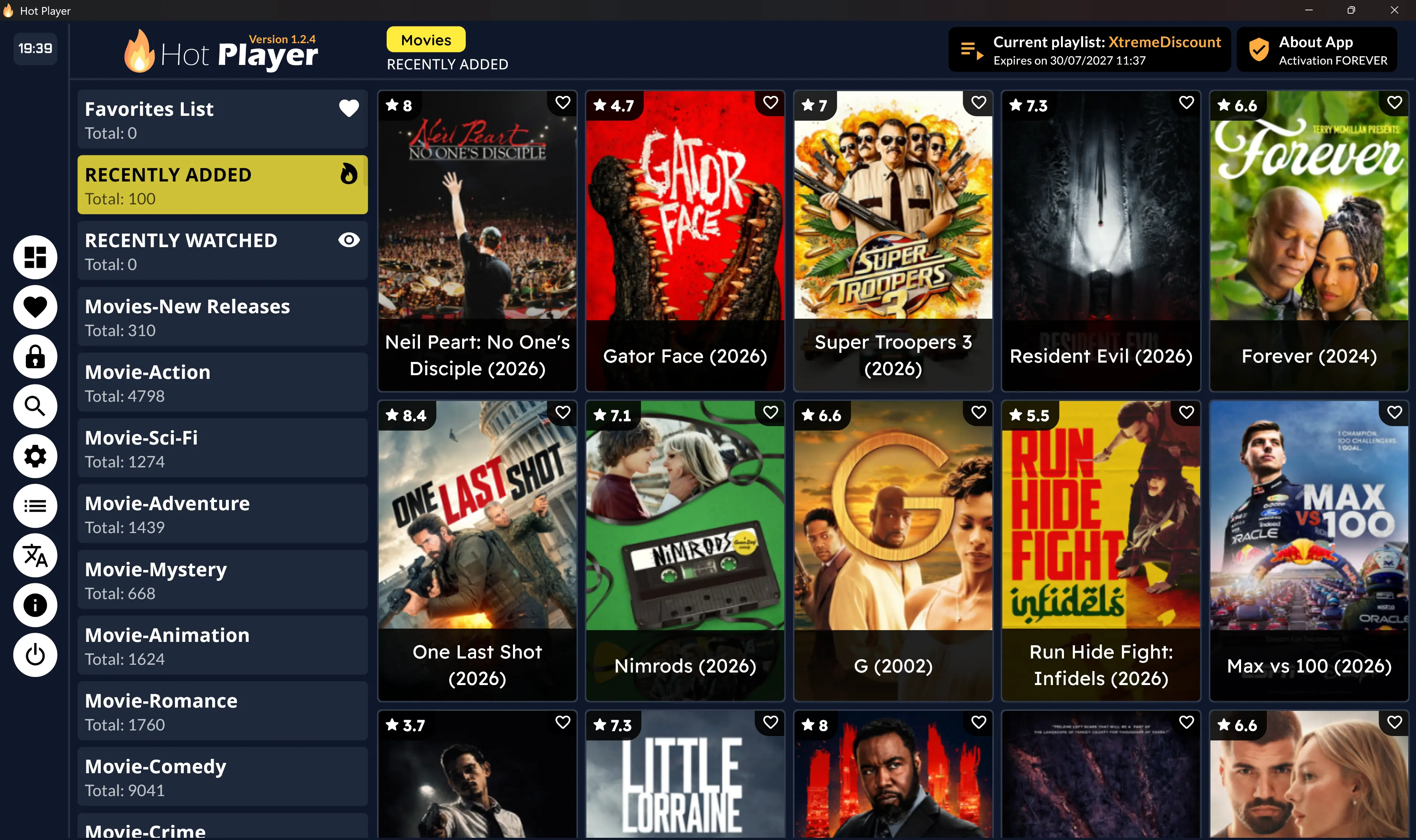
🎬 Movies
The Movies section organizes the on-demand movie library supplied through your IPTV playlist.
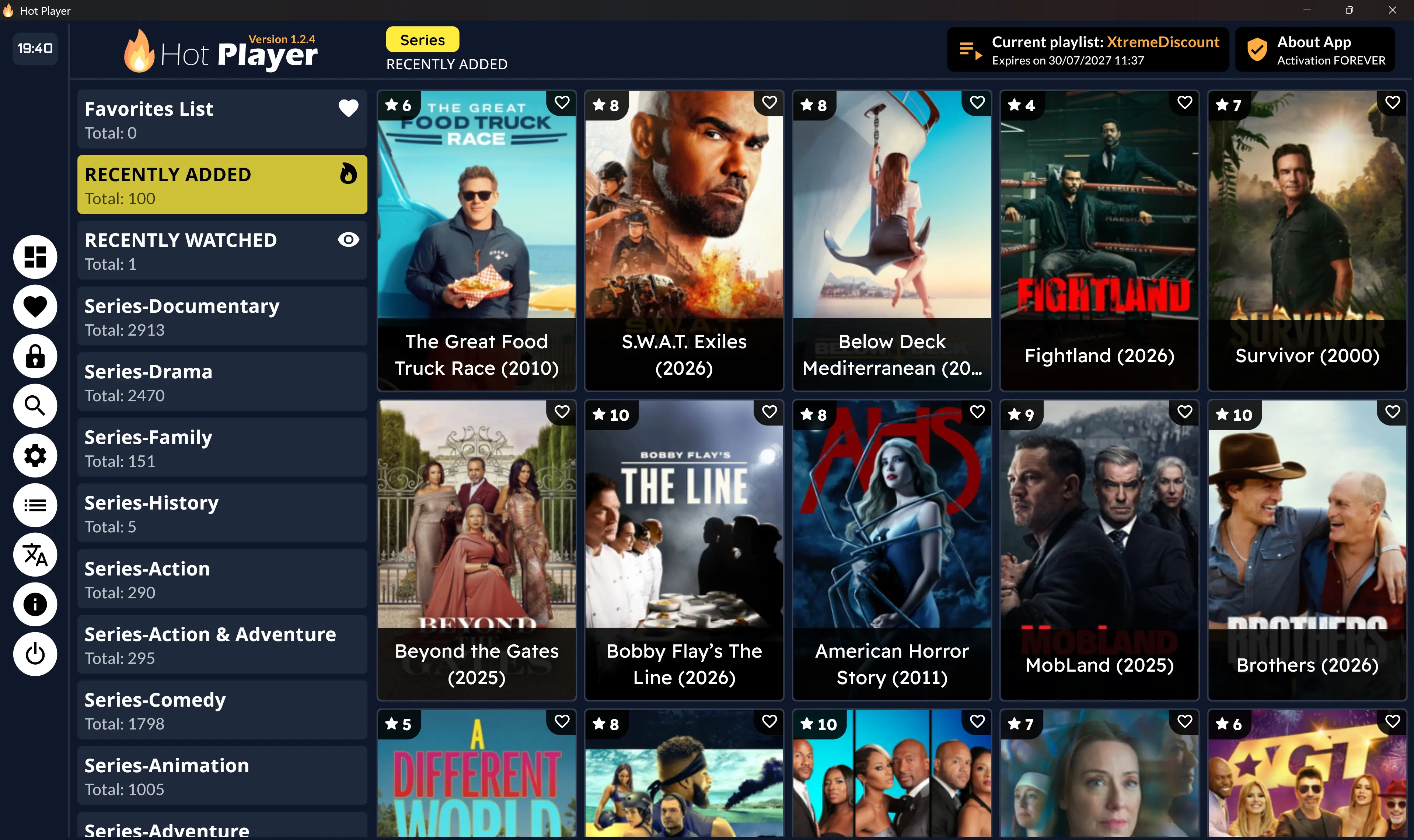
🍿 TV Series
Open the TV-series section to browse available shows and episodes included with your IPTV playlist.
🔥 Why HotPlayer Is Worth Trying
There are many IPTV players available, but HotPlayer stands out because of its broad device support and straightforward playlist setup.
The exact content available inside HotPlayer depends entirely on the playlist or IPTV service you connect to the application.
🛠️ HotPlayer Troubleshooting
I Can't Find HotPlayer
Search your device's application store for HotPlayer. Availability can vary depending on the device model, operating system and region.
My MAC Address Isn't Accepted
Carefully compare the MAC address on the HotPlayer welcome screen with what you entered on the HotPlayer upload website. Make sure every character and separator matches.
My Playlist Isn't Showing
After saving the playlist, return to HotPlayer and use the Refresh option. If it still doesn't appear, completely close the application and reopen it.
My IPTV Login Isn't Working
Verify your Server URL, Username and Password carefully. Check for missing characters, extra spaces or an incorrect server address.
I Selected Link Instead of Xtream Codes
Return to the playlist setup page and change the playlist type from Link to Xtream Codes. Then enter the Server URL, Username and Password supplied by your IPTV provider.
Channels Are Buffering
Buffering can be caused by Wi-Fi interference, internet speed, network routing, device performance or the connected IPTV service. Restart the device and router and test Ethernet when available.
Try Xtreme HD IPTV FREE for 36 Hours
Get your IPTV login information instantly and use the Server URL, Username and Password with the HotPlayer setup you just completed.
🚀 START FREE 36-HOUR IPTV TRIAL
No payment information • No personal information • Instant activation
❓ HotPlayer Frequently Asked Questions
What is HotPlayer?
HotPlayer is a media player that allows you to connect and play your own compatible IPTV playlist. HotPlayer itself does not provide television channels, movies, TV shows or an IPTV subscription.
Does HotPlayer provide IPTV channels?
No. HotPlayer is the player only. You must provide your own compatible IPTV service or playlist.
Does HotPlayer support Xtream Codes?
Yes. HotPlayer supports Xtream Codes servers. When following this guide, make sure you change the playlist type to Xtream Codes before entering your Server URL, Username and Password.
Does HotPlayer support M3U playlists?
Yes. HotPlayer's playlist system supports M3U content in addition to Xtream Codes servers.
How do I add IPTV to HotPlayer?
Open HotPlayer and note your MAC address. Visit HotPlayer.App/upload, enter the MAC address, select Xtream Codes, enter your IPTV Server URL, Username and Password, save the playlist, and then refresh HotPlayer.
Where do I find my HotPlayer MAC address?
Open the HotPlayer application. Your device MAC address is displayed on the application's welcome/setup screen.
Can I add more than one playlist?
HotPlayer currently advertises support for multiple playlists, allowing up to three lists to be uploaded and switched between.
Where can I get IPTV login information for HotPlayer?
Your IPTV provider supplies your Server URL, Username and Password. If you don't have IPTV service yet, you can get an instant FREE 36-hour Xtreme HD IPTV trial from XtremeDiscount.
Put Your New HotPlayer Setup to the Test
Get Xtreme HD IPTV FREE for 36 Hours
Get your IPTV login information instantly and connect it to HotPlayer using the exact steps in this guide.
🔥 START MY FREE 36-HOUR IPTV TRIAL
No payment information • No personal information • No waiting
💬 Need Help?
Need help setting up HotPlayer, starting your free trial or entering your IPTV login information? The XtremeDiscount support team is available to help.
24/7 Live Chat • Telegram: @XtremeHDChat