
Learn how to install TiviMate 5.3.3 on an Amazon Fire TV Stick, Fire TV, Android TV box, or Google TV device. This updated guide walks you through installing Downloader, enabling unknown apps, opening the XtremeDiscount Toolbox, installing TiviMate, and connecting your IPTV playlist.
XtremeDiscount Toolbox Downloader Code: 3730736
Enter code 3730736 in the Downloader app to open the XtremeDiscount Toolbox and download TiviMate along with other popular IPTV applications.
You can also open https://toolbox.xtremediscount.net directly.
TiviMate Quick Installation Instructions
For experienced Firestick and Android TV users, follow these abbreviated instructions:
- Install the Downloader app.
- Allow Downloader to install unknown apps.
- Open Downloader and enter 3730736.
- Wait for the XtremeDiscount Toolbox to open.
- Select TiviMate 5.3.3 from the Toolbox.
- Choose Install.
- Open TiviMate and select Add Playlist.
- Choose Xtream Codes and enter the login details supplied by your IPTV provider.
If the Downloader code 3730736 does not open the Toolbox, try the official TiviMate Downloader code 272483 or enter tivimate.com/apk in Downloader.
What Is TiviMate?
TiviMate IPTV Player is an Android-based media player designed primarily for televisions and remote-controlled streaming devices. It provides a modern interface for organizing live channels, electronic program guide information, movies, series, favorites, and multiple playlists.
TiviMate is an IPTV player only. It does not include television channels, movies, subscriptions, or streaming content. To use the app, you must add a playlist or login information provided by an IPTV service.
This guide is intended for devices such as:
- Amazon Firestick and Fire TV
- Fire TV Cube
- Android TV devices
- Android TV boxes
- Google TV devices
- NVIDIA Shield TV
- Compatible Android-based streaming devices
TiviMate is designed for large television screens and is not optimized for iPhone, iPad, Roku, or most mobile devices.
What Is the XtremeDiscount Toolbox?
The XtremeDiscount Toolbox is a television-friendly download page that gives Firestick, Android TV, and Google TV users one convenient place to find popular IPTV applications.
Instead of typing a long web address with a television remote, open the Downloader app and enter:
Downloader Code: 3730736
The code redirects your device to the XtremeDiscount Toolbox at Toolbox.XtremeDiscount.net. From there, select the application you want to install.
Bookmark or save code 3730736 so you can return to the Toolbox whenever you need to install or update an IPTV player.
Before You Begin
Make sure you have the following:
- A compatible Fire TV, Android TV, or Google TV device
- An internet connection
- The Downloader app
- Permission enabled for Downloader to install unknown apps
- Your IPTV server URL, username, and password
Your IPTV login details are usually supplied in your welcome email. TiviMate cannot load channels until valid playlist information has been added.
Step 1: Install the Downloader App
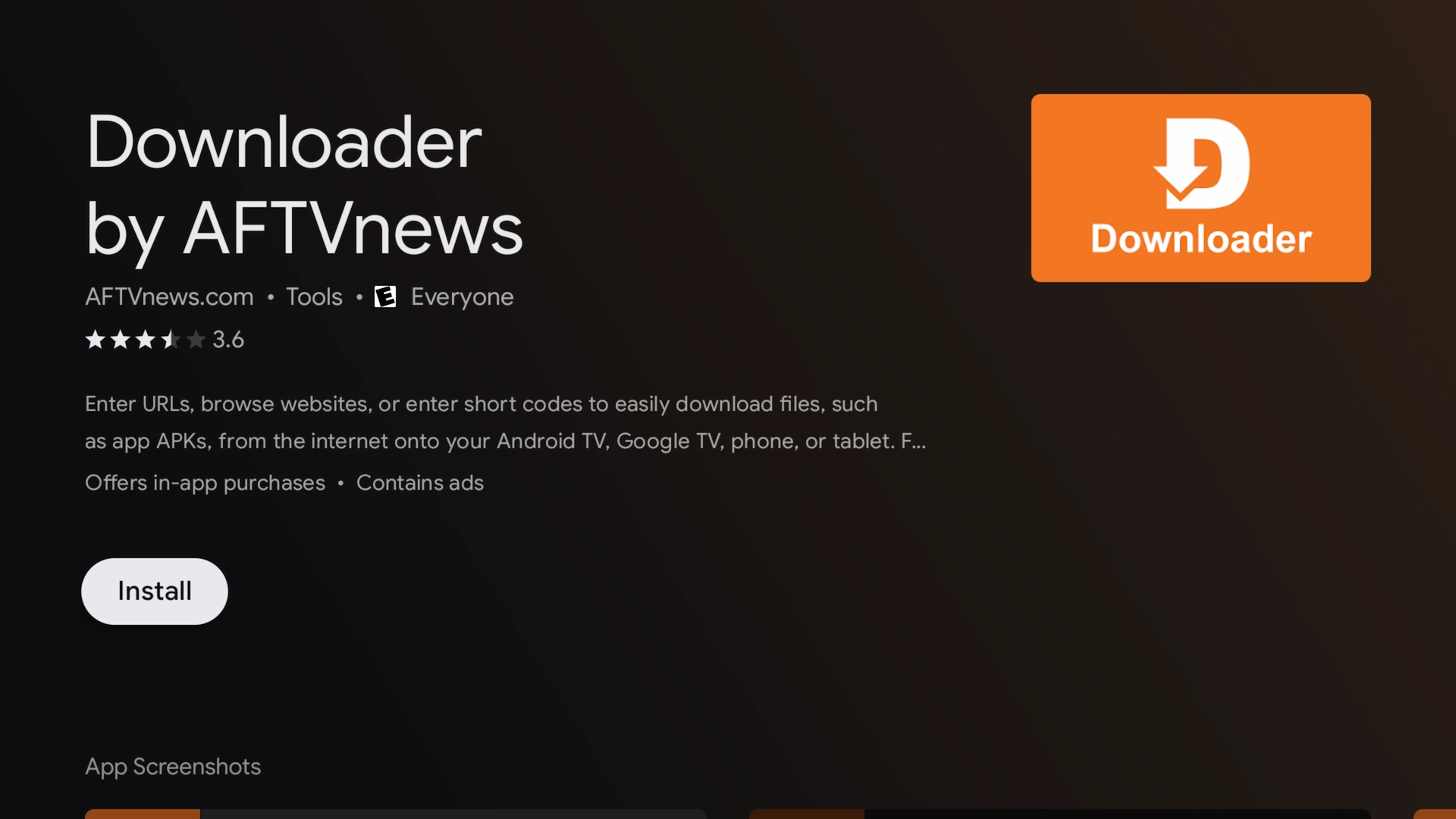
Downloader is a utility that allows you to open websites and install compatible APK files on Fire TV and Android TV devices.
Install Downloader on Firestick or Fire TV
- From the Fire TV home screen, select Find.
- Choose Search.
- Search for Downloader.
- Select the orange Downloader application.
- Choose Download or Get.
Install Downloader on Android TV or Google TV
Open the Google Play Store, search for Downloader, and install the application. Menu names can vary slightly depending on your television or streaming device.
Step 2: Enable Developer Options and Unknown Apps
Fire TV devices require permission before Downloader can install an APK. Follow these steps carefully.
Open My Fire TV
- Open Settings from the Fire TV home screen.
- Select My Fire TV.
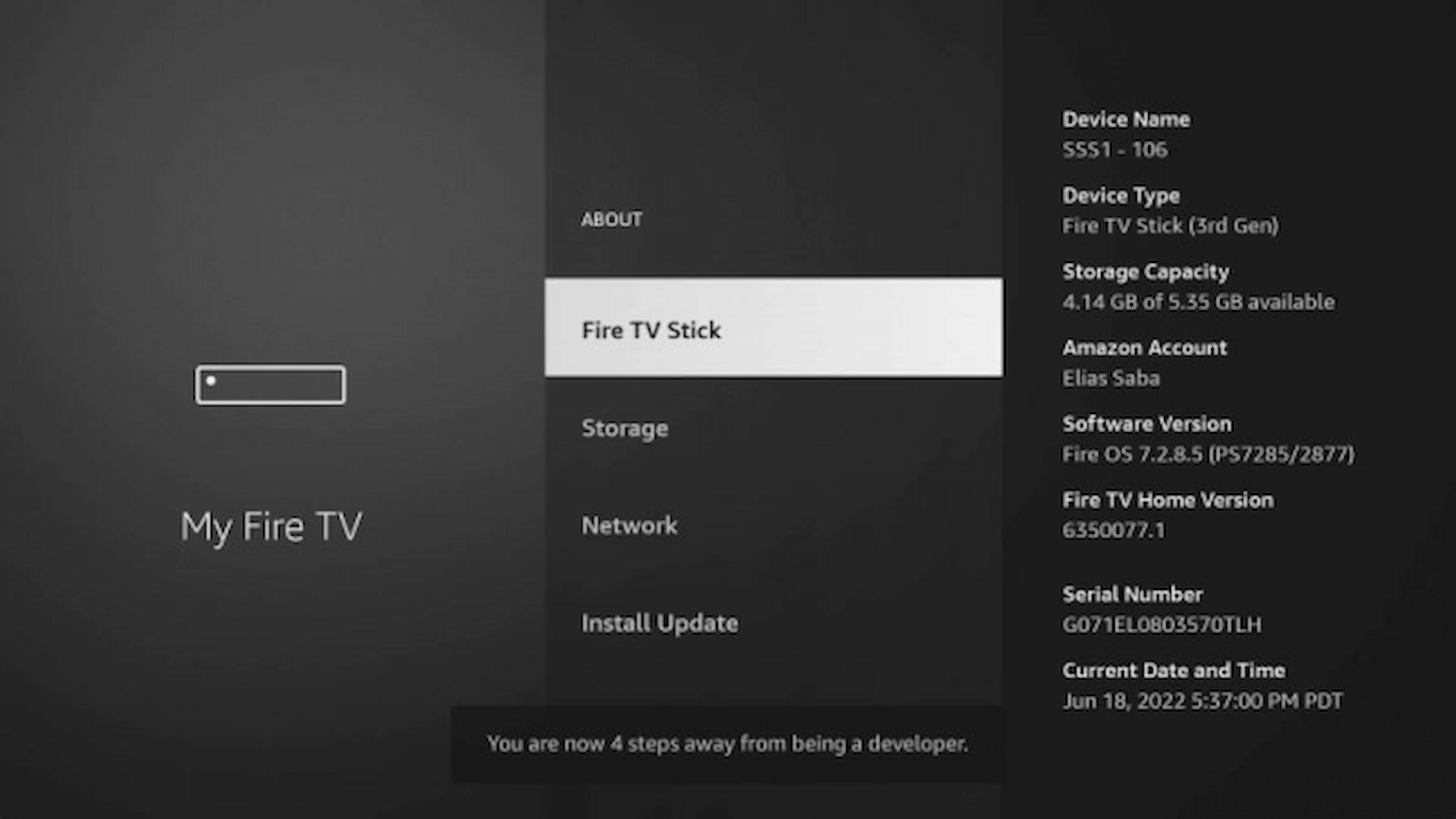
Open the About Menu
Select About.
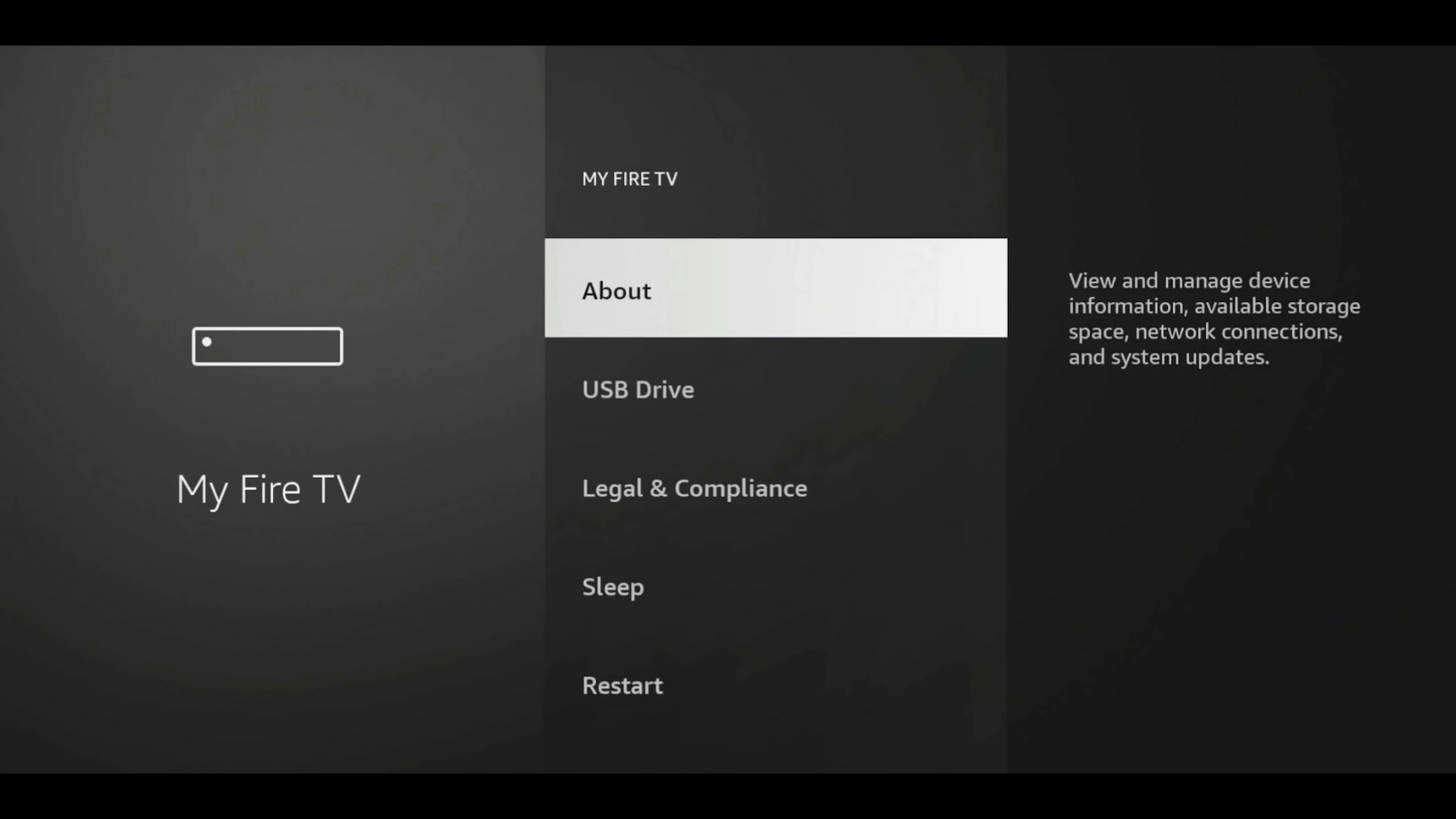
Reveal Developer Options
Highlight the name of your Fire TV device and press the center Select button on your remote seven times.
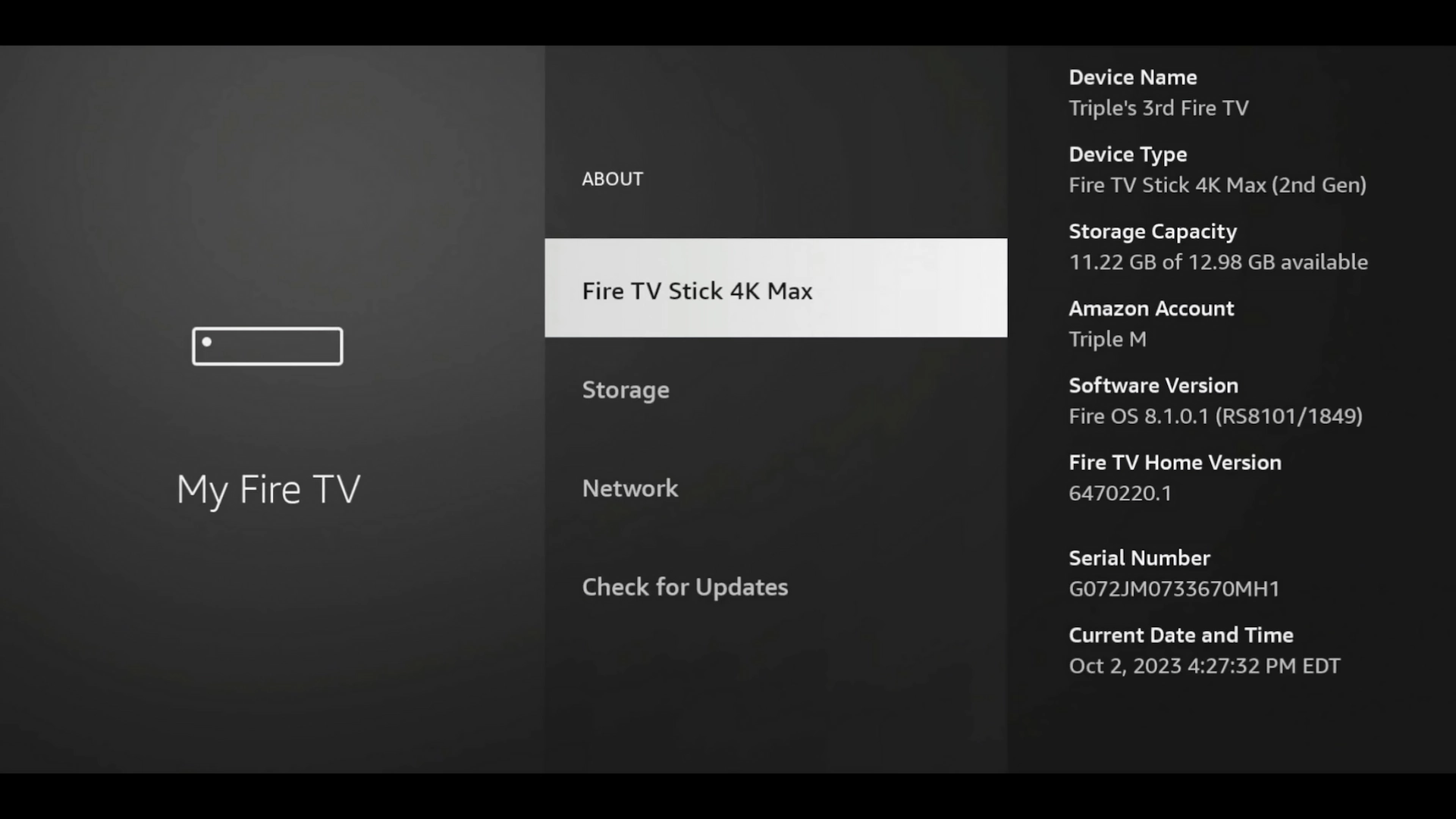
A message should appear indicating that developer options are enabled. Press the Back button to return to the previous menu.
Open Developer Options
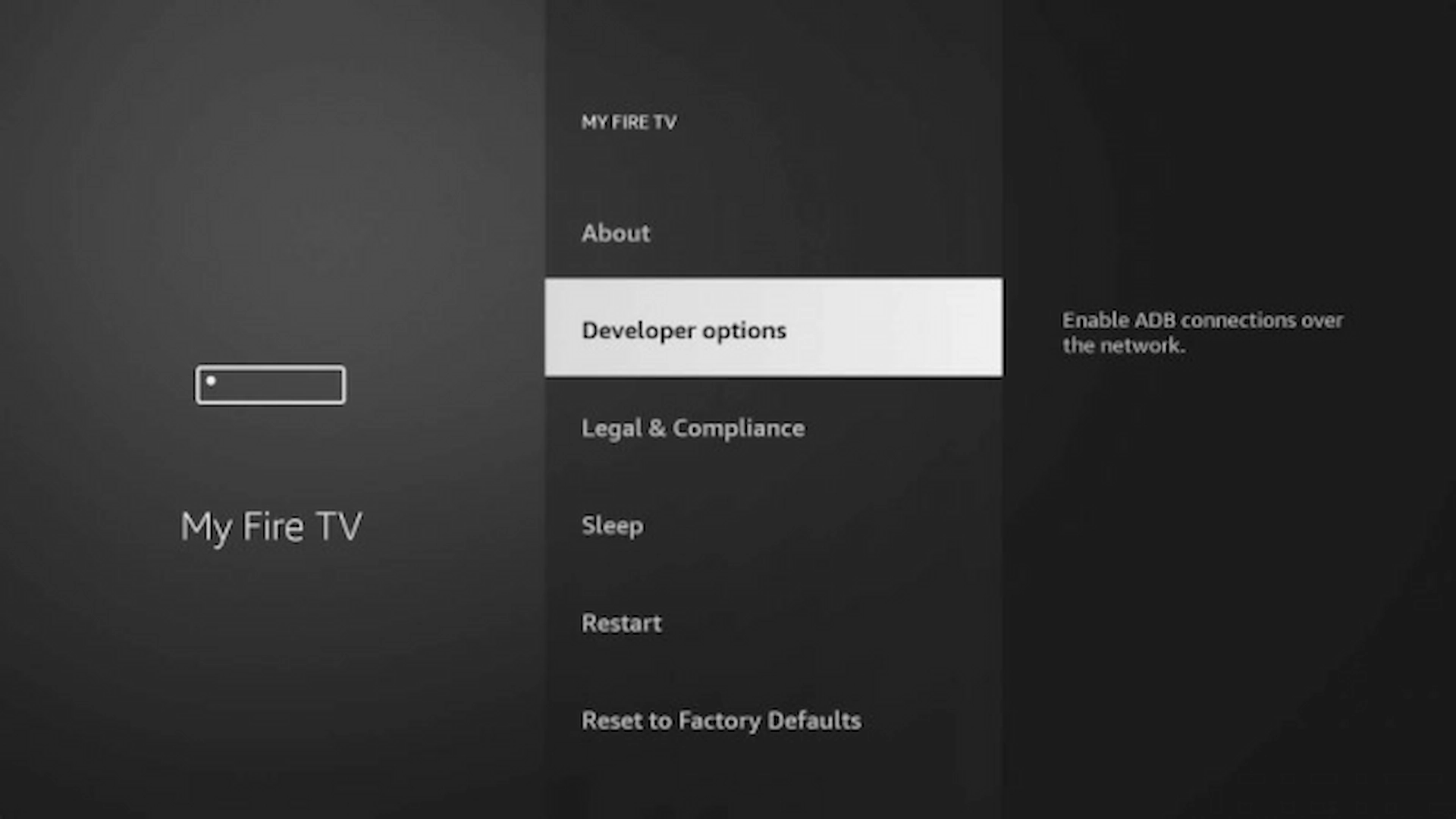
Allow Downloader to Install Unknown Apps
- Select Install Unknown Apps or Apps from Unknown Sources.
- Find Downloader in the application list.
- Change its permission from Off to On.
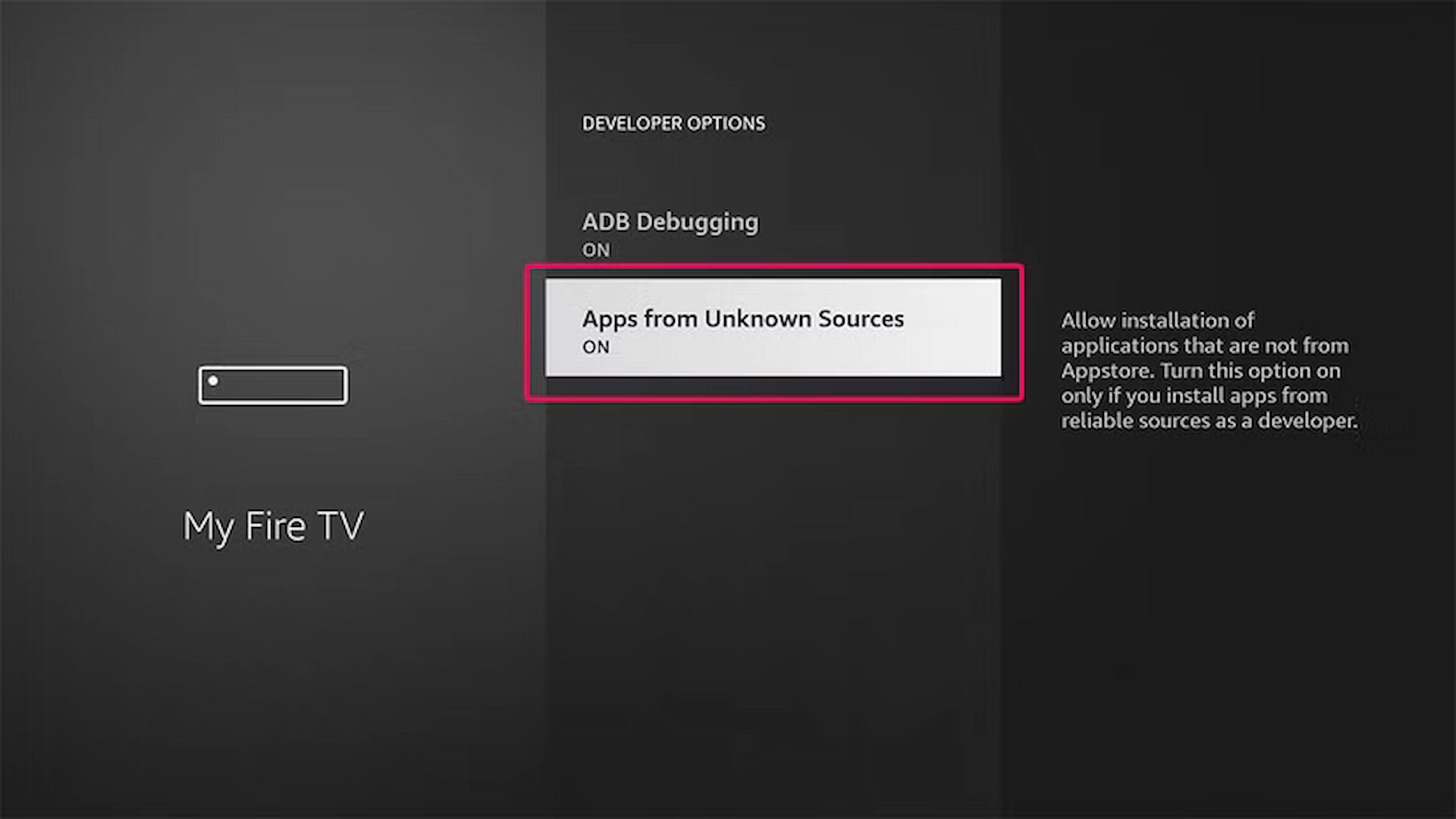
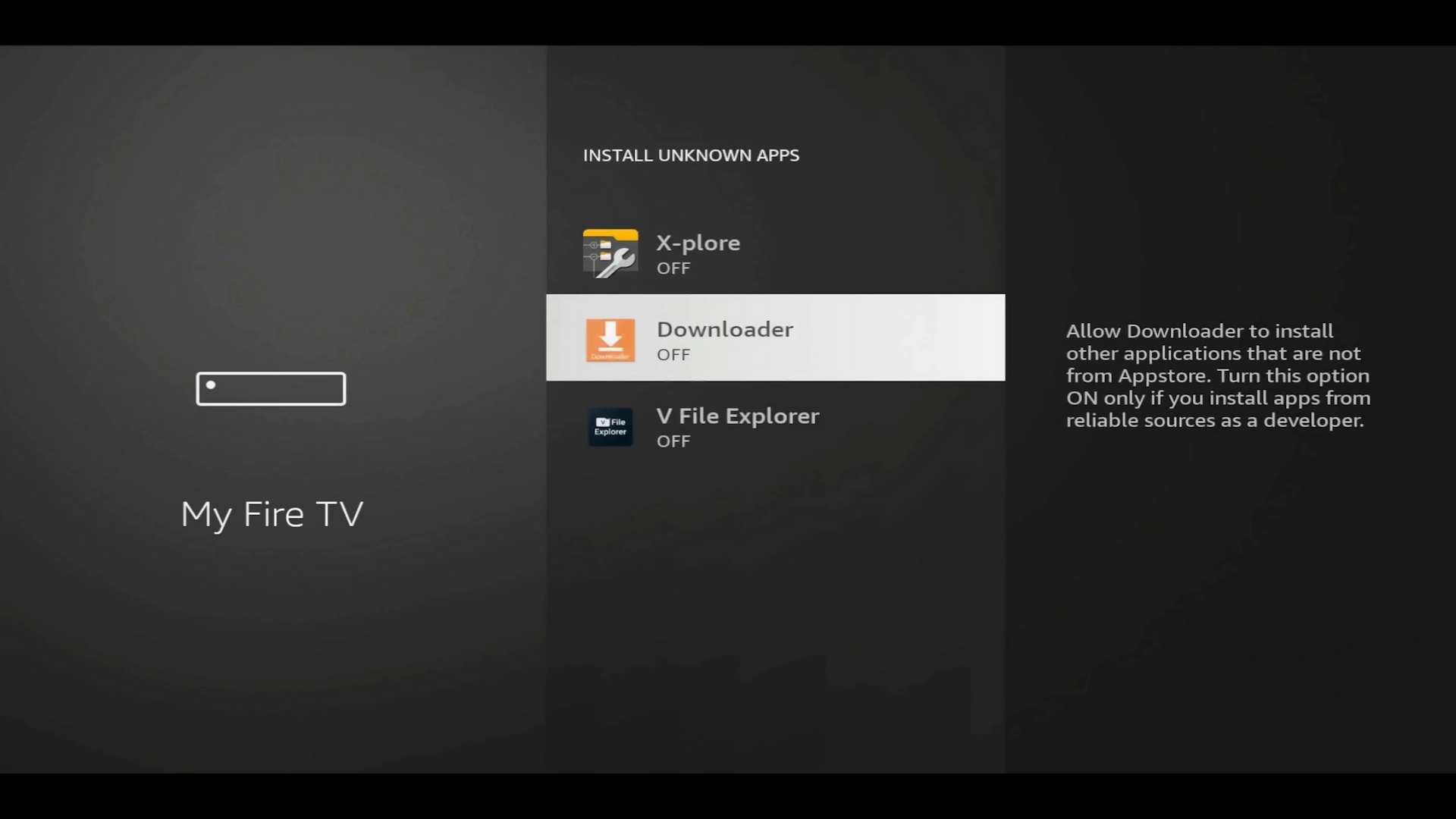
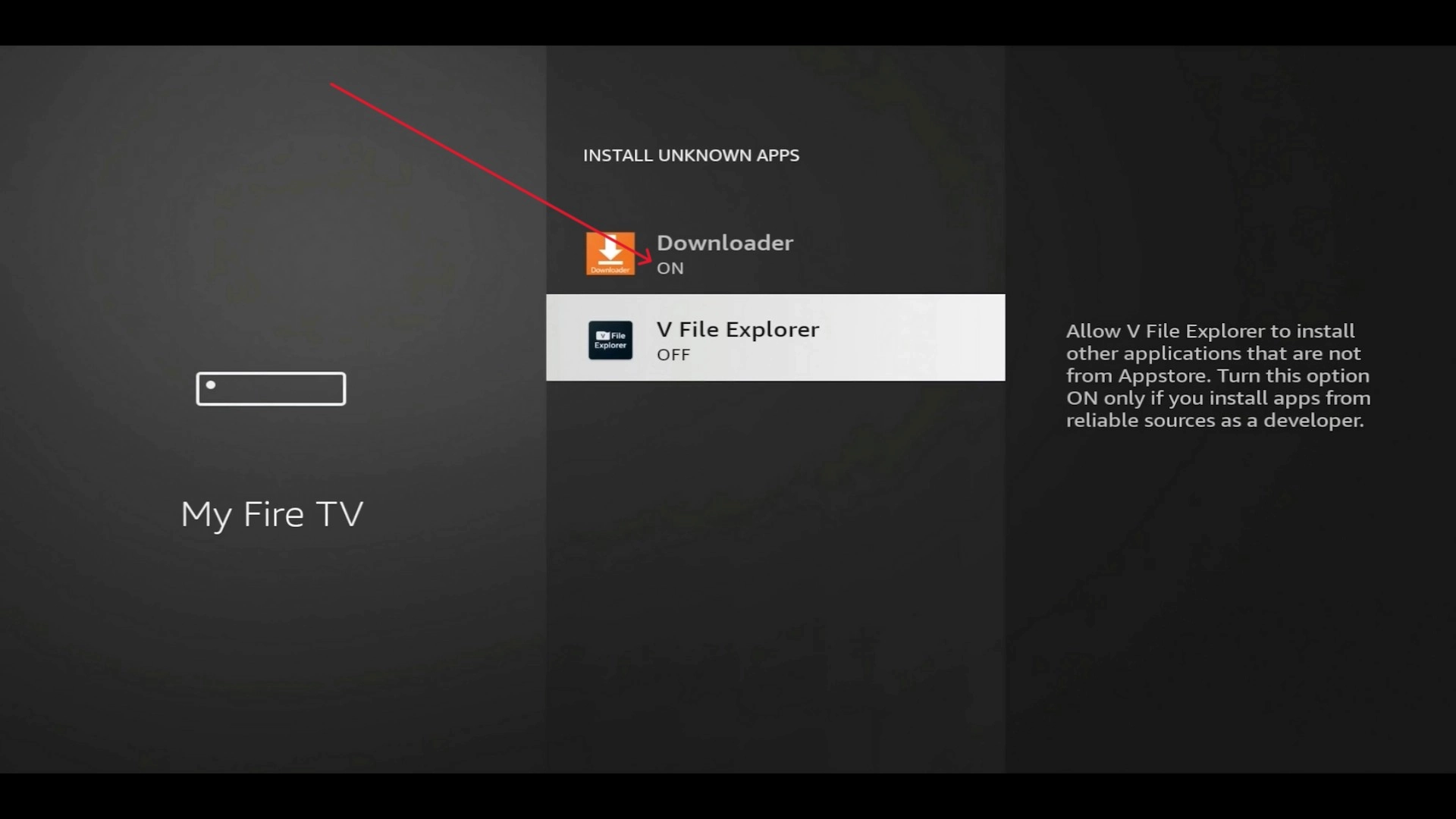
On Android TV and Google TV devices, the setting may be found under Settings → Apps → Special App Access → Install Unknown Apps. Select Downloader and enable Allow From This Source.
Step 3: Download TiviMate Using Code 3730736
Now that Downloader is installed and authorized, use it to open the XtremeDiscount Toolbox.
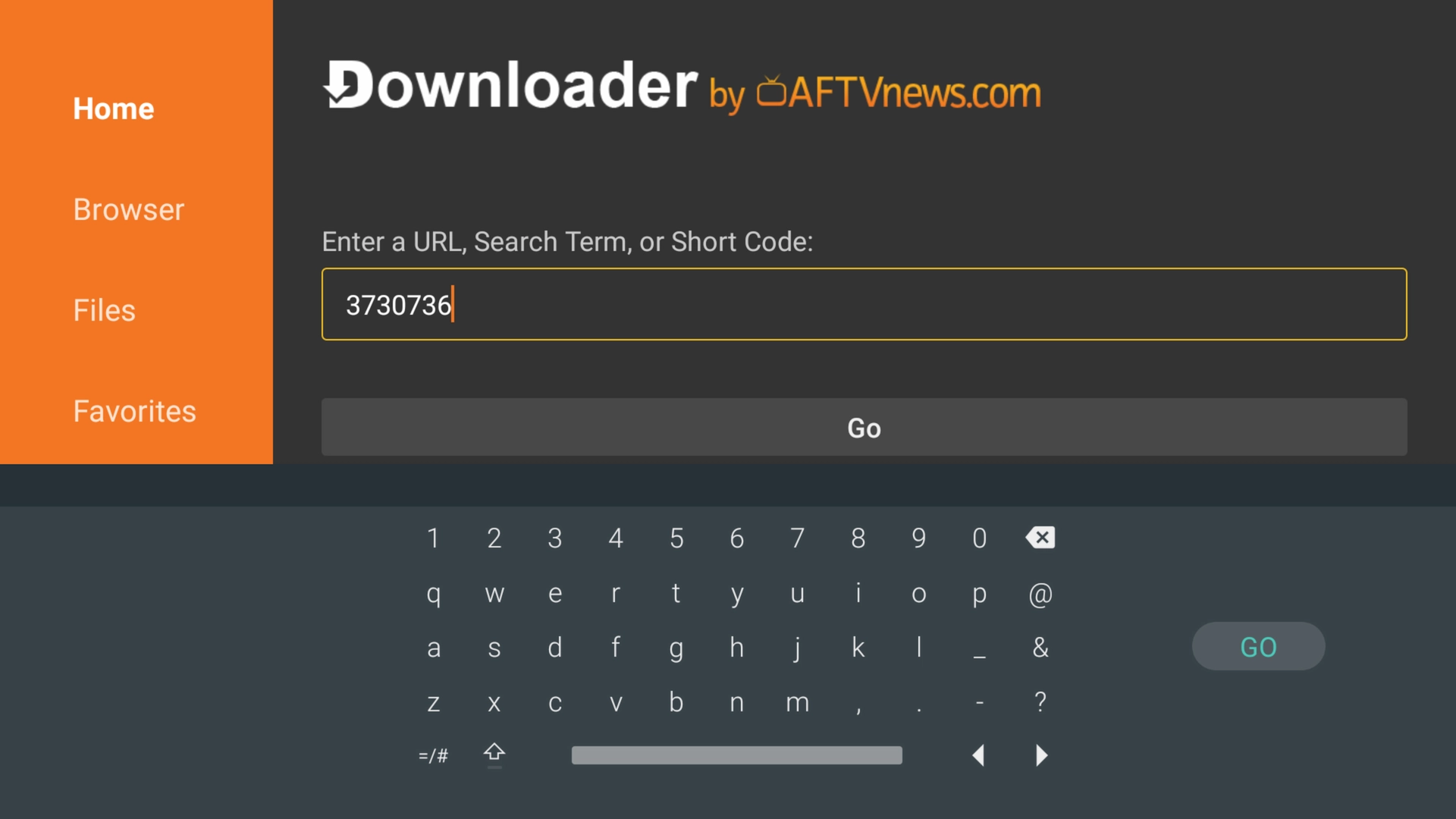
- Open the Downloader application.
- Select the URL or code entry box.
- Enter 3730736.
- Select Go.
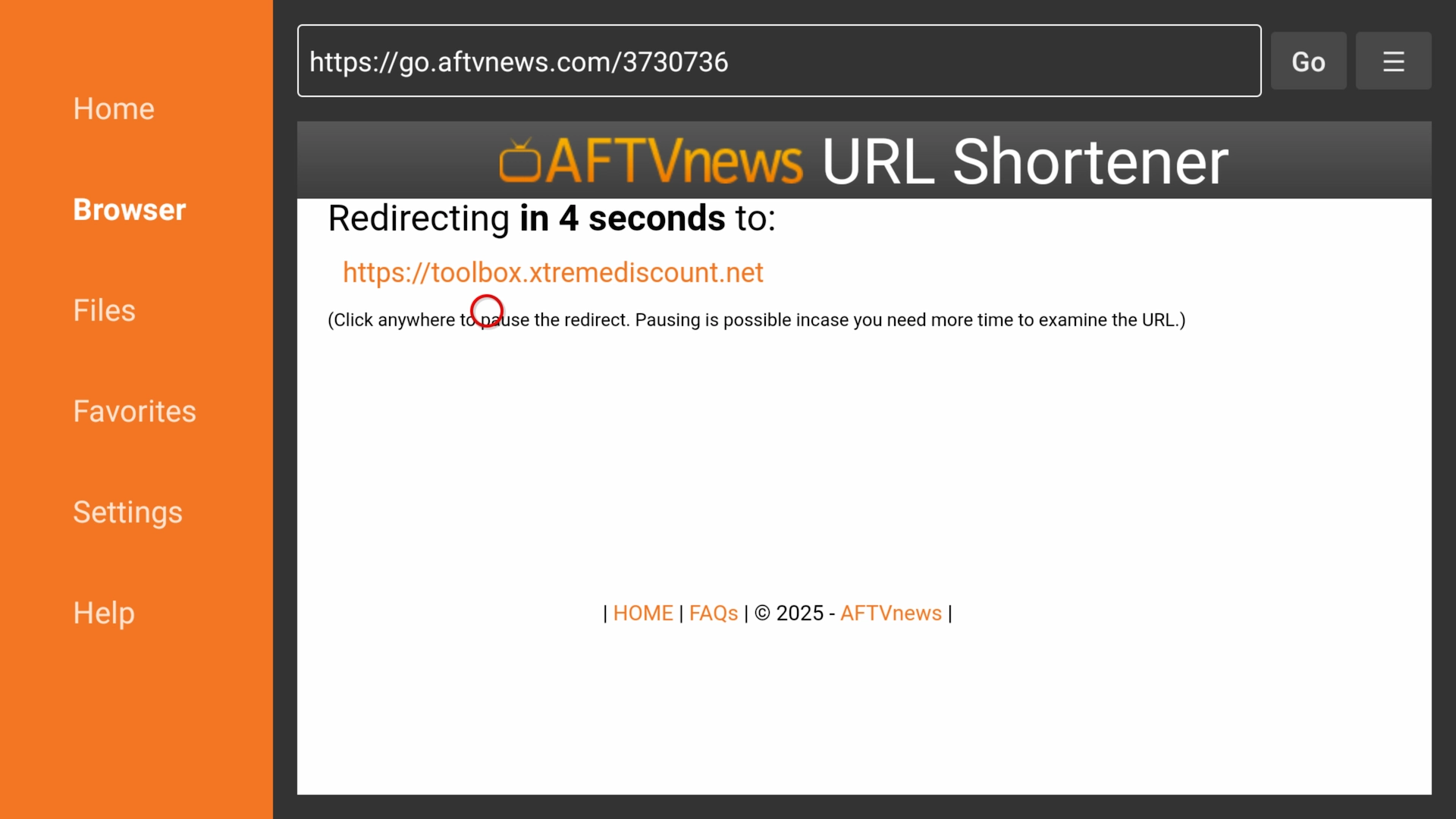
Downloader may display a short redirect screen before opening the Toolbox. Wait for the redirect to finish.
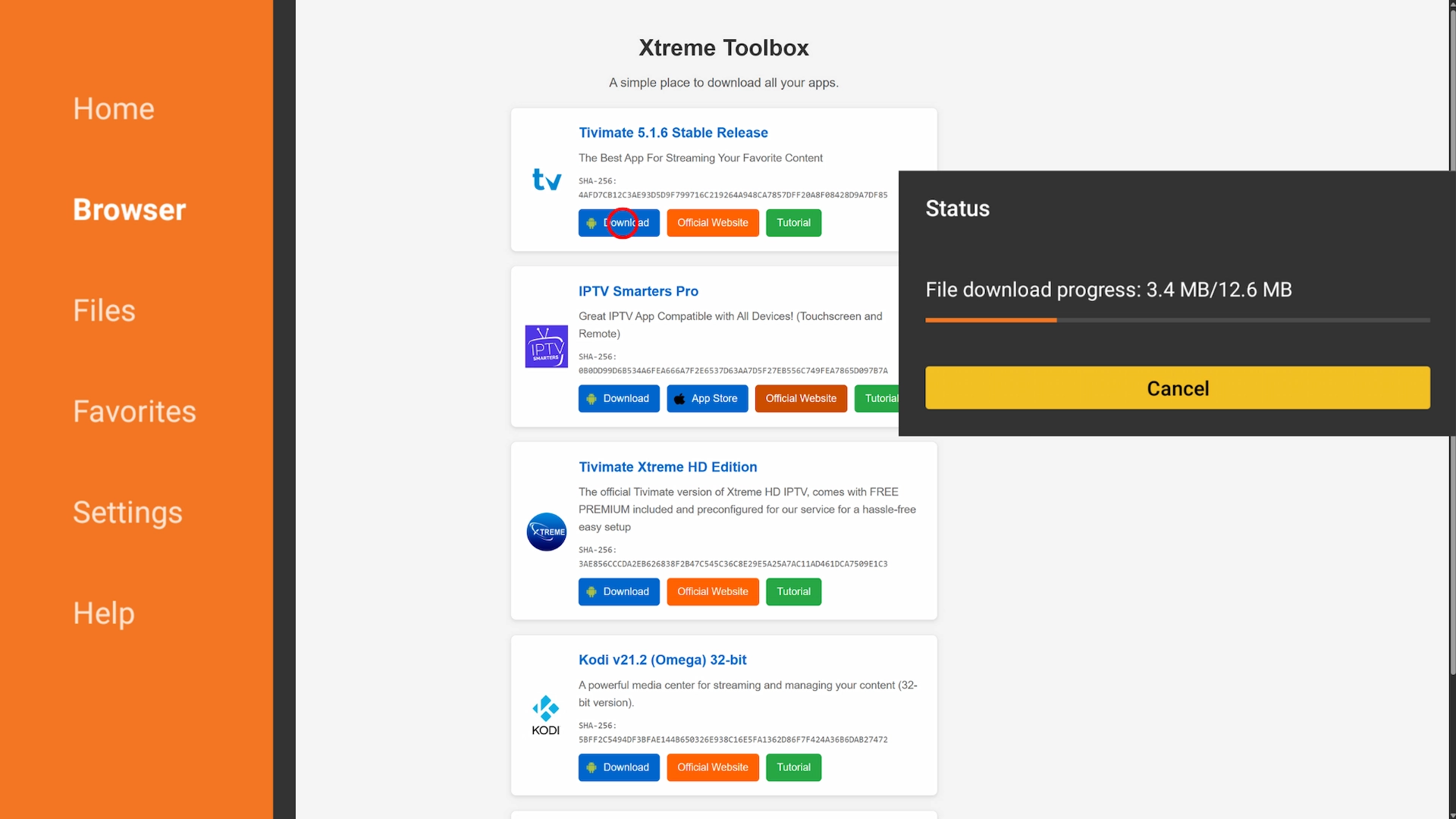
When the Toolbox opens, locate TiviMate and select its download button. The Toolbox should provide the newest available version of the application.
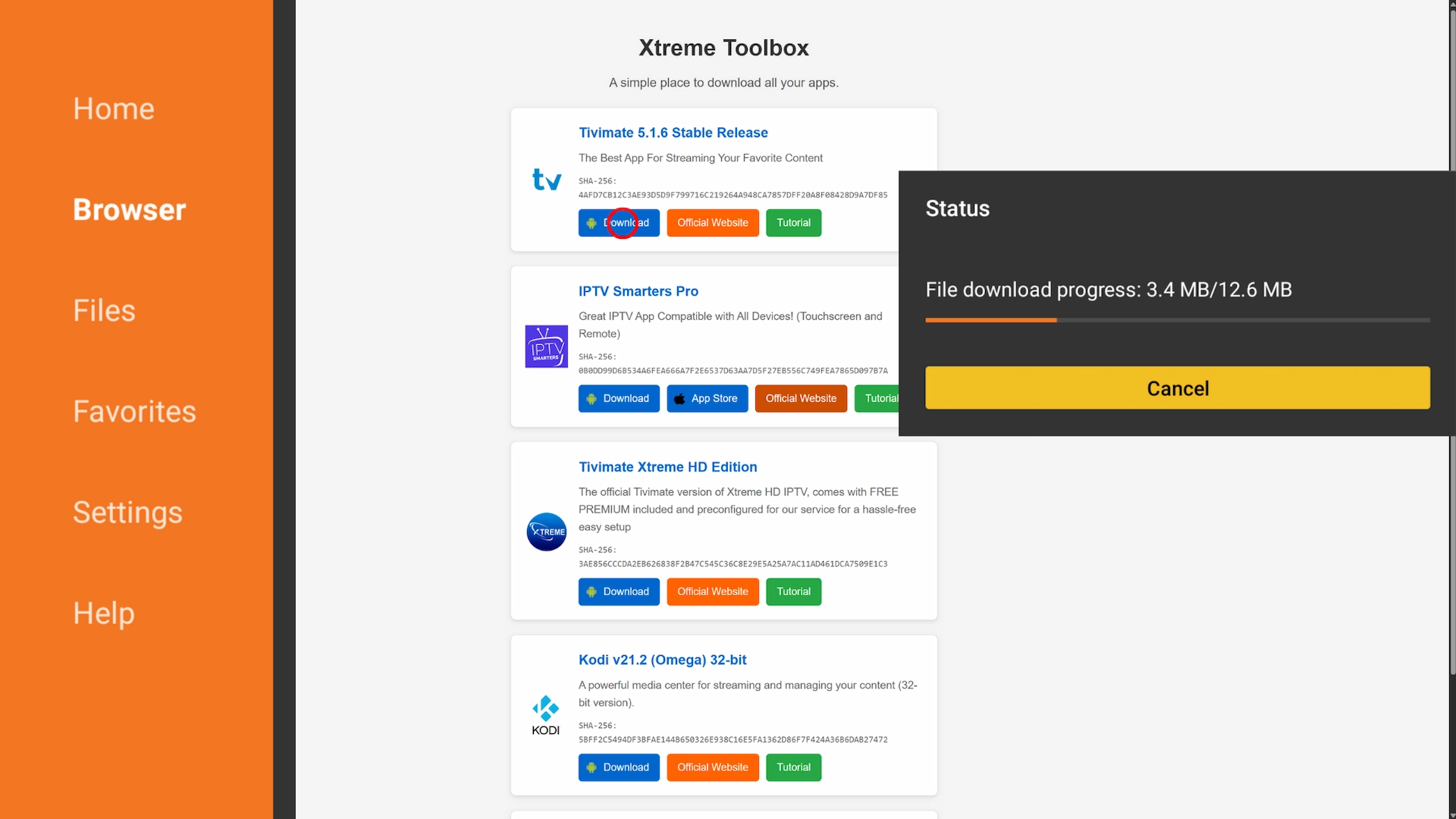
Screenshot note: The Toolbox screenshot above was captured using an earlier TiviMate release. Select version 5.3.3 or the newest version displayed when you visit the live Toolbox.
Alternative TiviMate Download Methods
The XtremeDiscount Toolbox code 3730736 is the recommended method for this guide. If the Toolbox is temporarily unavailable, you can use either of these official alternatives:
- Enter official TiviMate Downloader code 272483.
- Enter tivimate.com/apk in Downloader.
You can also visit the official TiviMate website to check for the current APK and official installation information.
Only download APK files from a source you trust. Avoid websites offering modified, unlocked, or cracked versions of TiviMate.
Step 4: Install TiviMate 5.3.3
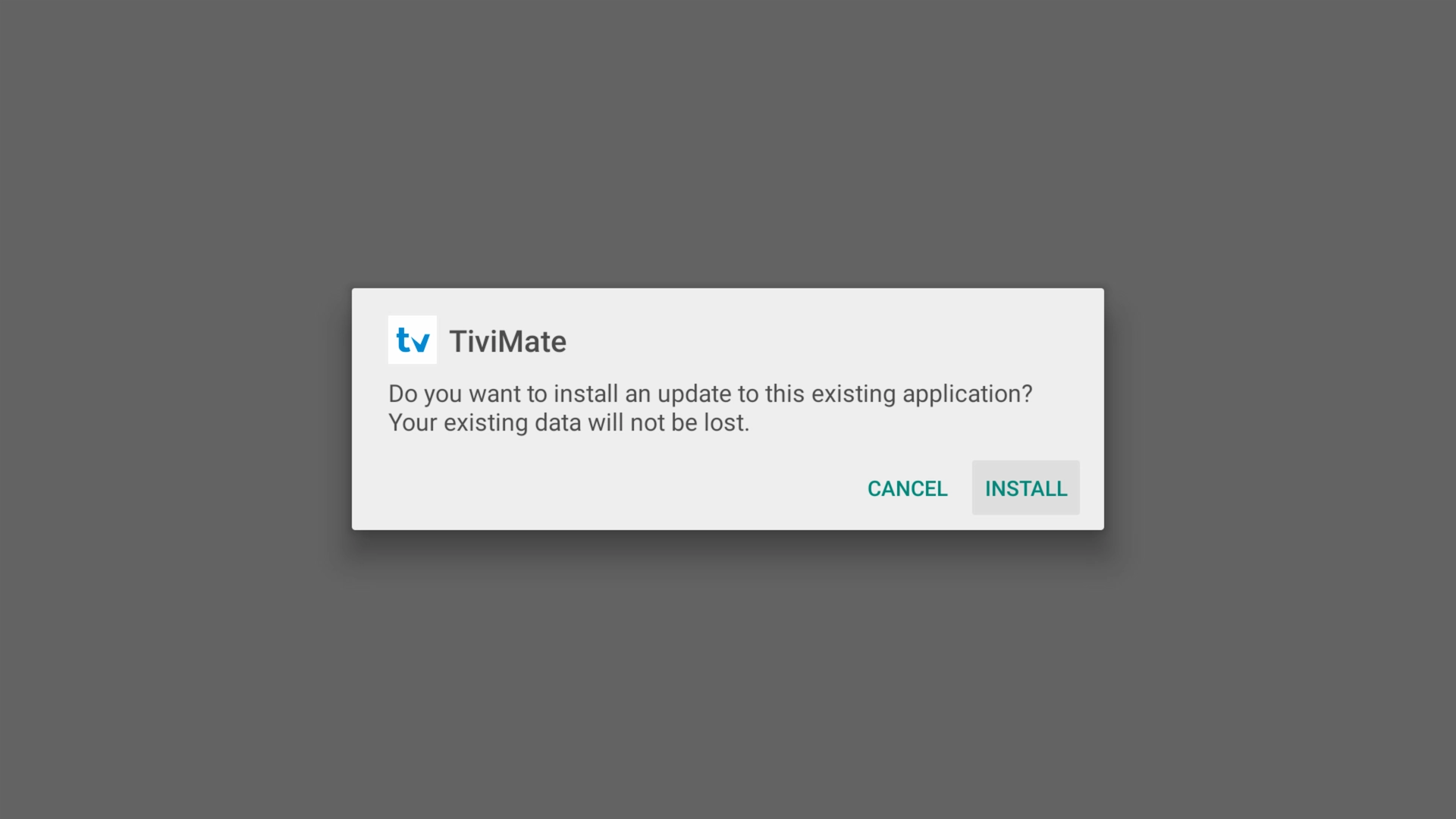
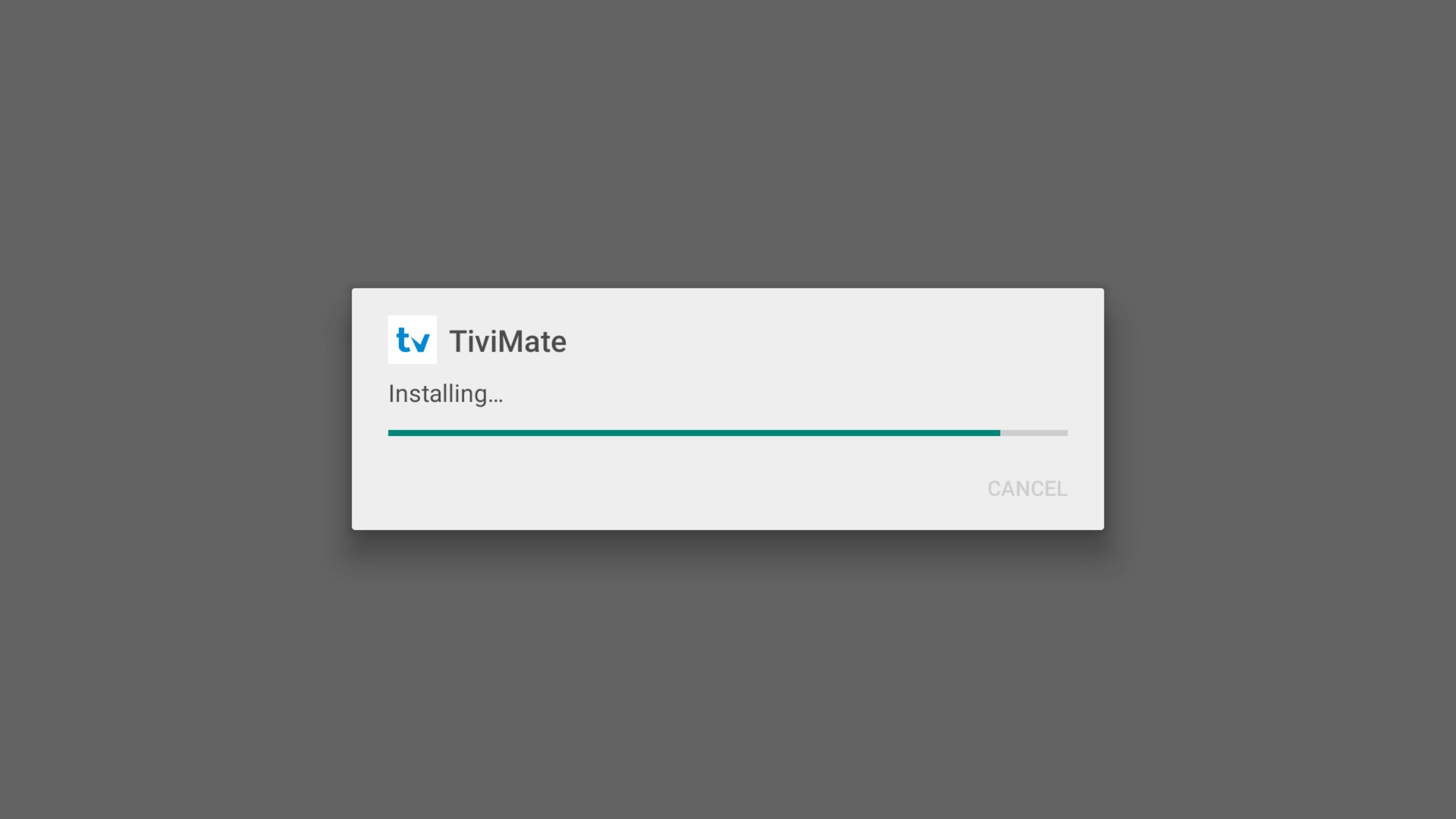
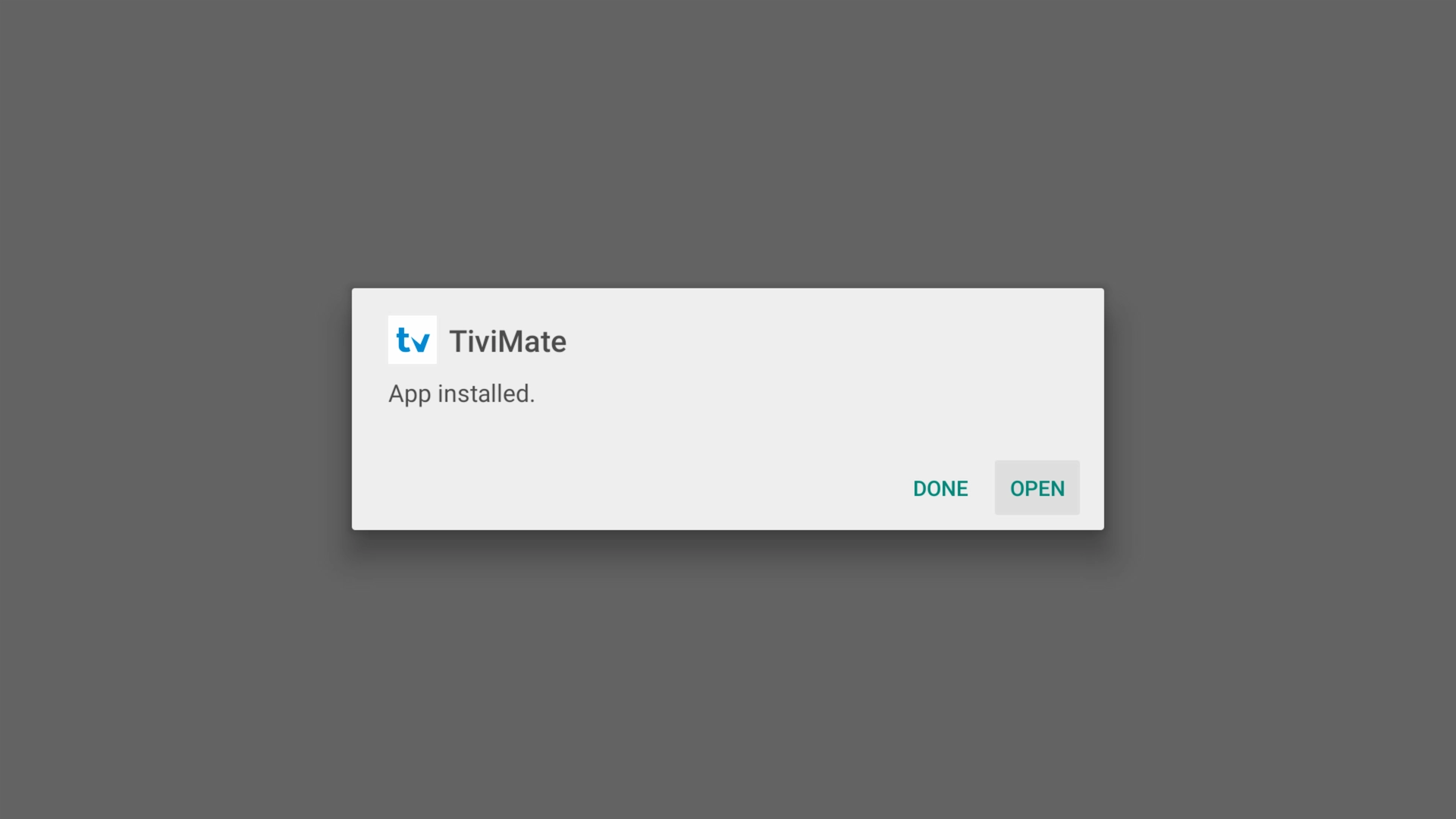
After the TiviMate APK finishes downloading, the Android installation screen should appear automatically.
- Select Install.
- Wait for the installation to complete.
- Select Open to launch TiviMate.
Delete the TiviMate APK After Installation
After installing the application, Downloader may ask whether you want to delete the downloaded APK file. You can safely delete the APK because the TiviMate application is already installed. Removing the installation file helps preserve storage space on your Firestick.
Step 5: Add Your IPTV Playlist to TiviMate
When TiviMate opens for the first time, you must connect it to a compatible IPTV playlist. Have your server URL, username, and password ready.
Need compatible service credentials? You can get a free 36-hour trial delivered instantly from XtremeDiscount.net. No payment information is required to get the trial.
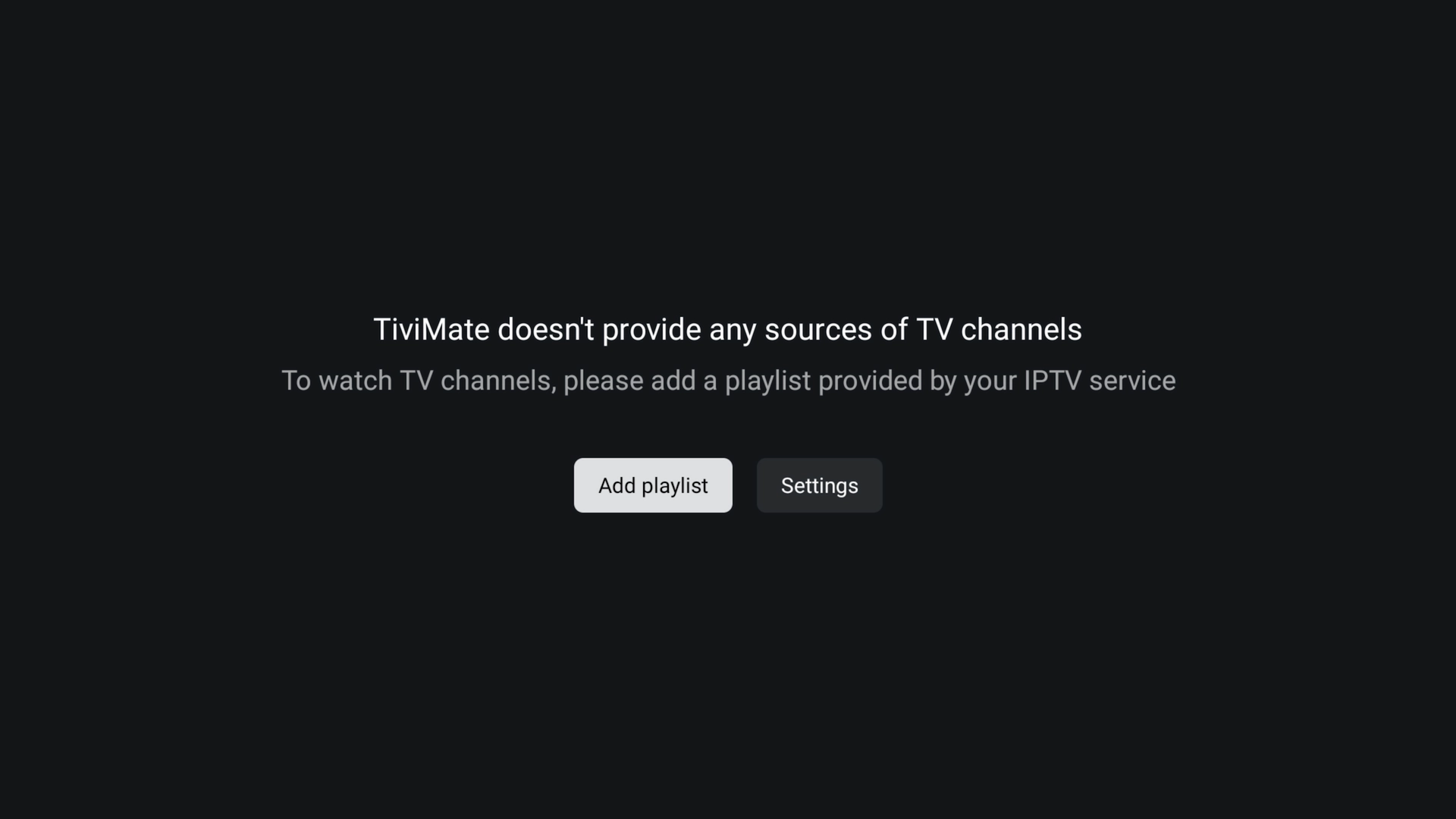
Choose Add Playlist
On the TiviMate welcome screen, select Add Playlist.
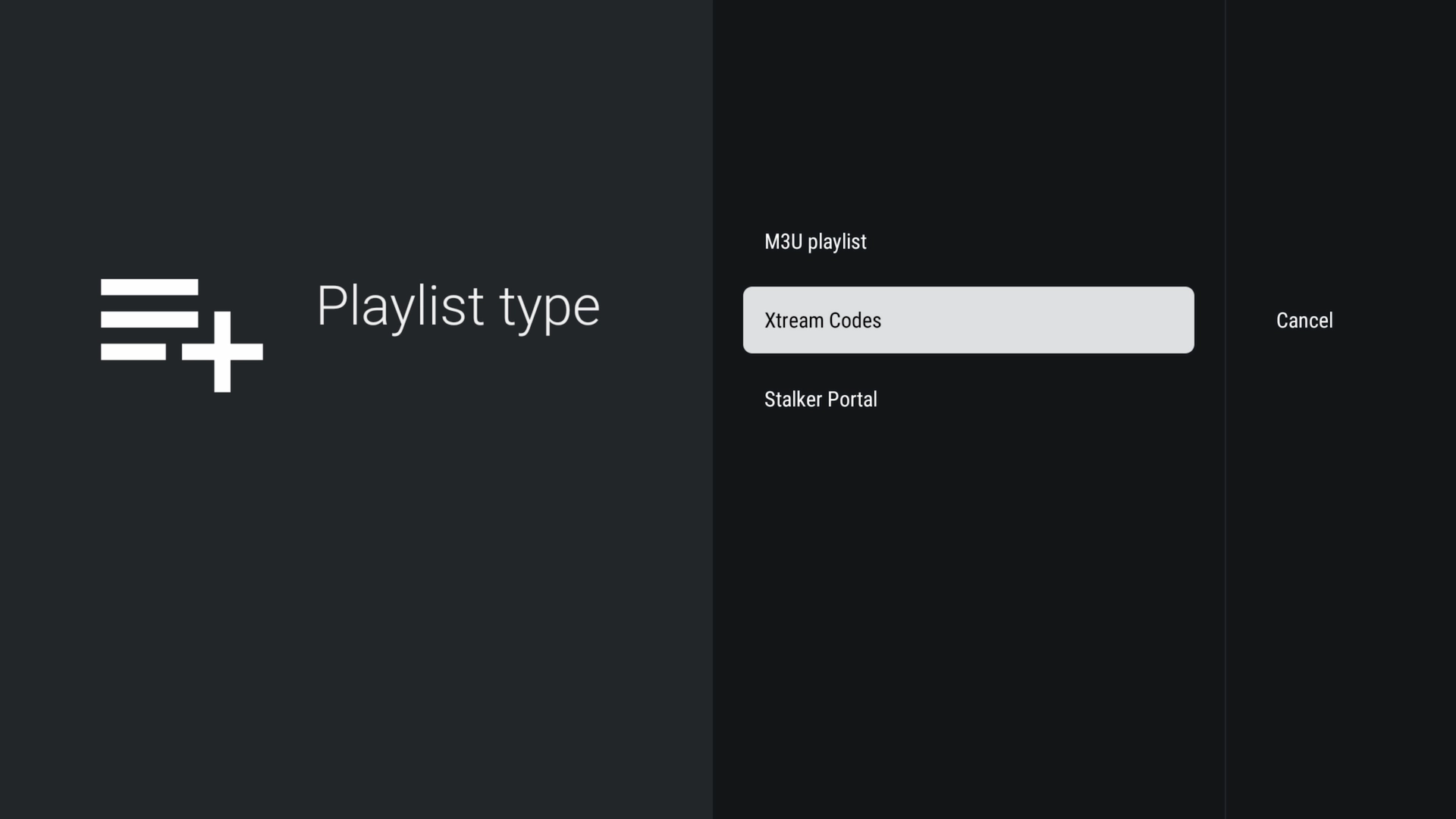
Select Xtream Codes
Select Xtream Codes. This method allows you to sign in using a server address, username, and password.
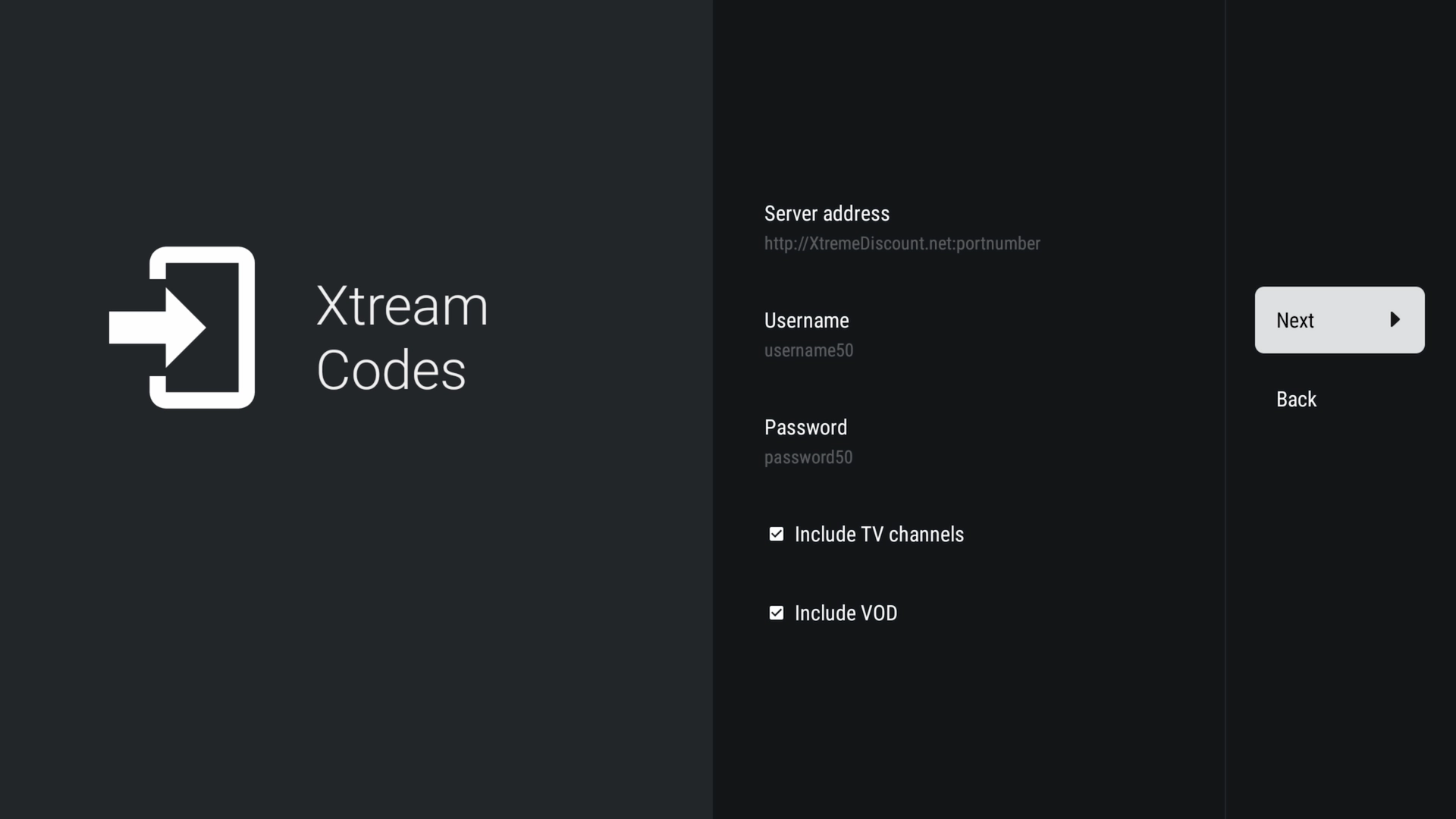
Enter Your Login Information
Enter the following details exactly as they were supplied by your IPTV provider:
- Server address: The complete server URL, including the correct HTTP or HTTPS prefix and port when provided
- Username: Your IPTV account username
- Password: Your IPTV account password
Check each character carefully. IPTV login details are often case-sensitive.
Wait for the Playlist to Process
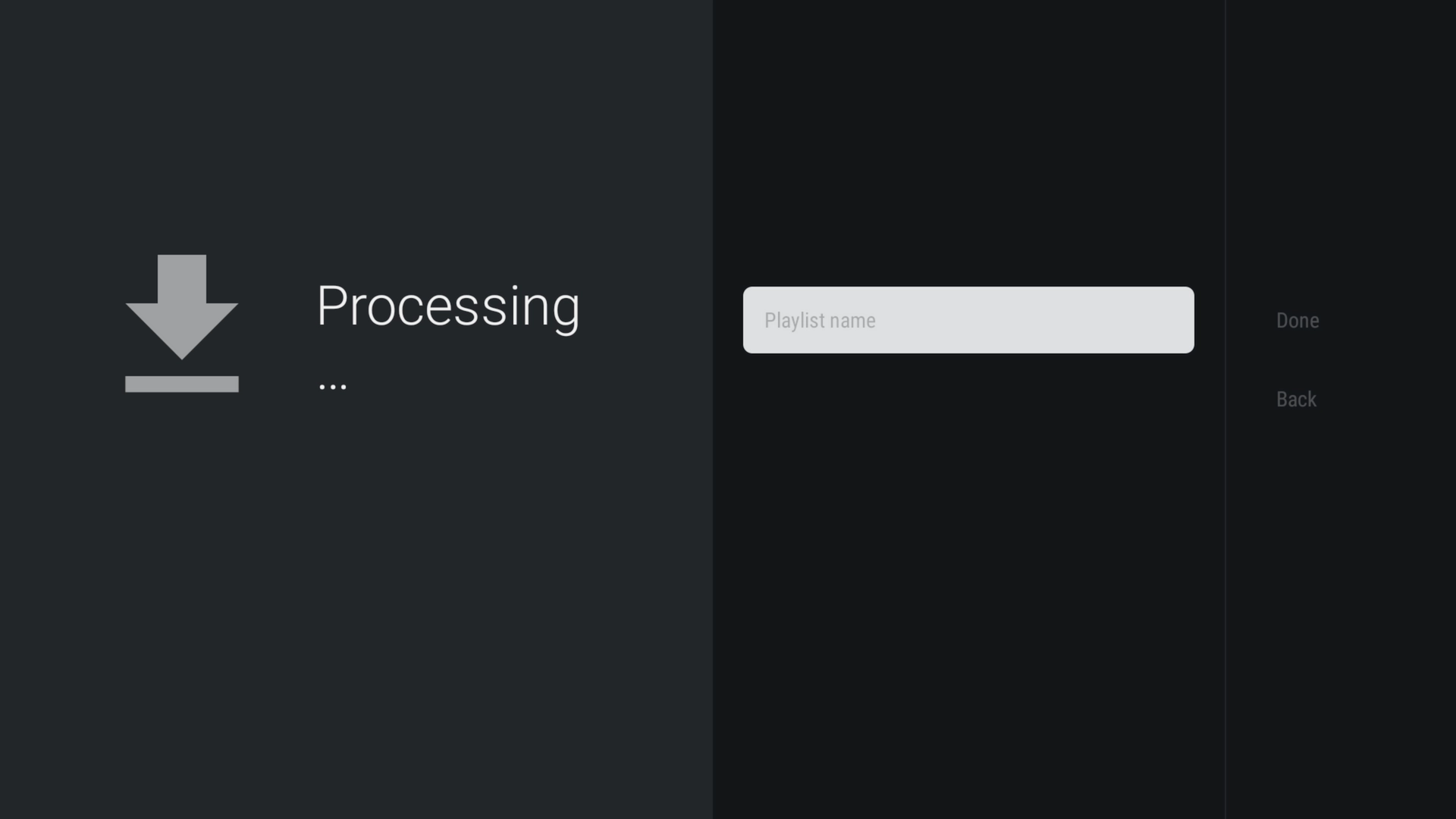
TiviMate will connect to the server and begin processing the playlist. Large channel and on-demand libraries may take a minute or longer to load.
Name the Playlist
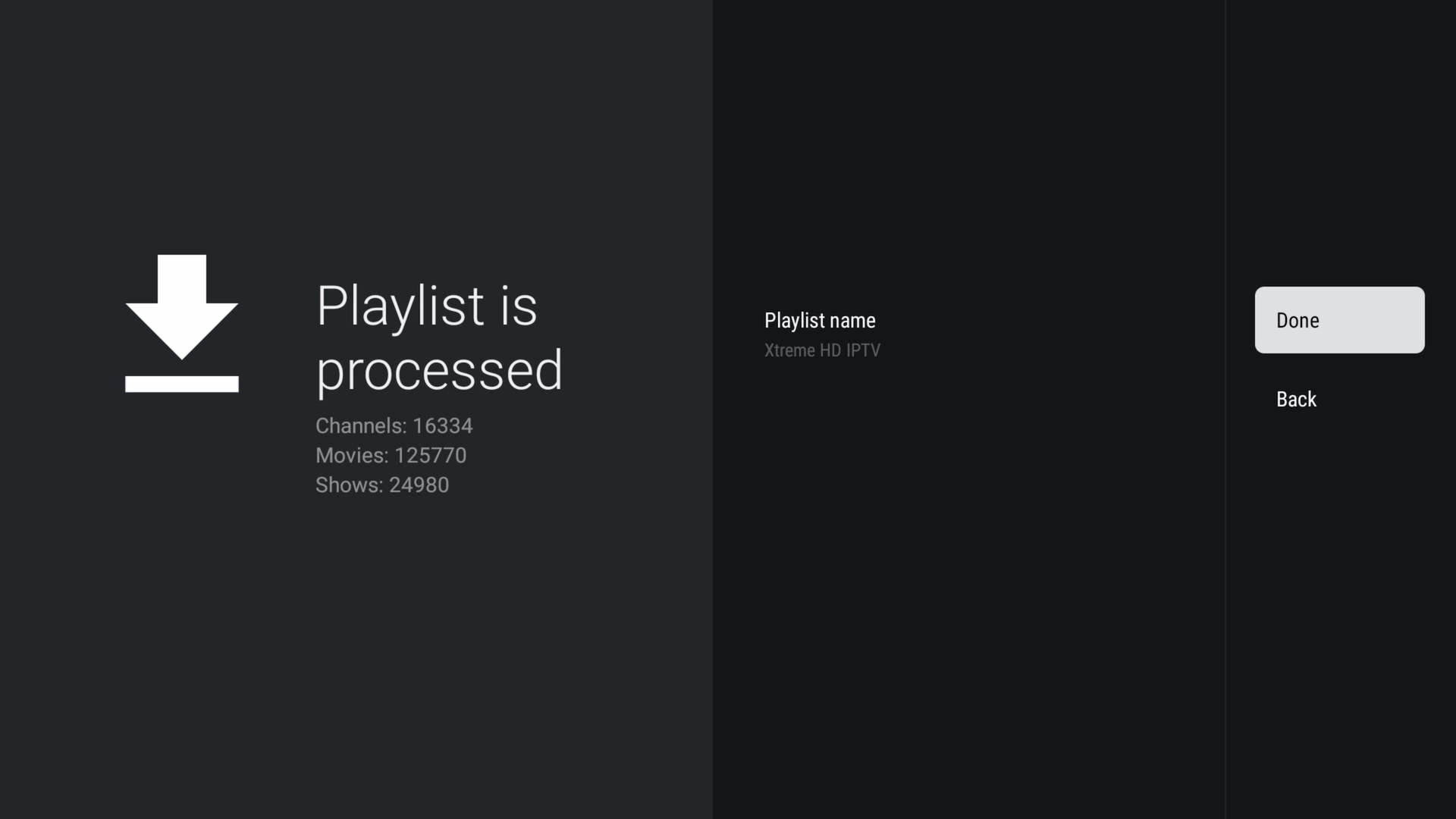
Enter a recognizable playlist name and select Done.
Using TiviMate on Firestick and Android TV
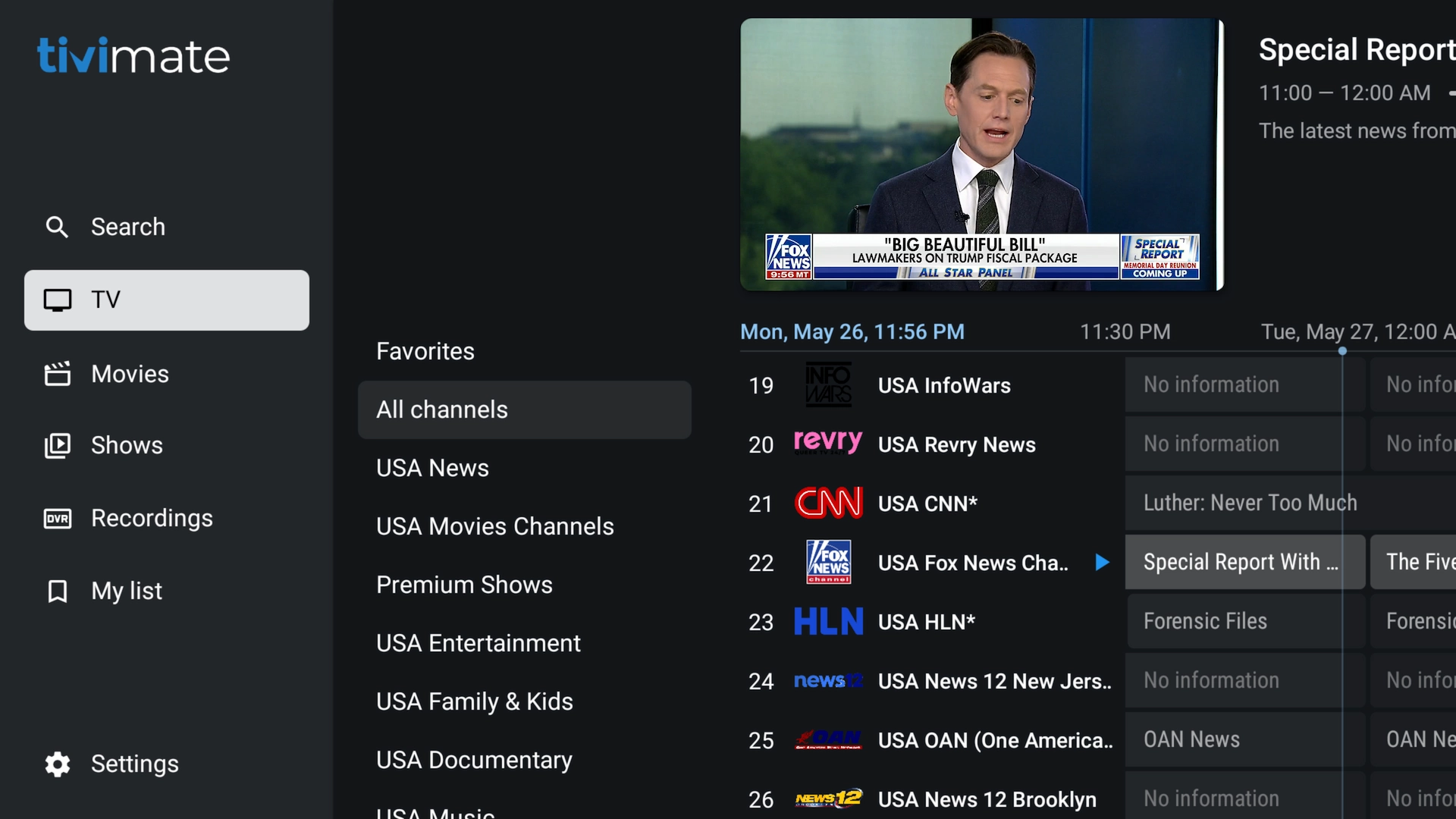
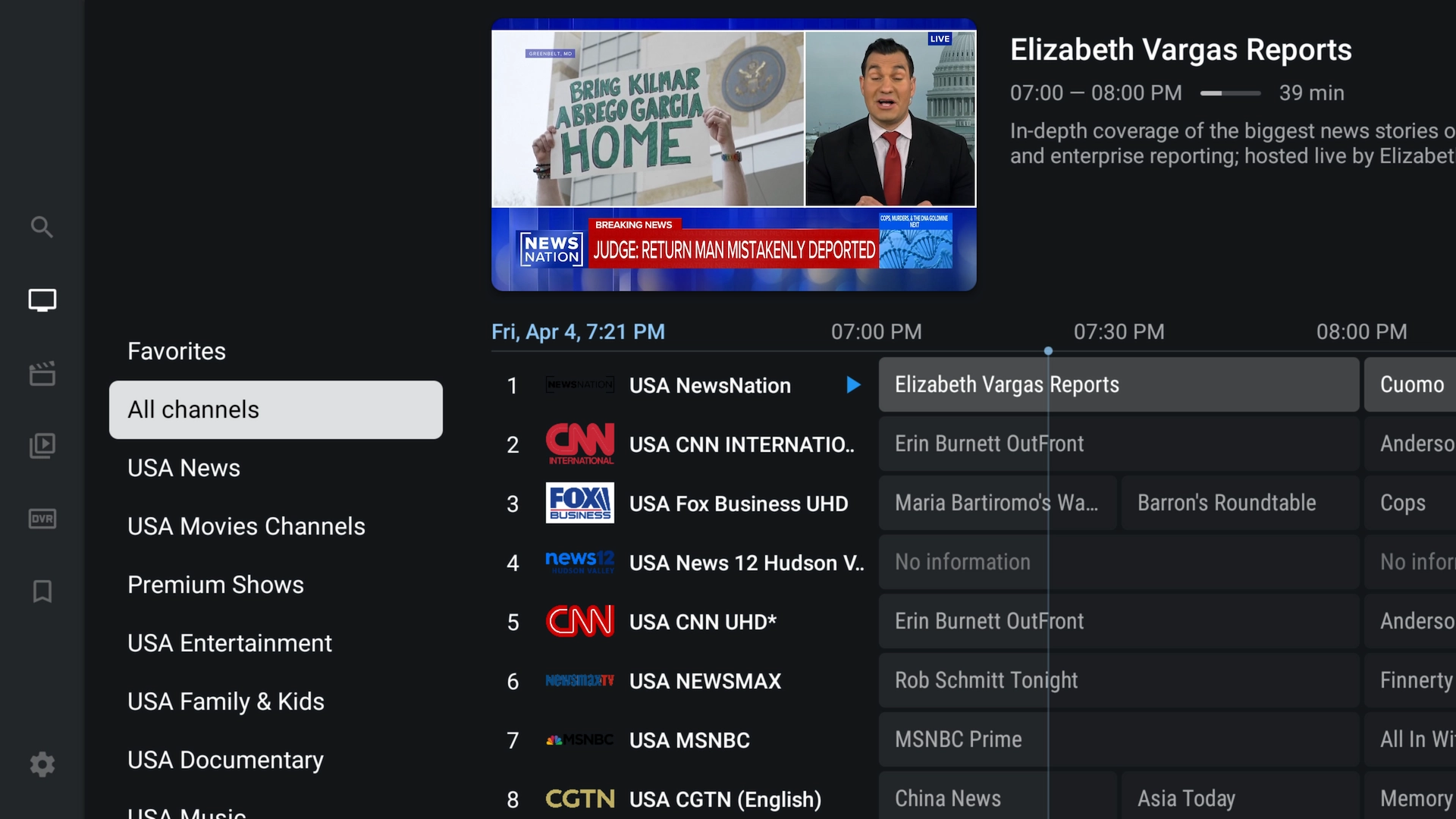
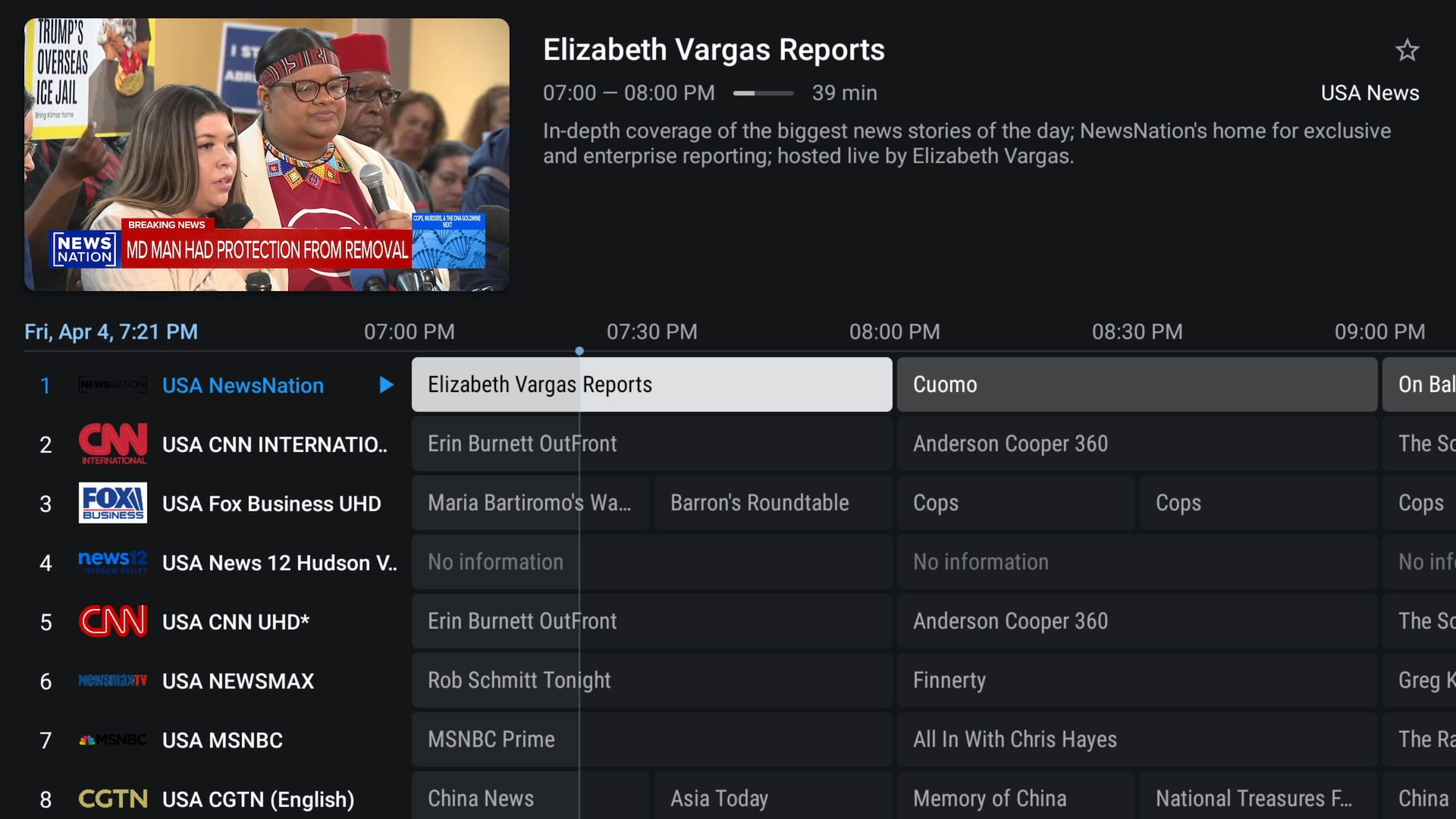
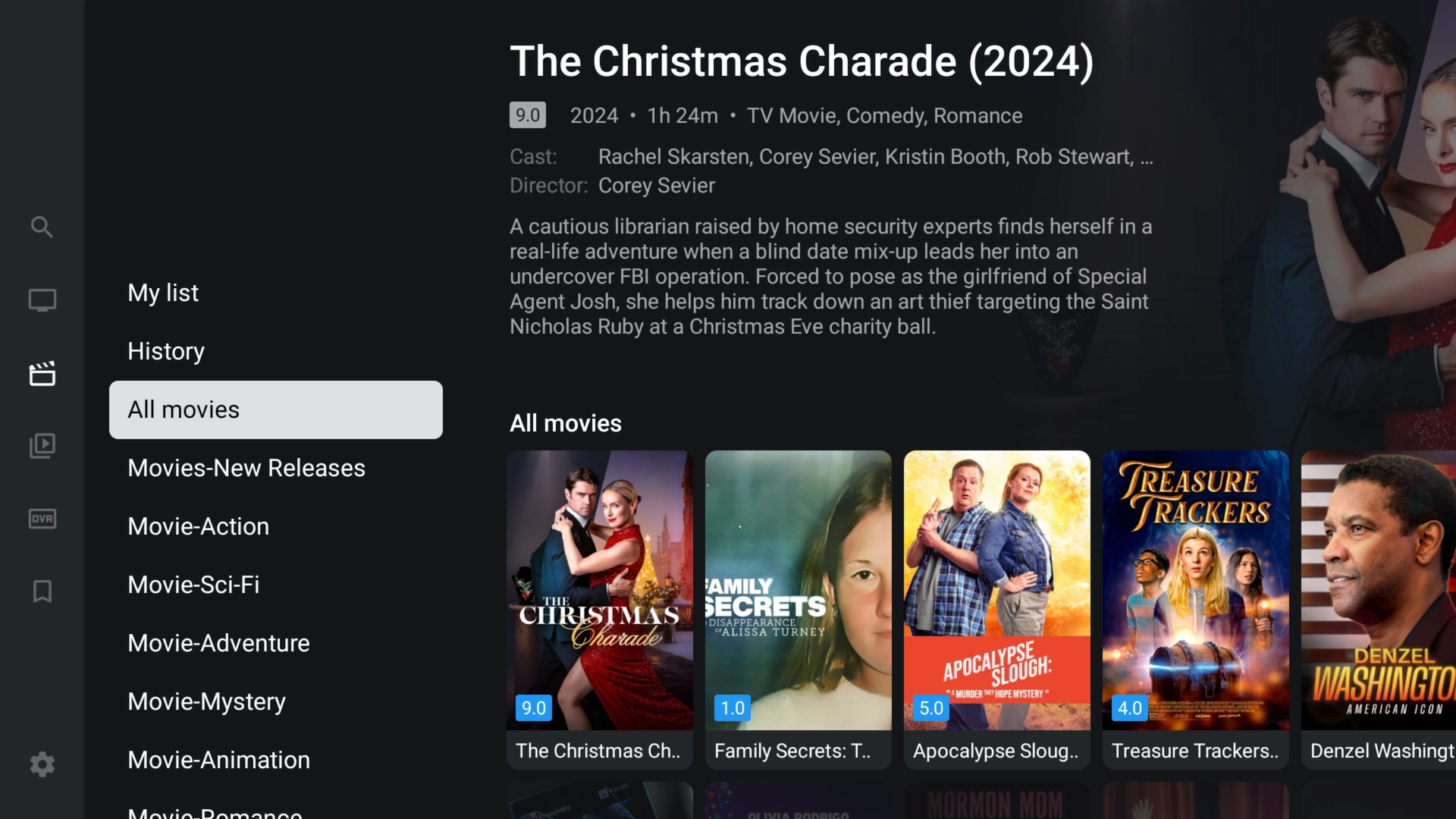
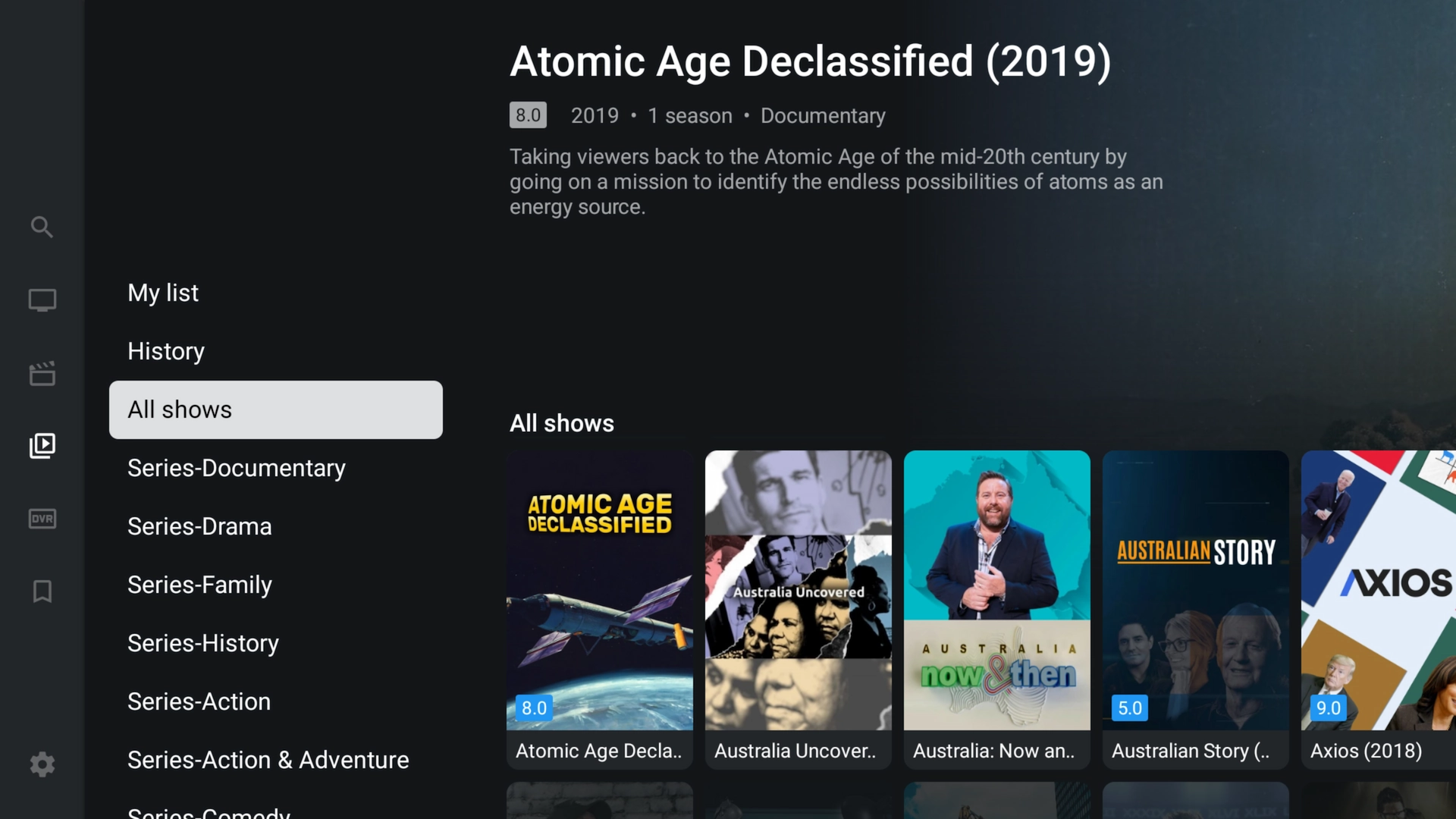
Once the playlist has loaded, TiviMate organizes the available content into television-friendly sections. The exact categories and features shown will depend on your provider and subscription.
Live TV, Movies, and Series Menu
Channel Categories
Electronic Program Guide
Movie Library
TV Series Library
How to Update TiviMate
To check for a newer TiviMate APK using the XtremeDiscount Toolbox:
- Open Downloader.
- Enter Toolbox code 3730736.
- Open the TiviMate listing.
- Download the newest version displayed.
- Install it over your existing TiviMate installation.
Installing a newer version over the existing application should normally preserve your settings and playlists. Do not uninstall the current app first unless you are troubleshooting a damaged installation, because uninstalling can remove saved settings.
If the Toolbox download is unavailable, enter official Downloader code 272483 or visit tivimate.com/apk.
TiviMate Installation Troubleshooting
Downloader Code 3730736 Is Not Working
Make sure the code was entered exactly as 3730736. If the redirect still does not open, enter the complete address https://toolbox.xtremediscount.net.
You can also use official TiviMate code 272483 or enter tivimate.com/apk.
Downloader Says It Cannot Install the App
Return to your device settings and confirm that Downloader is allowed to install unknown applications. The permission must be enabled specifically for Downloader.
The Install Button Does Not Appear
Wait for the APK download to finish. You can also open Downloader's Files section and select the downloaded TiviMate APK manually.
TiviMate Says “App Not Installed”
This error can occur when:
- The device does not have enough free storage.
- The APK download was incomplete or damaged.
- An incompatible or modified TiviMate version is already installed.
- The device uses an unsupported Android version.
Delete unnecessary files, restart the device, and download the APK again. Avoid uninstalling an existing TiviMate installation unless you have backed up your settings.
The Playlist Will Not Process
Confirm that your server URL, username, and password were entered correctly. Common causes include:
- A missing letter, number, slash, or port number
- Using HTTP when the provider supplied HTTPS, or the reverse
- Extra spaces before or after the username or password
- An expired IPTV account
- A temporary provider server issue
Channels Load but the TV Guide Is Empty
Allow several minutes for the electronic program guide to download. You can also open TiviMate settings and manually update the EPG. The guide will remain empty when the playlist provider does not supply compatible EPG information.
TiviMate Is Buffering
Buffering can be caused by Wi-Fi interference, limited internet speed, an overloaded streaming device, or a provider-side issue. Restart the Firestick and router, close unused applications, and test an Ethernet connection when available.
Frequently Asked Questions
What is the XtremeDiscount Toolbox Downloader code?
The XtremeDiscount Toolbox Downloader code is 3730736. Enter it in Downloader to open the Toolbox and access TiviMate and other popular IPTV applications.
What is the official TiviMate Downloader code?
The official TiviMate Downloader code is 272483. Use it as a fallback when the XtremeDiscount Toolbox is unavailable.
What is the current version of TiviMate?
This guide was updated for TiviMate version 5.3.3. Check the XtremeDiscount Toolbox or official TiviMate website before installing, because a newer release may become available.
Is TiviMate an IPTV service?
No. TiviMate is an IPTV player and does not supply channels, movies, subscriptions, or streaming content. You must connect a compatible playlist from an IPTV provider.
Is TiviMate free?
TiviMate can be installed and used with basic functionality. Optional Premium features require a separate TiviMate Premium purchase.
Can I install TiviMate on an Amazon Firestick?
Yes. TiviMate can be sideloaded onto compatible Firestick and Fire TV devices using the Downloader application.
Can I install TiviMate on Android TV or Google TV?
Yes. TiviMate is designed for Android-based television devices. You may be able to install it through Google Play or by using Downloader and the XtremeDiscount Toolbox.
Can I install TiviMate on Roku?
No. Roku does not use the Android operating system and cannot install Android APK files such as TiviMate.
Can I install TiviMate on an iPhone or Apple TV?
TiviMate is not officially available for iPhone, iPad, or Apple TV. Those devices require an IPTV player designed for Apple's operating systems.
Will updating TiviMate erase my playlist?
Installing a newer version directly over the current version should normally retain your playlist and settings. Uninstalling the application may erase locally stored information.
Where can I get IPTV login information for TiviMate?
Your IPTV service must provide the server URL, username, and password. A free 36-hour trial can be obtained instantly from XtremeDiscount.net.
You have now installed and configured TiviMate on your Firestick, Fire TV, Android TV, or Google TV device.
Remember the XtremeDiscount Toolbox Downloader code: 3730736. You can return to the Toolbox whenever you need to install TiviMate or browse other popular IPTV applications.
Need a playlist to test your new TiviMate installation? Visit XtremeDiscount.net to get a free 36-hour Xtreme HD IPTV trial delivered instantly with no payment information required.