

UHF – Love Your IPTV is one of the best IPTV players available for Apple devices. It offers a beautiful interface, excellent 4K HDR and Dolby Atmos support, iCloud syncing across devices, and a smooth user experience on Apple TV, iPhone, iPad, and Mac.
This guide walks you through installing and setting up UHF on all compatible Apple devices.
Table of Contents
- Prerequisites
- Step 1: Open the App Store
- Step 2: Search for UHF
- Step 3: Download and Install UHF
- Step 4: Launch UHF
- Step 5: Add Your Xtreme HD IPTV Playlist
- Exploring the UHF Interface
- Frequently Asked Questions
Prerequisites
- Apple TV (4th generation or later), iPhone, iPad, or Mac (Apple Silicon M1 or newer with macOS 13+)
- Stable internet connection (25 Mbps or faster recommended for 4K HDR)
- Signed in with your Apple ID
- Xtreme HD IPTV subscription (Server URL, Username, and Password)
Step 1: Open the App Store on Your Device
Apple TV: Highlight the App Store icon on the home screen and press the Select button.
iPhone / iPad: Tap the App Store icon.
Mac: Open the App Store from the Dock or Applications folder.
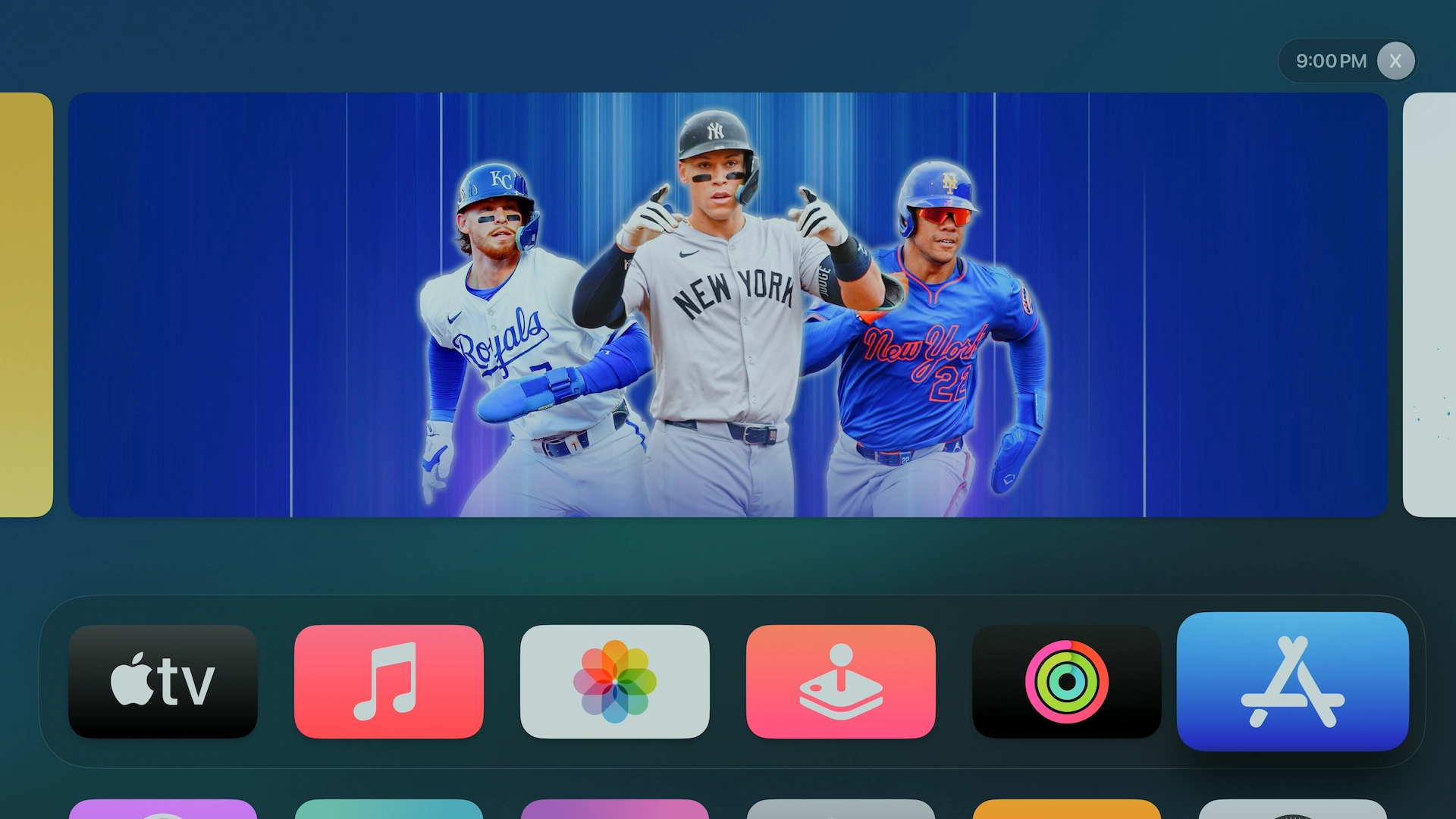
Step 2: Search for UHF – Love Your IPTV
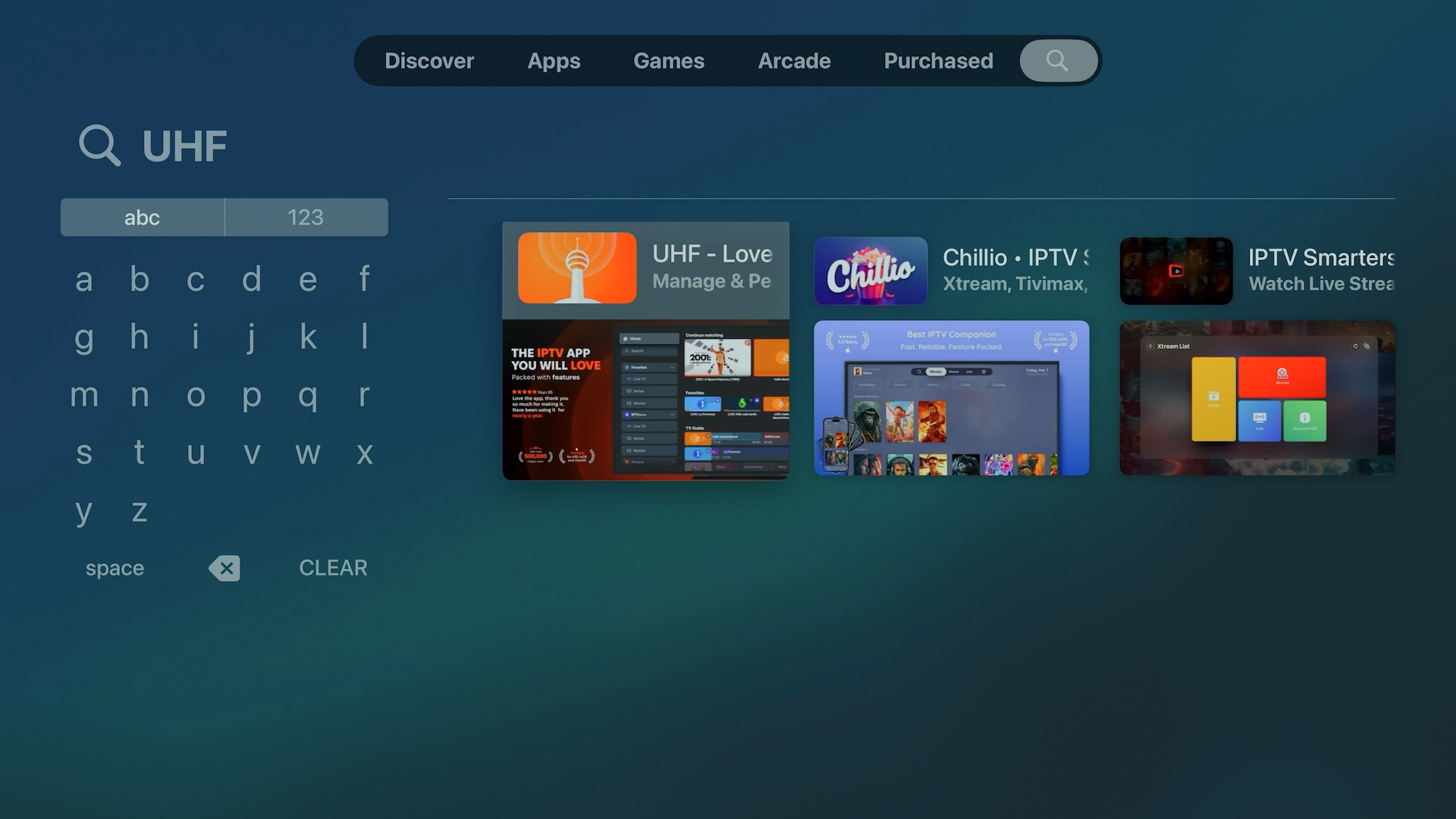
Apple TV: Select the search icon and type “UHF IPTV”, or use Siri and say “Find UHF IPTV”.
iPhone / iPad / Mac: Tap or click the Search tab and type “UHF – Love Your IPTV”.
Step 3: Download and Install UHF
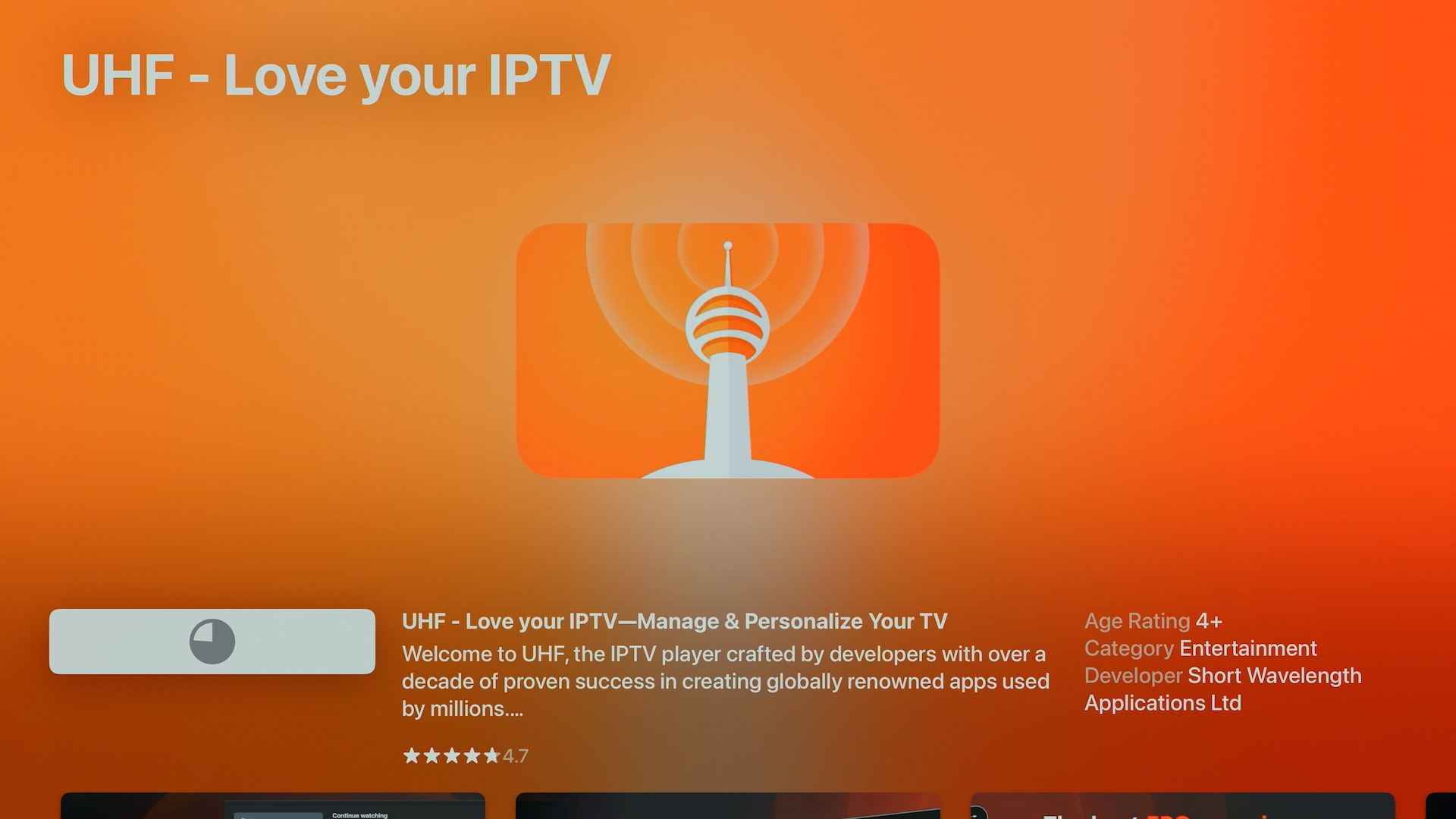
Locate the app “UHF – Love Your IPTV” by Short Wavelength Applications Ltd. Tap or click Get (or the cloud icon) and sign in with your Apple ID if prompted. The app is approximately 110 MB and installs quickly.
Step 4: Launch UHF – Love Your IPTV
Apple TV: Go back to the home screen, highlight the UHF icon, and press Select.
iPhone / iPad: Tap the UHF icon.
Mac: Open it from Applications or Launchpad.
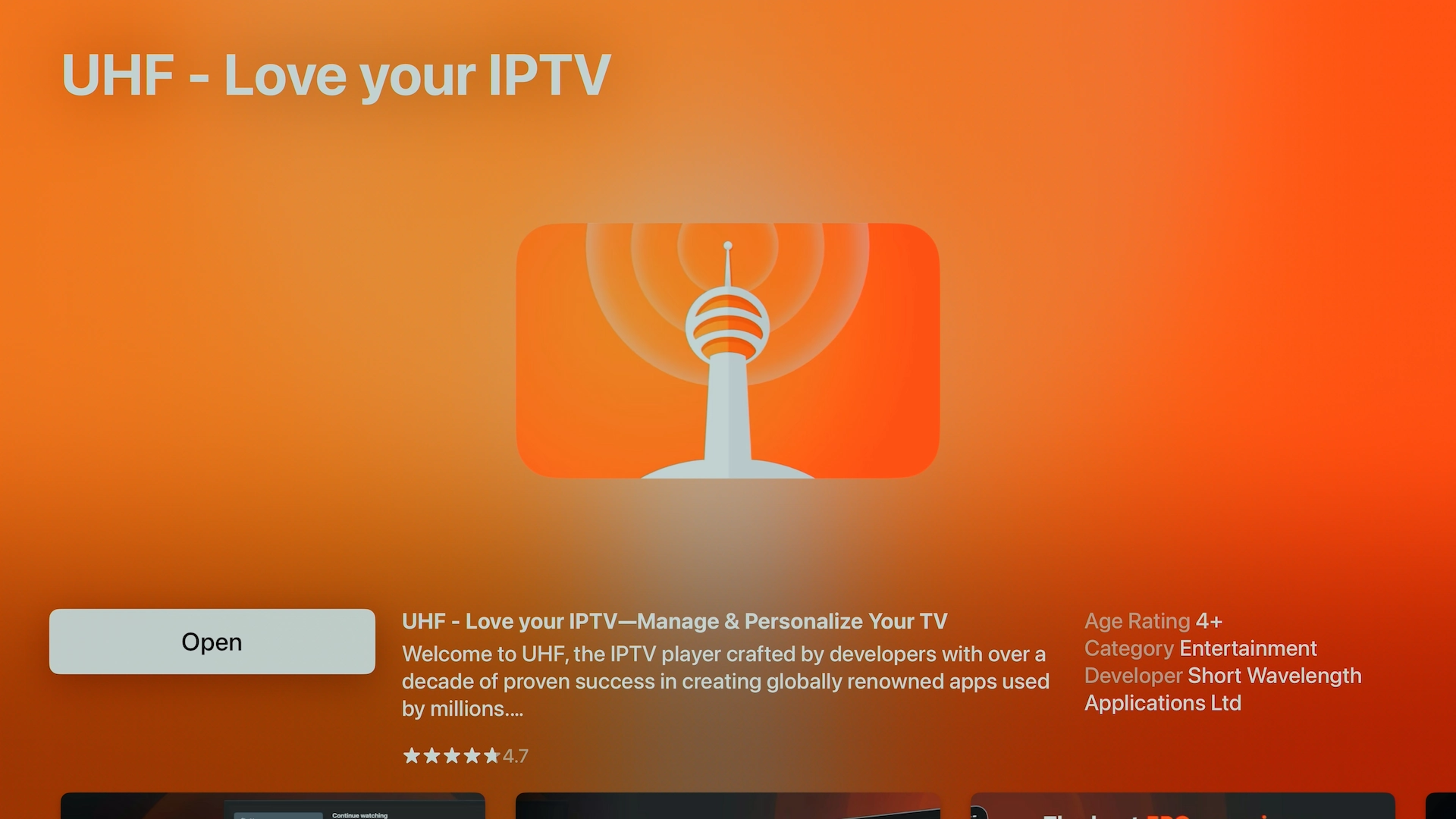
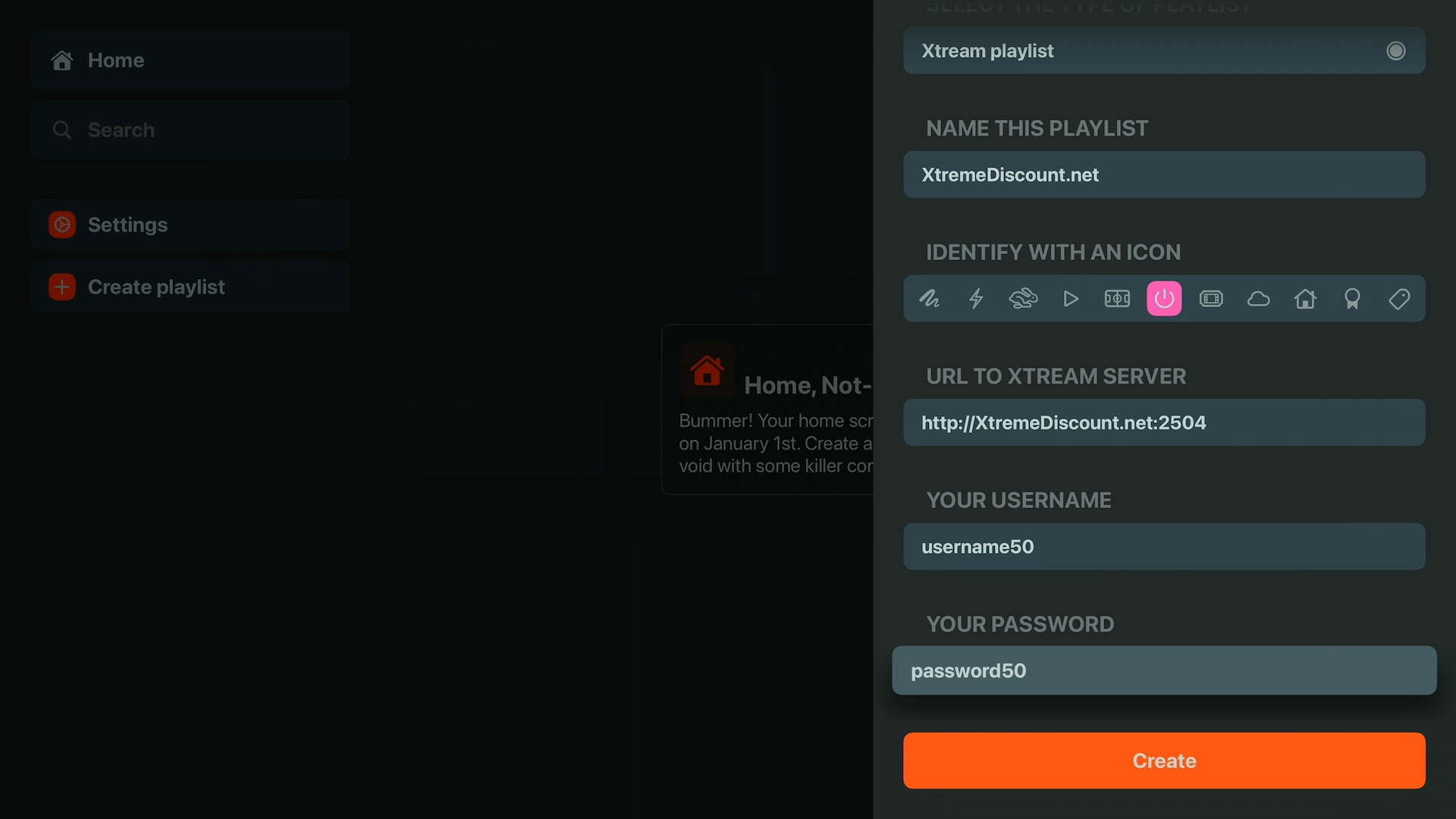
Step 5: Add Your Xtreme HD IPTV Playlist
On first launch, you may see an option to import a subscription. Choose Continue to the Application to skip it.
- Tap or click Create Playlist.
- Select Xtream Codes (recommended for most IPTV providers).
- Give your playlist a name (e.g., “Xtreme HD IPTV”).
- Enter your Server URL, Username, and Password.
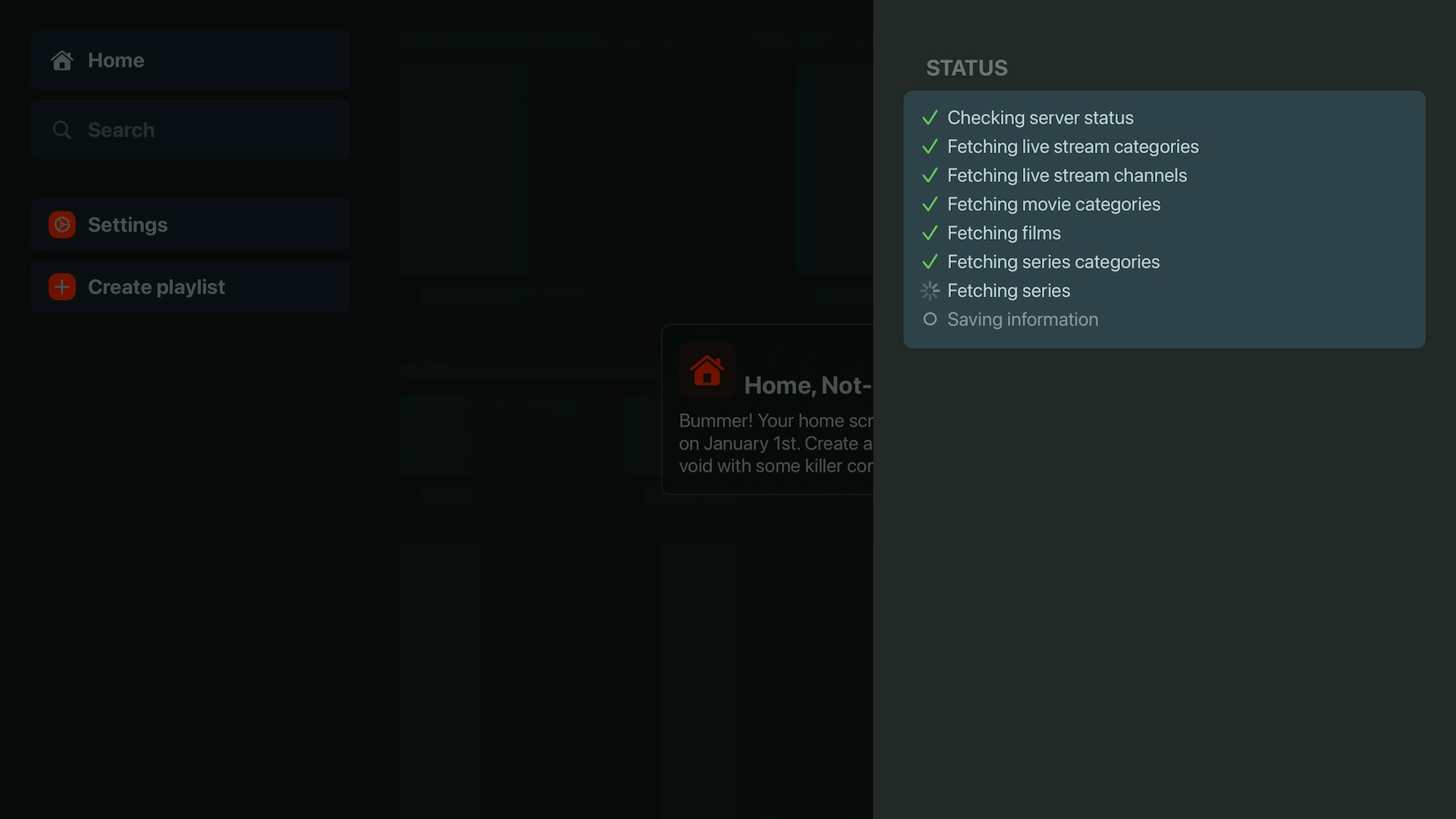
- Tap Create and wait 1–2 minutes while your channels, movies, series, and EPG load.
Exploring the UHF Interface
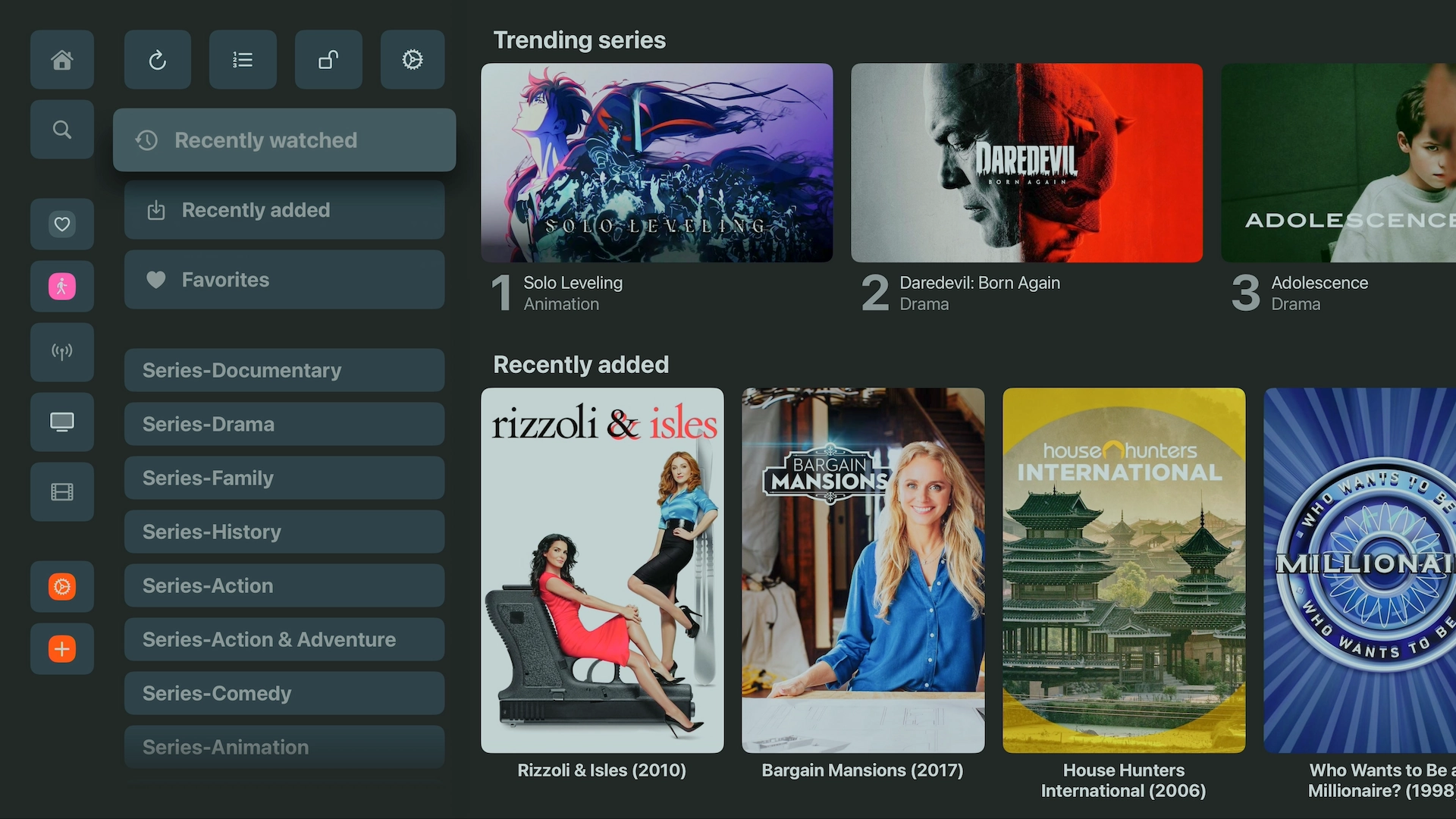
TV Series
Browse series with a clean grid layout, genre filters, and clear season/episode views. 4K HDR content is clearly labeled.
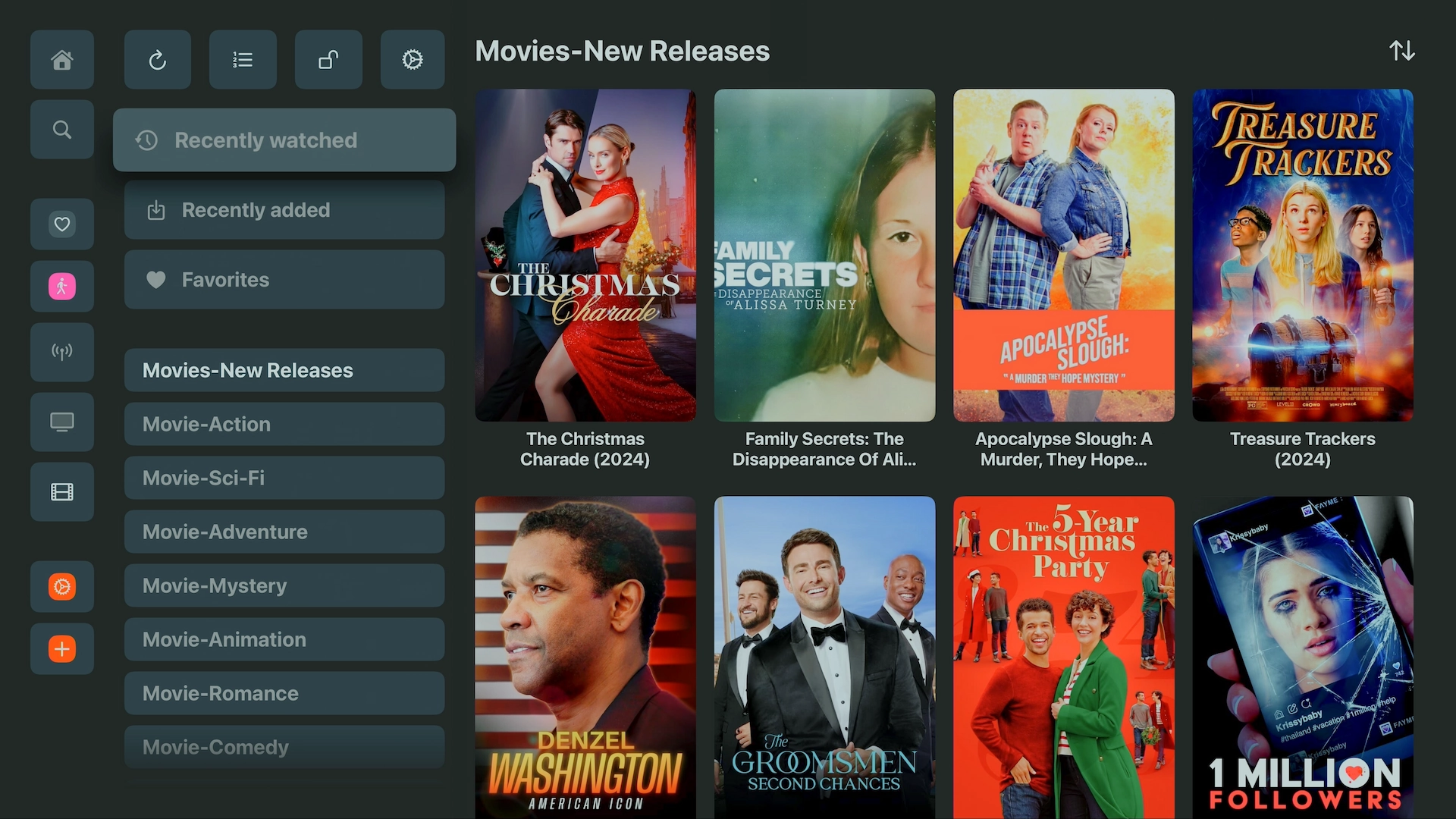
Movies
Enjoy a featured carousel and genre-based grids with detailed synopses and resolution information.
Why UHF Stands Out on Apple Devices
- Excellent 4K HDR and Dolby Atmos playback quality
- Seamless iCloud syncing of playlists, favorites, and watch history across Apple TV, iPhone, iPad, and Mac
- Built-in EPG with clean navigation
- Highly customizable settings (buffer, video renderer, etc.)
Frequently Asked Questions
Does UHF work on Mac?
Yes. UHF – Love Your IPTV is available on Mac with Apple Silicon (M1 or later) running macOS 13 or newer.
Is UHF free?
The app is free to download with in-app purchases for premium features. The core IPTV playback works well without upgrading.
Can I use UHF with Xtreme HD IPTV?
Yes. It works perfectly with Xtream Codes login from Xtreme HD IPTV.
Ready to Enjoy Premium Streaming?
You’ve successfully installed UHF – Love Your IPTV on your Apple device. Pair it with Xtreme HD IPTV for a premium experience with thousands of live channels, movies, and series.
Want to try it risk-free? Get a free 36-hour trial of Xtreme HD IPTV at XtremeDiscount.net.