
How to Add and Combine Multiple IPTV Playlists in TiviMate
Do you have more than one IPTV playlist and want to manage everything from one place?
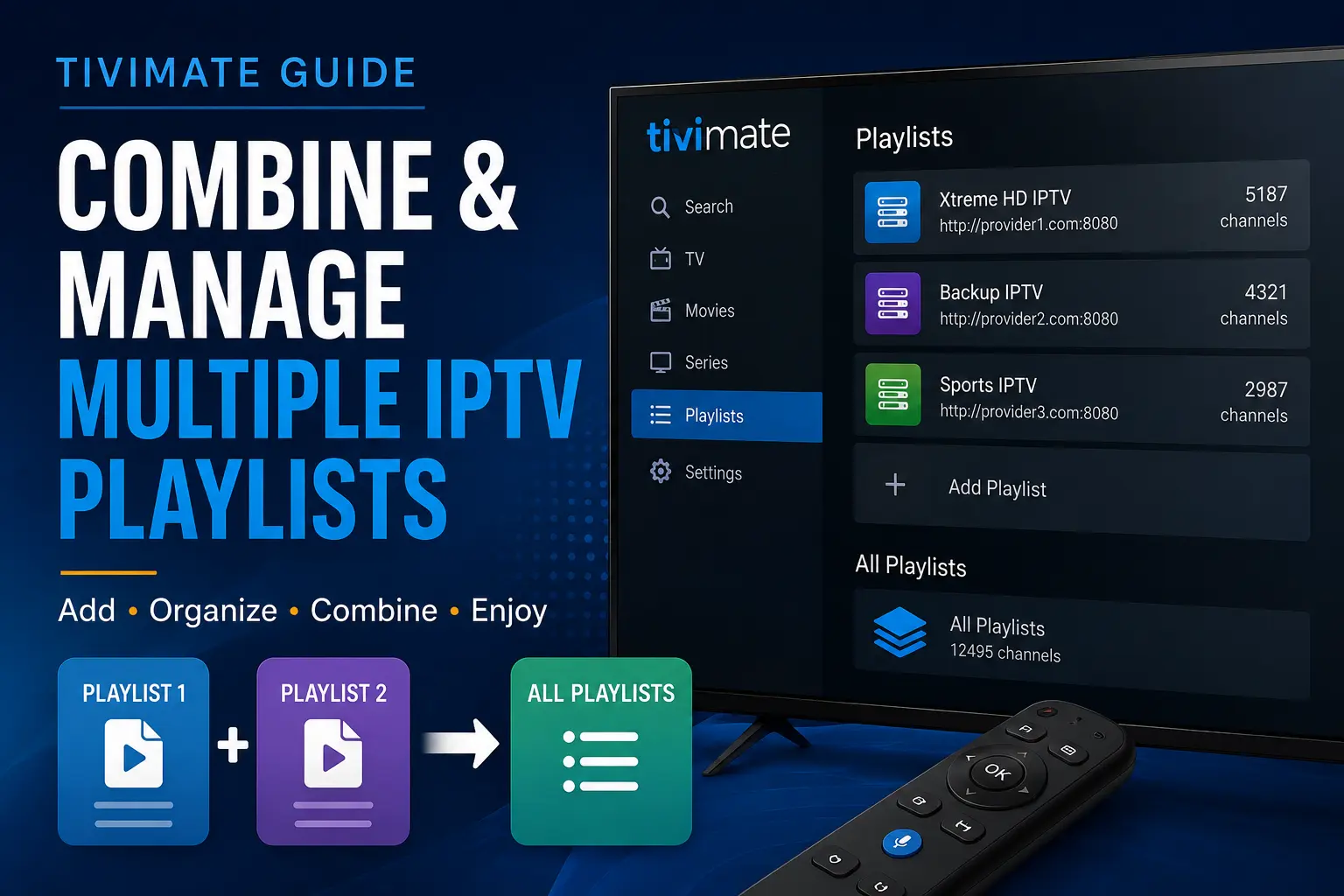
TiviMate makes it possible to add multiple IPTV playlists, organize channels from different sources, combine favorites, create custom channel groups, manage multiple EPG sources, and quickly switch between playlists.
This is especially useful if you have a primary IPTV subscription and a backup playlist, or if different playlists contain channels you want to organize together.
In this guide, we'll show you how to:
- Add multiple IPTV playlists to TiviMate
- Understand how TiviMate handles multiple playlists
- Combine channels from different playlists into custom groups
- Combine favorites from multiple IPTV playlists
- Create primary and backup channel groups
- Organize and reorder your playlists
- Manage multiple EPG sources
- Update all of your IPTV playlists
- Back up your TiviMate configuration
- Troubleshoot common multiple-playlist problems
If you're looking for general TiviMate installation instructions first, visit our TiviMate Xtreme HD IPTV setup guide.
Table of Contents
- What Does Combining IPTV Playlists in TiviMate Mean?
- What You Need Before Starting
- How to Add Your First IPTV Playlist
- How to Add a Second IPTV Playlist
- Understanding All Playlists in TiviMate
- Method 1: Combine Favorites From Multiple Playlists
- Method 2: Create a Custom Group From Multiple Playlists
- Create Primary and Backup Channel Groups
- How to Reorder IPTV Playlists
- How to Organize Channel Groups
- How to Manage EPG With Multiple Playlists
- How to Update Multiple Playlists
- How to Temporarily Disable a Playlist
- Back Up Your TiviMate Setup
- Performance Tips for Large Playlists
- Can Other IPTV Apps Manage Multiple Playlists?
- Troubleshooting Multiple Playlists
- Frequently Asked Questions
What Does Combining IPTV Playlists in TiviMate Mean?
First, it's important to understand what TiviMate actually does when you add multiple IPTV playlists.
TiviMate does not permanently merge two IPTV provider accounts into one account.
Each IPTV playlist remains independent and continues using its own:
- Server
- Username and password
- Channels
- Movies and series
- EPG data
- Subscription expiration date
- Connection limits
What TiviMate does is allow you to manage those separate playlists from one interface.
You can then organize content from multiple playlists using features such as:
- All Playlists
- Favorites
- Custom Groups
- Copy Channels
- Playlist sorting
This gives you the convenience of one organized IPTV interface without actually changing the accounts provided by your IPTV services.
What You Need Before Starting
Before adding multiple IPTV playlists, make sure you have the login information for each IPTV account.
Depending on the provider, you may receive one of the following:
Xtream Codes Login
You normally need:
- Server URL
- Username
- Password
M3U Playlist
Your provider may instead give you a complete M3U URL.
Stalker Portal
Some services use a portal-based login instead.
For most IPTV users, Xtream Codes is usually the easiest way to add an account to TiviMate because it can automatically retrieve live channels, movies, series, and account information when supported by the provider.
How to Add Your First IPTV Playlist to TiviMate
If you have not added an IPTV account yet, open TiviMate and choose:
Add Playlist
You will normally be given several playlist options.
Using Xtream Codes
- Open TiviMate.
- Select Add Playlist.
- Select Xtream Codes.
- Enter the server address supplied by your IPTV provider.
- Enter your username.
- Enter your password.
- Select Next.
- Wait while TiviMate processes the playlist.
- Give the playlist a recognizable name.
- Finish the setup.
For example, you could name it:
Xtreme HD IPTV
or:
Main IPTV
Using descriptive playlist names becomes especially helpful once you add several accounts.
How to Add a Second IPTV Playlist to TiviMate
Once your first playlist has already been configured, additional playlists can be added through TiviMate settings.
Go to:
Settings > Playlists > Add Playlist
Then:
- Select the playlist type.
- Enter the second provider's login information.
- Allow TiviMate to process the playlist.
- Give the new playlist a unique name.
- Complete the setup.
For example:
- Xtreme HD IPTV
- Backup IPTV
Both playlists will remain separate, but you can now access and organize them inside the same TiviMate installation.
Note: Availability of multiple-playlist features may depend on the TiviMate version and feature level you're using.
Understanding “All Playlists” in TiviMate
When multiple playlists are enabled, TiviMate can display an All Playlists section.
This is one of the most useful parts of a multiple-provider setup.
Instead of constantly switching between:
Playlist A
and:
Playlist B
you can use the All Playlists area to create a more unified viewing experience.
However, remember that the original IPTV playlists are still separate behind the scenes.
Method 1: Combine Favorites From Multiple IPTV Playlists
The easiest way to organize channels from several IPTV playlists is with Favorites.
For example, imagine you have:
Playlist 1
- ESPN
- TNT
- ABC
- NBC
Playlist 2
- ESPN
- TNT
- FOX
- CBS
You can favorite ESPN from Playlist 1 and ESPN from Playlist 2.
Both can then be quickly accessed through your Favorites instead of repeatedly navigating between the two provider lists.
How to Add a Channel to Favorites
- Navigate to the channel.
- Long-press the OK/Select button on your remote to open the channel options.
- Select Add to Favorites.
Repeat this process for channels from your other playlists.
This is the simplest method if you only want quick access to your most frequently watched channels.
Method 2: Create a Custom Group Using Channels From Multiple Playlists
For more control, TiviMate allows you to create your own custom channel groups.
This is one of the best ways to organize content from multiple IPTV playlists.
You might create groups such as:
- My Sports
- USA Favorites
- UK Channels
- News
- Kids
- Movies
- Backup Channels
- Game Day
Step 1: Create a New Group
From the TV Guide or channel list:
- Long-press the OK/Select button to open the right-side menu.
- Look for the option to Create Group.
- Create the group under All Playlists when available.
- Enter the name of your new group.
For example:
Sports & Backup
Step 2: Copy Channels Into the Group
Now go to one of your source playlists.
- Open the group containing the channels you want.
- Long-press OK/Select.
- Select Copy Channels.
- Select the channels you want to add.
- Choose your new custom group as the destination.
Then repeat the process with your second playlist.
Your custom group can now contain channels originating from multiple IPTV playlists.
Create Primary and Backup Channels in TiviMate
One of the most useful reasons to have multiple IPTV playlists is to keep alternative streams available.
For example, suppose both providers carry:
- ESPN
- TNT
- FOX
- NBC
- NFL Network
You could create a group called:
Sports & Backup
Then arrange it like this:
- ESPN – Main
- ESPN – Backup
- TNT – Main
- TNT – Backup
- FOX – Main
- FOX – Backup
If one stream has a temporary problem, you can immediately try the other one without searching through an entirely different playlist.
This can be particularly convenient during popular live events.
How to Reorder Your IPTV Playlists in TiviMate
If you have several playlists, put your most important one first.
Go to:
Settings > Playlists
Look for the playlist sorting or ordering options.
Choose manual sorting when available and place the playlists in the order you prefer.
For example:
- Xtreme HD IPTV
- Backup IPTV
- Specialty Playlist
Using clear names and a logical order makes a multi-playlist setup much easier to manage.
How to Organize Channel Groups
Large IPTV playlists can contain hundreds of groups that you may never use.
Instead of leaving everything visible, consider organizing each playlist.
You can hide groups you don't need and keep useful categories near the top.
Examples might include:
- USA
- UK
- Canada
- Sports
- News
- Kids
- Movies
- PPV
This becomes even more important when several large IPTV playlists are loaded into TiviMate simultaneously.
How to Manage EPG With Multiple IPTV Playlists
Each IPTV playlist may provide its own Electronic Program Guide, or EPG.
If you add two providers, you may therefore have multiple EPG sources available.
If the TV guide is already displaying correctly, you generally don't need to change anything.
If one playlist has missing guide information, check that playlist's EPG configuration.
Go to:
Settings > Playlists > Select Your Playlist
Then look for the EPG source settings.
TiviMate can also work with additional EPG sources when required.
Important
Don't confuse updating an IPTV playlist with updating the EPG.
Playlist update: refreshes IPTV content and playlist information.
EPG update: refreshes the TV guide and programming information.
How to Update Multiple IPTV Playlists
If channels have been added, removed, renamed, or reorganized by your IPTV provider, update the playlist inside TiviMate.
For an individual playlist, go to:
Settings > Playlists > Select Playlist > Update Playlist
If your version of TiviMate offers an Update All Playlists option, you can use that to refresh several configured playlists together.
Automatic Playlist Updates
You may also see options for automatically updating playlists:
- When the app starts
- At configured intervals
- After a certain amount of time
Automatic updates are useful, but loading several very large IPTV playlists too frequently can take additional time and device resources.
How to Temporarily Disable an IPTV Playlist
You don't necessarily need to delete a playlist just because you aren't currently using it.
If your TiviMate version allows it, you can temporarily disable a playlist from its playlist settings.
This is useful when:
- A backup provider isn't currently needed
- A playlist has temporarily expired
- You want to simplify your channel list
- You're troubleshooting one provider at a time
Disabling a playlist is generally preferable to deleting it if you think you'll use it again.
Back Up Your TiviMate Configuration
This is highly recommended if you've spent time organizing multiple playlists.
Once you've created custom groups, favorites, channel ordering, EPG settings, and other customizations, make a TiviMate backup.
Go to:
Settings > General > Backup Data
Save the backup somewhere you can find it later.
A backup can make it much easier to recover your configuration if you:
- Reinstall TiviMate
- Reset your streaming device
- Buy a new Android TV box
- Replace a Firestick
- Accidentally change your configuration
After spending time creating custom groups from multiple providers, making a backup can save a lot of work.
Performance Tips for Multiple IPTV Playlists
Adding more playlists also means TiviMate may need to process more channels, movies, series, logos, and EPG information.
For the best performance:
1. Hide Groups You Don't Use
If your IPTV provider offers hundreds of categories and you only watch a few of them, hide unnecessary groups.
2. Don't Constantly Refresh Huge Playlists
Updating several enormous playlists at very short intervals may increase loading time.
3. Keep Enough Free Device Storage
Devices with very little remaining storage can become slow regardless of which IPTV player you're using.
4. Restart Your Streaming Device Occasionally
A restart can help clear temporary resource problems on Firestick and Android TV devices.
5. Keep TiviMate Updated
Use a current compatible version of the application whenever possible.
Can You Use Multiple IPTV Playlists in Other IPTV Apps?
Yes, but not every IPTV player handles multiple playlists the same way.
TiviMate
TiviMate is particularly useful for advanced multiple-playlist organization because you can keep several playlists available and create custom groups containing channels copied from different playlists.
This makes it especially useful for people who want a highly customized TV guide.
UHF – Love Your IPTV
UHF – Love Your IPTV supports multiple playlists and is an excellent option for Apple TV, iPhone, iPad, and Mac users.
UHF also provides playlist organization, favorites, and search features that can make managing several IPTV sources easier.
For setup instructions, visit our UHF – Love Your IPTV installation guide.
IPTV Smarters Pro
IPTV Smarters-style players can support multiple users or playlists depending on the version you're using.
They're useful if you want to add several IPTV accounts and switch between them.
However, this should not be confused with TiviMate's ability to create custom channel groups using channels from different playlists.
See our IPTV Smarters setup guide for installation help.
HotPlayer
HotPlayer supports multiple playlist management on compatible versions.
It is better thought of as a way to store and switch between several playlists rather than a TiviMate-style advanced custom-group system.
IBO Player
IBO Player also supports playlist management through its web-based device management system.
Depending on the IBO version you're using, you may be able to manage multiple playlists for the same device.
Again, don't assume that multiple-list support automatically means the app can combine channels into cross-provider custom groups the same way TiviMate can.
Troubleshooting Multiple IPTV Playlists in TiviMate
My Second Playlist Won't Load
First, verify the:
- Server URL
- Username
- Password
- Internet connection
- Subscription status
If possible, confirm the same credentials with your IPTV provider before deleting anything from TiviMate.
One Playlist Works and the Other Doesn't
If one playlist works normally, TiviMate and your internet connection are probably functioning.
The issue may be specific to:
- The second provider
- Incorrect credentials
- An expired subscription
- A changed server address
- A temporary server issue
My Channels Are Showing Twice
If two providers carry the same channel, seeing two versions is normal.
That can actually be useful because one can serve as a backup.
Instead of trying to automatically remove every duplicate, create a clean Favorites list or custom group containing only the versions you want.
My TV Guide Is Missing for One Playlist
Check the EPG source assigned to that specific playlist.
If your provider supplies an EPG through Xtream Codes, make sure the playlist has updated successfully.
TiviMate Is Slow After Adding Another Playlist
Very large playlists can contain tens of thousands of entries across live TV, movies, series, and EPG data.
Try:
- Restarting the device
- Hiding unnecessary groups
- Reducing unnecessary automatic refreshes
- Checking available device storage
- Temporarily disabling a playlist to compare performance
Frequently Asked Questions
Can I add multiple IPTV playlists to TiviMate?
Yes. TiviMate supports multiple IPTV playlists when the required feature level is available. Each playlist remains a separate IPTV account, but TiviMate allows you to manage them from the same application.
Can I combine two IPTV providers into one TiviMate guide?
You can manage multiple providers inside TiviMate and create custom groups containing channels copied from different playlists. The original IPTV accounts remain separate behind the scenes.
Can I put channels from two playlists into the same group?
Yes. One of TiviMate's most useful advanced features is the ability to create custom groups and copy selected channels into them. When the group is created under All Playlists, it can contain channels originating from different playlists.
Can I have two versions of the same channel?
Yes. For example, you could keep ESPN from your primary playlist and ESPN from your backup playlist together so you can quickly switch if necessary.
Does adding a second playlist combine my IPTV subscriptions?
No. Adding accounts to the same IPTV player does not combine the subscriptions themselves. Each provider continues controlling its own subscription, connections, expiration date, and server access.
How many IPTV playlists can I add to TiviMate?
TiviMate supports multiple playlists, but there is no reason to load large numbers of IPTV accounts unnecessarily. The practical number depends on your device, playlist sizes, EPG data, and how much content each playlist contains.
Do I need a separate EPG for every playlist?
Not necessarily. If each IPTV provider already supplies working guide data, TiviMate may automatically receive the appropriate EPG information. Additional EPG sources can be configured when needed.
Will removing a playlist cancel my IPTV subscription?
No. Removing a playlist from TiviMate only removes that account from the app. It does not cancel the actual IPTV subscription with the provider.
Can I use one provider as a backup for another?
Yes. Many users keep a second playlist available and organize frequently watched channels from both sources into Favorites or custom groups for easier access.
Should I make a TiviMate backup?
Yes, especially after creating custom groups, reorganizing channels, or configuring several playlists. A backup can save substantial time if you ever need to reinstall or move TiviMate to another device.
Get Xtreme HD IPTV
If you're looking for an IPTV subscription to use with TiviMate, XtremeDiscount.net offers Xtreme HD IPTV plans with support for popular IPTV players and streaming devices.
You can use Xtreme HD IPTV on compatible devices including:
- Amazon Firestick
- Android TV
- Android TV boxes
- Apple TV
- Smart TVs
- iPhone and iPad
- Android phones and tablets
- Windows and Mac
Want to test the service first?
Start an Xtreme HD IPTV free trial and test it on a compatible device.
For additional IPTV installation help, visit our IPTV Setup Guide.
Final Thoughts
Adding multiple IPTV playlists to TiviMate can make managing more than one IPTV source much easier.
The most important thing to remember is that TiviMate doesn't actually merge your subscriptions together. Instead, it gives you tools for organizing separate IPTV playlists inside one interface.
For a clean setup:
- Add each IPTV playlist separately.
- Give every playlist an easy-to-recognize name.
- Use Favorites for simple organization.
- Create custom groups when you want channels from multiple playlists together.
- Keep primary and backup channels together when useful.
- Configure EPG sources only when necessary.
- Update your playlists regularly.
- Back up your TiviMate configuration after making major changes.
With a little organization, TiviMate can turn several large IPTV playlists into a much cleaner and easier-to-use streaming setup.