
IPTV Subscription Renewed but Expiration Date Still Old? How to Fix It
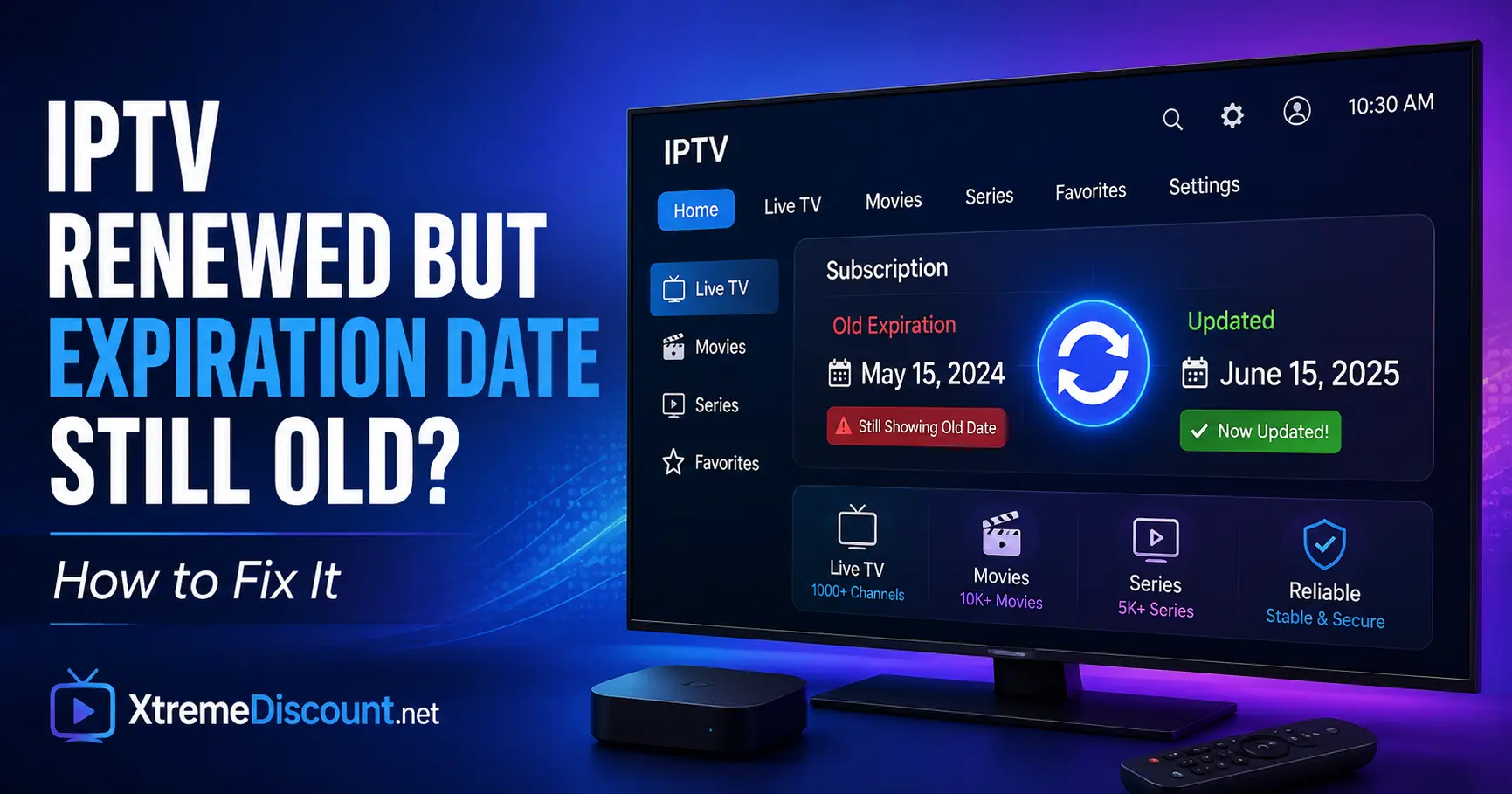
If you recently renewed, extended, or upgraded your IPTV subscription but your IPTV player still shows the old expiration date, the renewal may already be active even though your app has not refreshed the latest account information.
This can happen with popular IPTV players such as TiviMate, IPTV Smarters Pro, UHF – Love Your IPTV, IBO Player, HotPlayer, and other Xtream Codes-compatible apps.
In most cases, the solution is simple: refresh your playlist or account information so the IPTV player retrieves the latest details from the server.
This guide explains what to check and how to refresh several of the most popular IPTV apps.
Why Does My IPTV Player Still Show the Old Expiration Date?
Your IPTV subscription information is stored on your provider's server. Your IPTV player connects to that server and displays information associated with your account.
After a renewal or upgrade, your player may continue displaying older information until it connects to the server again and refreshes the playlist or account data.
This commonly happens after:
- Renewing an IPTV subscription
- Adding additional months
- Upgrading the number of devices or connections
- Changing IPTV packages
- Receiving new login credentials
- Changing the IPTV server address
Before changing anything inside your IPTV app, first make sure your provider has actually completed the renewal or upgrade.
Step 1: Confirm Your IPTV Subscription Was Updated
The first thing to check is whether your subscription was successfully updated on the provider's side.
If you're an XtremeDiscount / Xtreme HD IPTV customer, contact our support team through the live chat on XtremeDiscount.net and ask us to verify your:
- Current expiration date
- Subscription status
- Number of allowed connections
- Username
- Server address
If the correct expiration date is already showing on the IPTV server, the problem is most likely inside the IPTV player rather than with the subscription itself.
Did Your IPTV Username or Password Change?
This is especially important.
If your IPTV provider gave you a new username, password, or server address, simply refreshing your old playlist may not work because your IPTV player could still be connected to the previous account.
If your login information changed, you may need to:
- Edit your existing playlist credentials
- Remove the old account and add the new one
- Replace the old Xtream Codes login with the updated credentials
If your username, password, and server address stayed exactly the same, start with a normal playlist refresh.
How to Refresh Your Playlist in TiviMate
TiviMate is one of the most popular IPTV players for Firestick, Android TV, and Android TV boxes.
To manually refresh your playlist:
- Open TiviMate.
- Go to Settings.
- Select Playlists.
- Select the playlist connected to your IPTV subscription.
- Choose Update Playlist.
- Wait for TiviMate to finish updating.
After the update finishes, check your account information again.
You can also completely close TiviMate and reopen it after refreshing.
Enable Automatic Playlist Updates in TiviMate
To help prevent outdated information in the future, you can enable playlist updates when TiviMate starts.
Go to:
Settings > Playlists > Select Your Playlist
Look for an option similar to:
Update playlist on app start
Menu wording can vary slightly depending on your TiviMate version.
For more help with TiviMate, visit our TiviMate Xtreme HD IPTV setup guide.
How to Refresh IPTV Smarters Pro
If you're using IPTV Smarters Pro or another Smarters-based IPTV player, look for an option such as:
- Refresh Channels, Movies and Series
- Refresh Content
- Reload User
The exact wording can vary between versions.
A common procedure is:
- Open IPTV Smarters.
- Open your IPTV account.
- Look for the refresh or three-dot menu.
- Select the option to refresh channels, movies, series, or account content.
- Wait for the update to complete.
- Close the app completely.
- Reopen IPTV Smarters.
If your IPTV username or password changed, you may need to remove the old user and log back in using your current Xtream Codes API information.
For installation help, see our IPTV Smarters setup guide.
Do I Need to Refresh the EPG?
Usually, no.
The EPG, or Electronic Program Guide, controls information such as:
- What's currently playing
- Upcoming programs
- Program descriptions
- TV guide schedules
Your IPTV subscription expiration date is account information, not EPG information.
A simple rule to remember is:
Wrong expiration date = refresh the playlist or account.
Wrong or missing TV guide = refresh the EPG.
Clearing your entire EPG is normally unnecessary when troubleshooting an old subscription expiration date.
How to Refresh UHF – Love Your IPTV
UHF – Love Your IPTV is a popular IPTV player for Apple TV, iPhone, iPad, and Mac.
If UHF is still showing old account information:
- Open UHF.
- Select your IPTV playlist.
- Open the playlist or account settings.
- Use the available Reload or Update Playlist option.
- Allow the playlist to finish updating.
- Close and reopen UHF.
If your IPTV credentials changed during your renewal or upgrade, edit the playlist or add the account again using your updated Xtream Codes information.
For detailed setup instructions, see our UHF – Love Your IPTV setup guide.
How to Refresh IBO Player
IBO Player works differently from players such as TiviMate because playlist management may be performed through the IBO playlist-management website.
If your IPTV account information changed:
- Open IBO Player on your TV or streaming device.
- Locate the MAC Address and Device Key shown in the app.
- Open the correct IBO playlist-management website for your version of the player.
- Access your device using the MAC address and device key.
- Verify that your current IPTV playlist information is saved.
- Update the Xtream Codes or M3U information if necessary.
- Save the changes.
- Completely close and reopen IBO Player.
Remember that IBO Player is only the IPTV player. Your subscription expiration date and number of allowed connections are controlled by your IPTV provider.
How to Refresh HotPlayer
HotPlayer also commonly uses web-based playlist management.
If your IPTV account was renewed or changed:
- Open HotPlayer and locate the device information shown by the app.
- Open the HotPlayer playlist-management website.
- Locate the playlist associated with your device.
- Verify the IPTV server address, username, password, or M3U URL.
- Update the information if necessary.
- Save the playlist.
- Return to your streaming device.
- Restart or refresh HotPlayer.
The exact menus can vary depending on the HotPlayer version and device.
Restart the IPTV App Completely
If you've refreshed your playlist but still see the old expiration date, completely close the IPTV player.
Simply pressing the Home button on your remote does not always fully close an application.
On Firestick or Android TV
You can usually force close the app by going to:
Settings > Applications > Manage Installed Applications > Select Your IPTV App > Force Stop
Then reopen the IPTV player and check the account again.
Should I Clear the IPTV App Cache?
Clearing the app's temporary cache can sometimes help if the application is behaving incorrectly.
On many Android-based devices:
Settings > Applications > Manage Installed Applications > Your IPTV App > Clear Cache
Be careful not to select Clear Data unless necessary.
Clearing app data can remove playlists, login information, favorites, settings, and other locally stored information.
When Should I Delete and Re-Add the IPTV Playlist?
Removing and re-adding the playlist should normally be one of the last troubleshooting steps.
Consider doing this if:
- Your IPTV username changed
- Your IPTV password changed
- Your IPTV server address changed
- The existing playlist refuses to update
- The player continues showing information from an old account
- Your provider confirms the account is correct but the app will not retrieve the latest information
If you're using TiviMate and have spent time organizing favorites, groups, EPG settings, or other customizations, consider creating a TiviMate backup before removing anything.
Will Deleting My Playlist Cancel My IPTV Subscription?
No.
Your IPTV subscription exists on your IPTV provider's server.
Deleting a playlist from TiviMate, IPTV Smarters, UHF, or another IPTV player does not cancel or delete the actual subscription.
However, removing a playlist can erase local app settings associated with that playlist.
My IPTV Works but the Expiration Date Is Still Wrong
This is an important distinction.
Suppose your IPTV provider confirms that your subscription is active through:
December 31, 2026
but your IPTV player still displays:
September 30, 2026
If your channels, movies, and series continue working normally, the renewal may already be active while the player is simply displaying outdated account information.
Ask your IPTV provider to verify:
- The server-side expiration date
- Your username
- Your subscription status
- Your number of allowed connections
- Whether your previous login credentials are still active
If all of the server-side information is correct, focus on refreshing or re-adding the account inside the IPTV player.
I Added More Devices but My Expiration Date Didn't Change
That's not necessarily a problem.
Your number of connections and your subscription expiration date are two different account settings.
For example, upgrading from:
12 Months + 2 Devices
to:
12 Months + 4 Devices
does not automatically mean the subscription expiration date needs to change.
If your IPTV player displays account information, check both:
- Expiration Date
- Maximum Connections / Allowed Connections
M3U Users May Not See an IPTV Expiration Date
Not every IPTV playlist format provides the same account information.
If you log in using Xtream Codes, many IPTV players can retrieve information such as:
- Account status
- Expiration date
- Maximum connections
If you're using only an M3U playlist URL, your IPTV player may not display all of this information.
So if you're using M3U and cannot find an expiration date inside the app, that does not necessarily mean there is a problem with your subscription.
Can a VPN Fix an Incorrect IPTV Expiration Date?
Normally, no.
A VPN cannot change the expiration date stored on your IPTV provider's server.
However, if your IPTV app is having trouble communicating with the IPTV server because of a network or routing problem, testing another internet connection or temporarily testing with a VPN can help determine whether connectivity is interfering with the app.
A VPN should therefore be considered a network troubleshooting step, not the primary solution for an incorrect expiration date.
Frequently Asked Questions
Why does TiviMate show my old expiration date after I renewed?
TiviMate may still be displaying previously retrieved account information. Go to Settings > Playlists > Your Playlist > Update Playlist, allow the update to finish, then completely close and reopen TiviMate.
Should I clear my EPG after renewing IPTV?
Normally, no. Refresh the EPG when your TV guide is outdated or missing. For an incorrect subscription expiration date, refresh the playlist or account information instead.
Will deleting my IPTV playlist delete my subscription?
No. Your subscription exists with your IPTV provider. Deleting a playlist only removes it from the IPTV player, although local favorites and other settings associated with that playlist may also be removed.
What if my IPTV username or password changed?
Edit the existing playlist credentials if your IPTV player supports it. Otherwise, remove the old account and add your new Xtream Codes credentials.
Why does my old IPTV account still appear after an upgrade?
Your IPTV player may still be connecting using credentials associated with the previous account. Confirm the current username, password, and server address with your IPTV provider.
My IPTV works but the expiration date is wrong. Was my subscription renewed?
It may have been. Ask your IPTV provider to confirm the expiration date directly on the server. If the server shows the correct expiration date and the service is working normally, your IPTV player may simply need to refresh its account information.
Why didn't my expiration date change after adding more devices?
Adding more allowed connections does not necessarily extend the subscription period. Check both the expiration date and maximum connections separately.
Still Need Help?
If you're an XtremeDiscount / Xtreme HD IPTV customer and recently renewed or upgraded your subscription but your IPTV player still shows old information, we're available to help.
Visit XtremeDiscount.net and contact our 24/7 live chat support.
When contacting support, tell us:
- Which IPTV app you're using
- Which device you're using
- The expiration date currently displayed
- Whether you renewed, extended, upgraded, or added devices
We can verify your account information and help determine whether the problem is with the subscription or simply outdated information inside your IPTV player.
Final Thoughts
If your IPTV subscription was renewed but the expiration date inside TiviMate, IPTV Smarters, UHF, IBO Player, HotPlayer, or another IPTV app hasn't changed, don't immediately delete your playlist or reset the entire application.
Start with the simplest steps:
- Confirm the renewal with your IPTV provider.
- Refresh the IPTV playlist or account.
- Completely restart the IPTV player.
- Verify that your login credentials haven't changed.
- Only remove and re-add the playlist if the simpler methods fail.
In most cases, the subscription itself is fine and the IPTV player simply needs to retrieve the latest account information.