

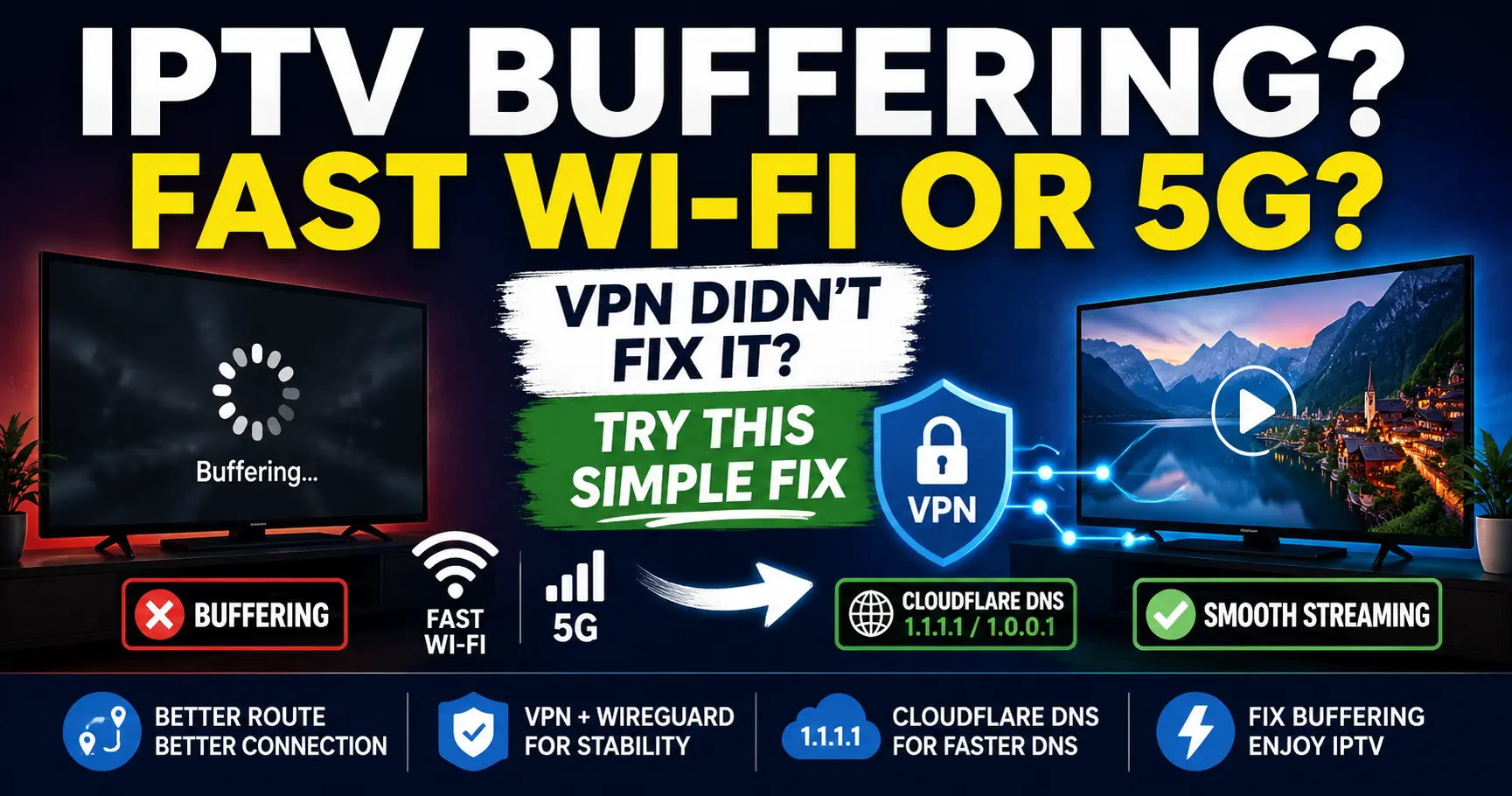
IPTV Buffering on Fast Wi-Fi or 5G? Tried a VPN? Here’s a Simple Fix
⚡ Fast internet but IPTV still buffering?
📱 Have blazing-fast 5G but IPTV freezes or buffers?
🚫 Think your ISP or phone carrier is throttling you?
🛡️ Already tried a VPN and it STILL won't fix it?
Don't give up on the VPN yet. The solution might be as simple as a small tweak to your VPN settings.
We've helped customers troubleshoot this exact problem over and over, and we've found a combination of VPN and DNS settings that has been extremely effective for stubborn IPTV buffering — especially when someone has plenty of internet speed but their streams simply won't play smoothly.
The problem may not be your internet speed at all.
It may be the network path between your device and the IPTV server.
And if you're already using a VPN, you may be only one setting away from solving the problem.
⚡ Why Does IPTV Buffer When You Have Fast Internet?
This is one of the most frustrating IPTV problems because everything appears to be working correctly.
You run a speed test and get:
- 100 Mbps
- 300 Mbps
- 500 Mbps
- Or even faster speeds
Yet you open your IPTV player and your stream buffers.
How can IPTV buffer when you have hundreds of Mbps available?
Because internet speed is only part of the equation.
Your device doesn't connect directly to every server on the internet. Traffic travels through different networks and routes before reaching its destination.
That means you can have an incredibly fast internet connection while still having a poor connection to one particular server or network.
Network congestion, packet loss, latency, carrier routing, peering, DNS behavior, IPv4/IPv6 differences and other network conditions can affect streaming even when your speed test looks fantastic.
In other words: your internet can be fast while the particular road it's taking to the IPTV server isn't very good.
📱 This Is Especially Important on 5G & Cellular Data
We've found this troubleshooting method particularly useful for people streaming IPTV through cellular connections.
Modern 5G can be incredibly fast. But having an extremely fast connection to your cellular carrier doesn't necessarily mean that carrier has the best possible network path to every IPTV server.
This can produce situations that seem completely backwards:
📱 500 Mbps 5G → IPTV buffers
🏠 100 Mbps Wi-Fi → IPTV works perfectly
If that happens, bandwidth clearly isn't the whole story.
The route your traffic is taking may be contributing to the problem.
🚫 Is Your ISP or Cellular Carrier Throttling IPTV?
Maybe — but don't automatically assume that it is.
People frequently assume their ISP or mobile carrier must be intentionally throttling IPTV whenever they experience buffering despite having fast internet.
Sometimes filtering or traffic management can be involved, but there are plenty of other possible causes.
A poor network route can look a lot like throttling to the person watching the stream.
Your speed test works.
YouTube works.
Netflix works.
Websites load instantly.
But IPTV buffers.
That's why one of the first troubleshooting techniques we recommend is testing a different network path using a VPN.
🛡️ Why Can a VPN Fix IPTV Buffering?
When you aren't using a VPN, your connection might look roughly like this:
Your Device → ISP/Cellular Carrier → Internet Route → IPTV Server
When you connect through a VPN, the path changes:
Your Device → ISP/Cellular Carrier → VPN Server → Different Internet Path → IPTV Server
That different path can sometimes bypass the network condition that was causing your stream to perform poorly.
This is why a VPN can sometimes dramatically improve IPTV even though the VPN doesn't actually make your internet connection itself faster.
🔥 Already Tried a VPN and IPTV STILL Buffers?
Don't assume the VPN didn't work.
This is the part of the guide that's especially important for stubborn buffering problems.
We've encountered customers who:
- Had extremely fast internet
- Restarted their router
- Restarted their streaming device
- Changed IPTV apps
- Connected to a VPN
- And STILL experienced buffering
At that point, it's easy to assume you've tried everything.
But you may only need to make a small change to your VPN settings.
In these stubborn cases, we've had excellent results by configuring the VPN client to use Cloudflare DNS instead of automatically obtaining its DNS server.
Our Buffering Troubleshooting Combination:
VPN + WireGuard (when available) + Cloudflare DNS
For many of the difficult buffering cases we've dealt with, this combination has been a game changer.
☁️ The Cloudflare DNS Settings We'll Use
Cloudflare operates the popular 1.1.1.1 public DNS resolver.
We're going to configure the VPN client to use Cloudflare's DNS servers instead of automatically obtaining a DNS server.
Preferred DNS: 1.1.1.1
Alternate DNS: 1.0.0.1
Your VPN is what creates the tunnel and can change the path your traffic takes. DNS performs a different job: it resolves domain names into IP addresses.
Changing to Cloudflare DNS removes your ISP or carrier's automatically assigned DNS resolver as another variable while troubleshooting the connection.
We've found that using the VPN and Cloudflare DNS together can be particularly effective when troubleshooting stubborn buffering.
⭐ What VPN Do You Need?
You can use another VPN provider for this guide!
If you already pay for a VPN, don't immediately go purchase another one.
Check whether your existing VPN application allows you to:
- Choose your VPN protocol
- Use WireGuard
- Configure Custom DNS
If it does, try the settings later in this guide.
For this tutorial, we're using QuickCloak VPN.
We recommend QuickCloak because it's affordable, designed with streaming in mind, and its VPN client makes it easy to configure the settings used in this tutorial.
Plans start at only $8 per month.
A one-year subscription is $59.99, which works out to approximately $5 per month.
QuickCloak VPN also offers a refund if it doesn't fix your problem.
🛠️ PART 1: IF YOU DON'T ALREADY HAVE A VPN
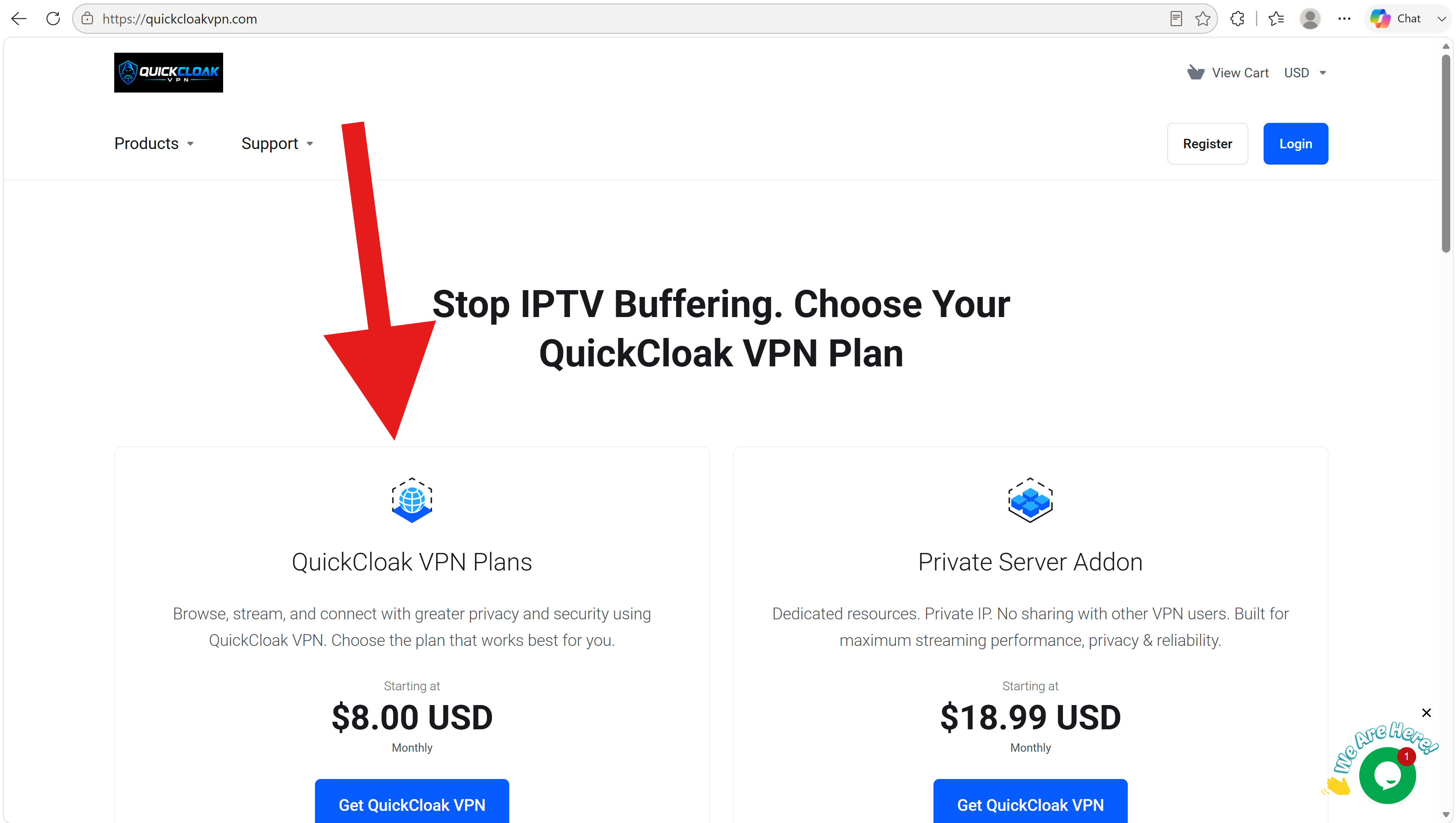
Step 1 — Visit QuickCloakVPN.com
Go to QuickCloakVPN.com and select QuickCloak VPN Plans.
Or go directly to the VPN packages:
https://quickcloakvpn.com/store/vpn
⚠️ IMPORTANT: Do NOT choose the Private Server Addons for this purpose.
You don't need a private server to follow this buffering guide, so purchasing one would be unnecessary for what we're trying to accomplish.
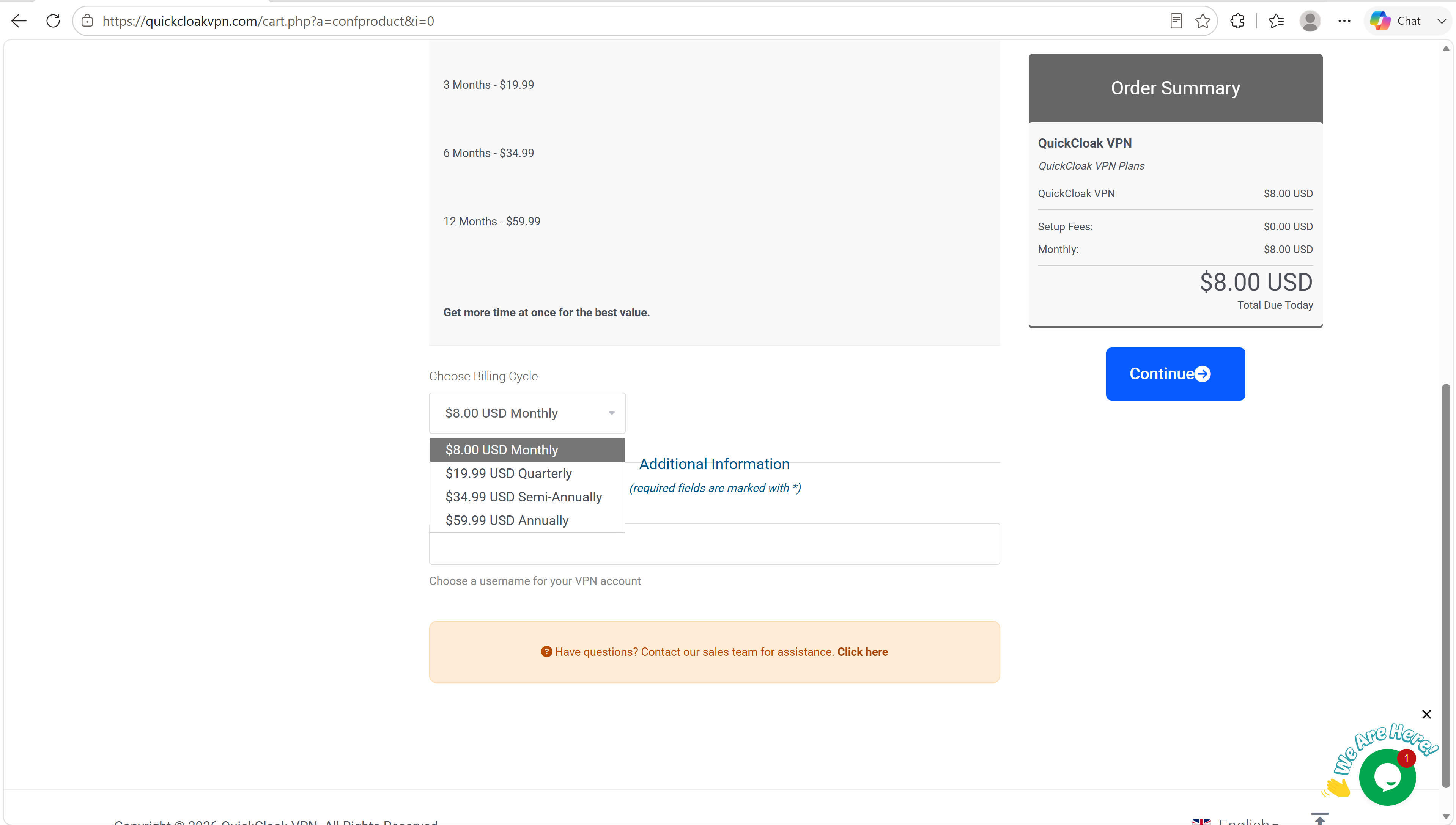
Step 2 — Choose Your VPN Plan
Choose whichever billing cycle works best for you.
- 1 Month: $8.00
- 3 Months: $19.99
- 6 Months: $34.99
- 12 Months: $59.99
The yearly package works out to approximately $5 per month.
If you're simply trying to fix your buffering problem, you can start with the $8 monthly option.
Step 3 — Complete Your Payment & Get Your VPN Credentials
After completing your payment, you'll receive your VPN credentials through QuickCloak VPN.
Your account information is also available through your billing portal.
If you aren't sure what your VPN password is, simply change it through the billing portal to something you'll remember.
For security purposes, your existing VPN password isn't displayed in your billing portal.
Step 4 — Download the QuickCloak VPN App
Next, download the VPN client for the device or devices you want to use.
Download the appropriate application for your device and install it.
Step 5 — Log In & Connect to the Fastest Server
Open the QuickCloak VPN client and log in using the credentials provided with your VPN subscription.
Then connect to the fastest available server.
Now try your IPTV service again.
If the buffering disappeared, great — you're done!
If the VPN is connected and IPTV is STILL buffering, don't give up on the VPN yet.
The next setting is what has helped us solve many stubborn cases.
🔥 PART 2: VPN WON'T FIX IT? TRY THIS SMALL SETTINGS CHANGE
If turning on the VPN alone didn't solve your buffering problem, we're going to make a couple of quick changes.
This only takes a minute.
Step 1 — Open Your VPN Settings
Open your QuickCloak VPN client and tap or click the Settings icon.
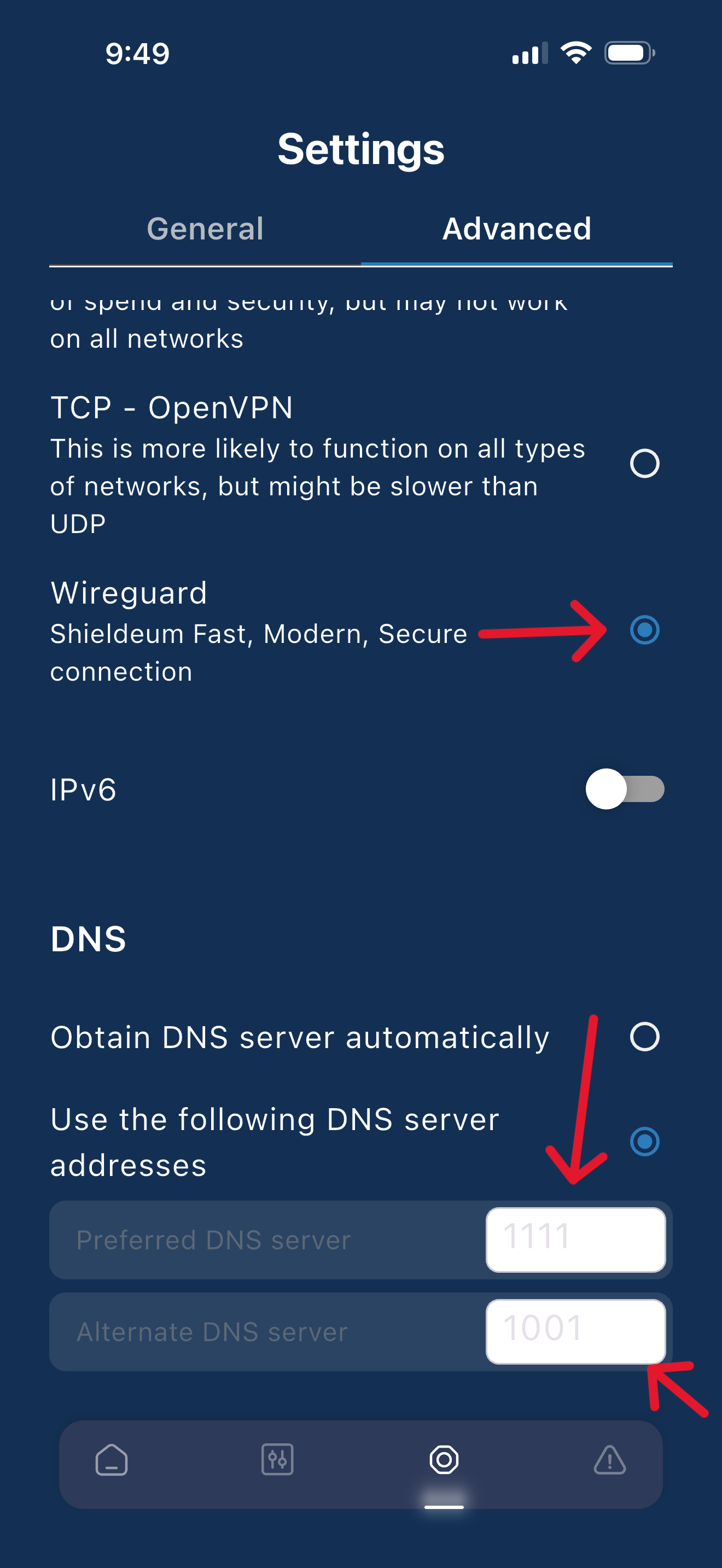
Step 2 — Set the Protocol to WireGuard
Find the Protocol setting.
If WireGuard is available, select:
WireGuard
WireGuard is recommended, but it isn't mandatory.
If your device or VPN doesn't offer WireGuard, continue with the rest of the guide anyway.
Step 3 — Change the DNS Setting
Find the DNS option inside your VPN settings.
Change:
Obtain DNS server automatically
to:
Use the following DNS server
Step 4 — Enter Cloudflare DNS
Enter Cloudflare's DNS addresses:
Preferred DNS: 1.1.1.1
Alternate DNS: 1.0.0.1
IMPORTANT FOR THE QUICKCLOAK VPN CLIENT:
In the QuickCloak client, enter the values without the periods where the DNS field requires digits only:
Preferred: 1111
Alternate: 1001
Follow the screenshot below so your settings match:
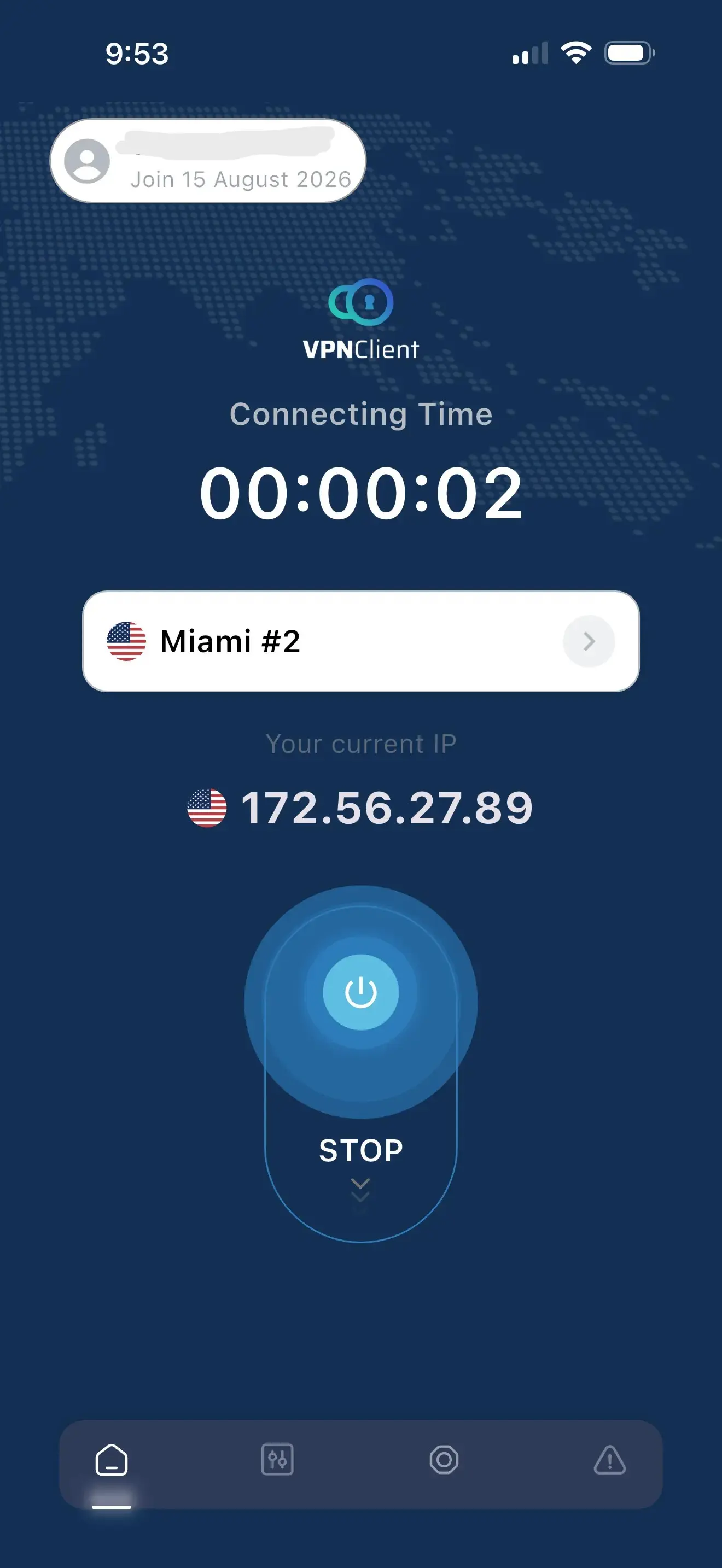
Step 5 — Return Home & Connect Again
Once you've entered the new DNS settings, tap the Home tab at the bottom of the QuickCloak VPN client.
Connect to the fastest available VPN server.
Step 6 — Try Your IPTV Again!
Completely close your IPTV application and reopen it.
Try the same channel or stream that was buffering before.
For many customers we've helped with stubborn buffering problems, this is where the difference becomes obvious.
We've had customers with fast internet who tried seemingly everything and couldn't understand why their IPTV continued buffering.
Sometimes the VPN wasn't the problem — it just needed the right configuration.
Using a VPN to provide a different network path, selecting WireGuard when available, and configuring the VPN client to use Cloudflare DNS has been a game changer for many of these cases.
📱 YES — Try This on Cellular Data!
If you use IPTV on a phone, tablet, hotspot or another device connected through cellular data, this is absolutely worth trying.
Don't assume that having 5G and an amazing speed test means the network path to your IPTV server is equally amazing.
Cellular networks are complicated.
Your traffic can encounter carrier routing, CGNAT, IPv6/IPv4 translation, congestion, packet loss and other network conditions before reaching its destination.
A VPN gives you an opportunity to send that traffic through a different path.
That's why someone can have extremely fast 5G internet and see their IPTV suddenly perform much better after connecting through the right VPN server.
🛡️ Already Have Another VPN? Use It!
We recommend QuickCloak VPN, but you do NOT have to use QuickCloak for this troubleshooting method.
If you already subscribe to another reputable VPN provider, try it first.
Look through your VPN's settings for:
- Protocol — choose WireGuard if available
- Custom DNS
- Primary/Preferred DNS
- Secondary/Alternate DNS
If custom DNS is supported, try:
1.1.1.1
1.0.0.1
Reconnect your VPN after changing the settings, completely restart your IPTV application and test it again.
If your existing VPN works, great! There's no reason to purchase another one.
If you don't have a VPN, or your current VPN doesn't provide the options you need, that's where QuickCloak VPN comes in.
🧰 Still Buffering? Try These Additional Steps
- Change VPN servers. Try another nearby server. Sometimes another VPN location has a better path to the streaming server.
- Use WireGuard. If you're currently using another VPN protocol, try WireGuard where available.
- Force-close your IPTV player. Completely close it and reopen it.
- Restart your streaming device.
- Restart your modem/router if you're using home internet.
- Compare Wi-Fi and cellular. If IPTV works perfectly on one but not the other, that's useful evidence that the network connection or path is contributing to the problem.
- Try multiple channels. If hundreds of channels work but one particular channel buffers, that individual stream may be the problem.
- Try another VPN location. “Fastest” is a good starting point, but the closest server isn't guaranteed to have the best route to every destination.
⚠️ A Speed Test Doesn't Tell the Whole Story
IPTV buffering does NOT automatically mean your internet connection is too slow.
If your speed test says 300 Mbps, you're measuring your connection to the speed-test infrastructure — not necessarily the quality of the entire path between you and the IPTV streaming server.
Think of it like driving.
You can own a car capable of going 150 MPH.
That doesn't help if the particular road you're taking has a traffic jam.
A VPN can sometimes give your internet traffic another road.
That's why changing the network path can make such a big difference even though your internet package itself hasn't changed.
🏆 One of Our Favorite Fixes for Stubborn IPTV Buffering
We've helped plenty of customers who seemed to have tried everything.
They had fast internet.
They restarted everything.
Some had even tried a VPN and assumed the VPN didn't help.
But after changing a few settings — particularly using WireGuard where available and setting the VPN client to Cloudflare DNS — many of these stubborn buffering cases improved dramatically.
That's why we're publishing this guide.
If you're experiencing IPTV buffering despite having fast internet — especially on 5G or cellular data — try these settings before giving up.
And if you've already tried a VPN without success, don't write it off until you've tried the configuration above.
🚀 Don't Have a VPN? Try QuickCloak VPN
If you don't already have a VPN, QuickCloak VPN makes it easy to follow this guide.
- ✓ Starting at $8/month
- ✓ $59.99/year — approximately $5/month
- ✓ Designed with streaming in mind
- ✓ WireGuard available where supported
- ✓ Custom DNS configuration
- ✓ Multiple device support
- ✓ Easy-to-use VPN client
- ✓ Refund available if it doesn't fix your problem
Already purchased?
📋 Quick Reference: IPTV Buffering Fix Settings
VPN Server: Fastest available server
Protocol: WireGuard (recommended when available)
DNS Setting: Use Custom DNS
Cloudflare Preferred DNS: 1.1.1.1
Cloudflare Alternate DNS: 1.0.0.1
QuickCloak client when digits-only input is required:
Preferred: 1111
Alternate: 1001
Remember: QuickCloak VPN is what we're using and recommending for this tutorial, but you can try the same troubleshooting principles with another VPN that supports the necessary settings.
Technical note: IPTV buffering can have many causes, including the streaming source itself, overloaded servers, Wi-Fi interference, packet loss, network congestion, device performance and ISP/network conditions. No VPN or DNS setting can fix every possible cause. This guide focuses on network-path and DNS troubleshooting and is based in part on the results we've seen while helping customers experiencing buffering despite otherwise fast internet connections.